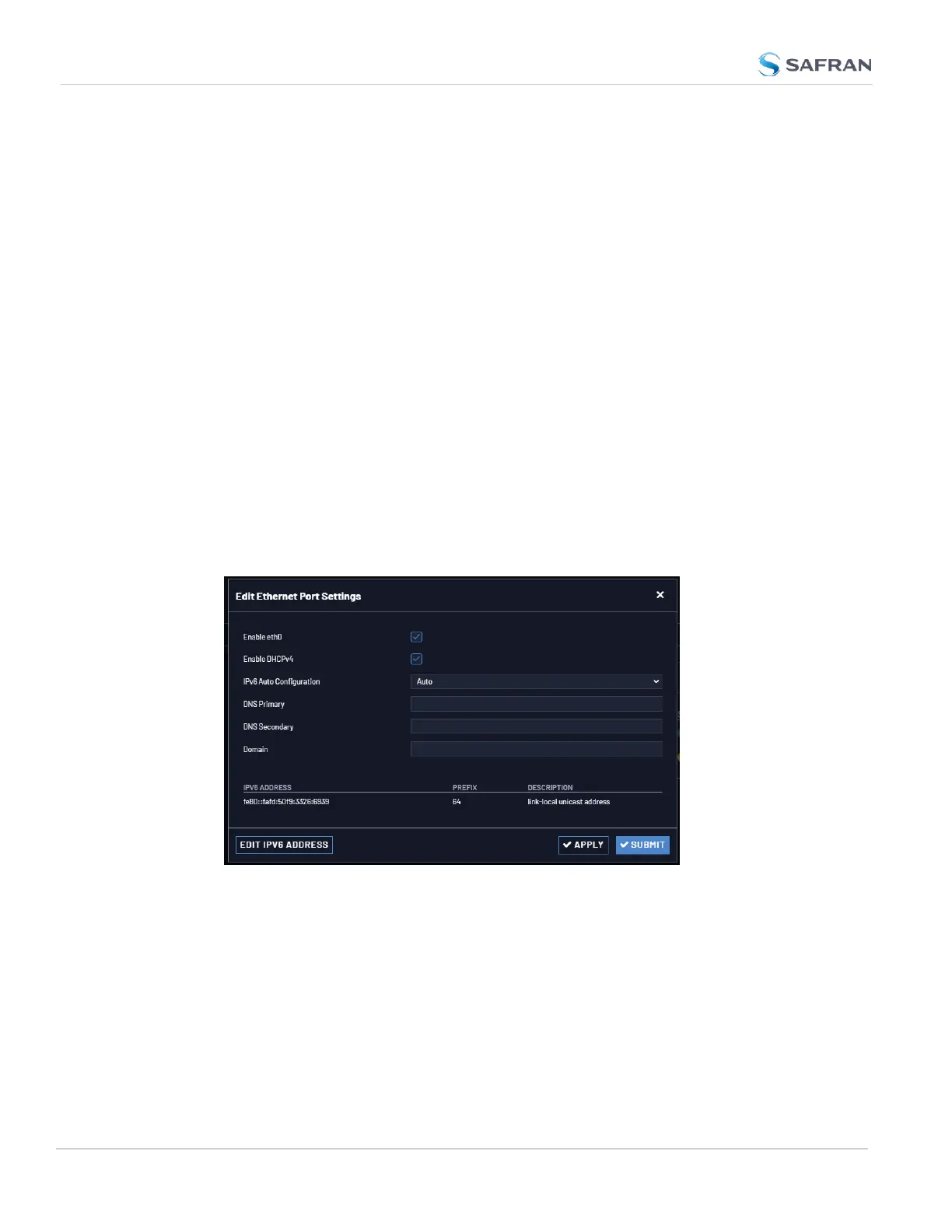
Assigning a Static IP Address Using the Web UI:
1. Enter the IP address identified during setup ("Initial Network Setup" on
page34) into the address field of your browser (on a computer connected
to the VersaSync network). If the network supports DNS, the hostname
may also be entered instead (the default hostname is "Spectracom"). The
start screen of the VersaSync Web UI will be displayed.
2. Log into the Web UI as an administrator. The factory-default user name and
password are:
Username: spadmin
Password: admin123
3. If necessary, disable DHCP by navigating to MANAGEMENT > Network
Setup. In the Ports panel on the right, click the GEAR icon next to the Eth-
ernet Port you are using. In the Edit Ethernet Port Settings window,
uncheck the Enable DHCPv4 field. Do NOT click Submit or Apply until you
complete the next step to avoid error messages.
4. In the fields below the Enable DHCPv4 checkbox, enter the desired Static
IP address, Netmask, and Gateway address (if required). Click Submit.
For subnet mask values, see "Subnet Mask Values" on page390.
5. To verify that the address has been accepted, enter the static IP address
into the address field of the browser and log into the WebUI again.
6. To continue with your configuration; see: "Configuring Network Settings"
on page70.
42
CHAPTER 2 • VersaSync User Manual Rev. 12
2.6 Setting up an IP Address



 To Next Page