1. Navigate to MANAGEMENT > HTTPS Setup, or to MANAGEMENT > Net-
work Setup > Actions panel: HTTPS.
2. In the HTTPS Setup window, under the Certificate Request Parameters tab,
complete the form as described under "Creating an HTTPS Certificate
Request" on page80.
3. Click Submit to generate your Certificate Request.
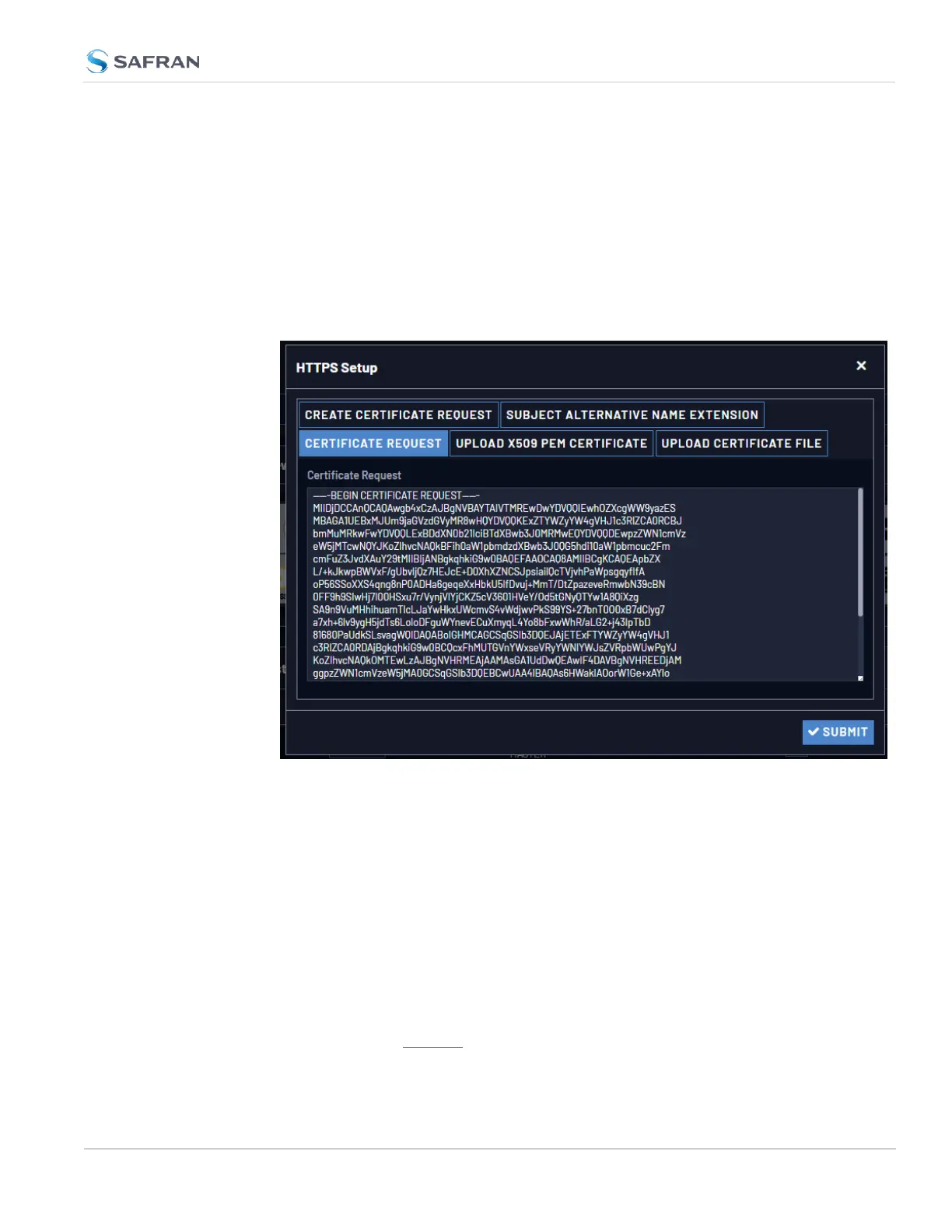
4. You have now created a Certificate Request. Navigate to the Certificate
Request tab to view it:
5. Copy the generated Certificate Request from the Certificate Request win-
dow, and paste and submit it per the guidelines of your Certificate Author-
ity. The Certificate Authority will issue a verifiable, authenticable third-party
certificate.
6. OPTIONAL: While waiting for the certificate to be issued by the Certificate
Authority, you may use the certificate from the Certificate Request window
as a self-signed certificate (see below).
NOTE: Preventing accidental overwriting of an existing certificate:
If you plan on using a new Certificate Request, fill out a new form under the Cer-
tificate Request Parameters tab. Be aware, though, that the newly generated Cer-
tificate Request will replace the Certificate Request previously generated once
you submit it. Therefore, if you wish to retain your previously generated
2.8 Configuring Network Settings
CHAPTER 2 • VersaSync User Manual Rev. 12
85



 To Next Page