2
INSIGHT Software
The INSIGHT Window
16 Evolution 200 Series User Guide Thermo Scientific
To view data listed below the data display, select them in the list. To select multiple spectra (or
sample points), hold down Shift or Ctrl. To display data from multiple samples as they are
measured, select Overlay spectra in the navigation pane.
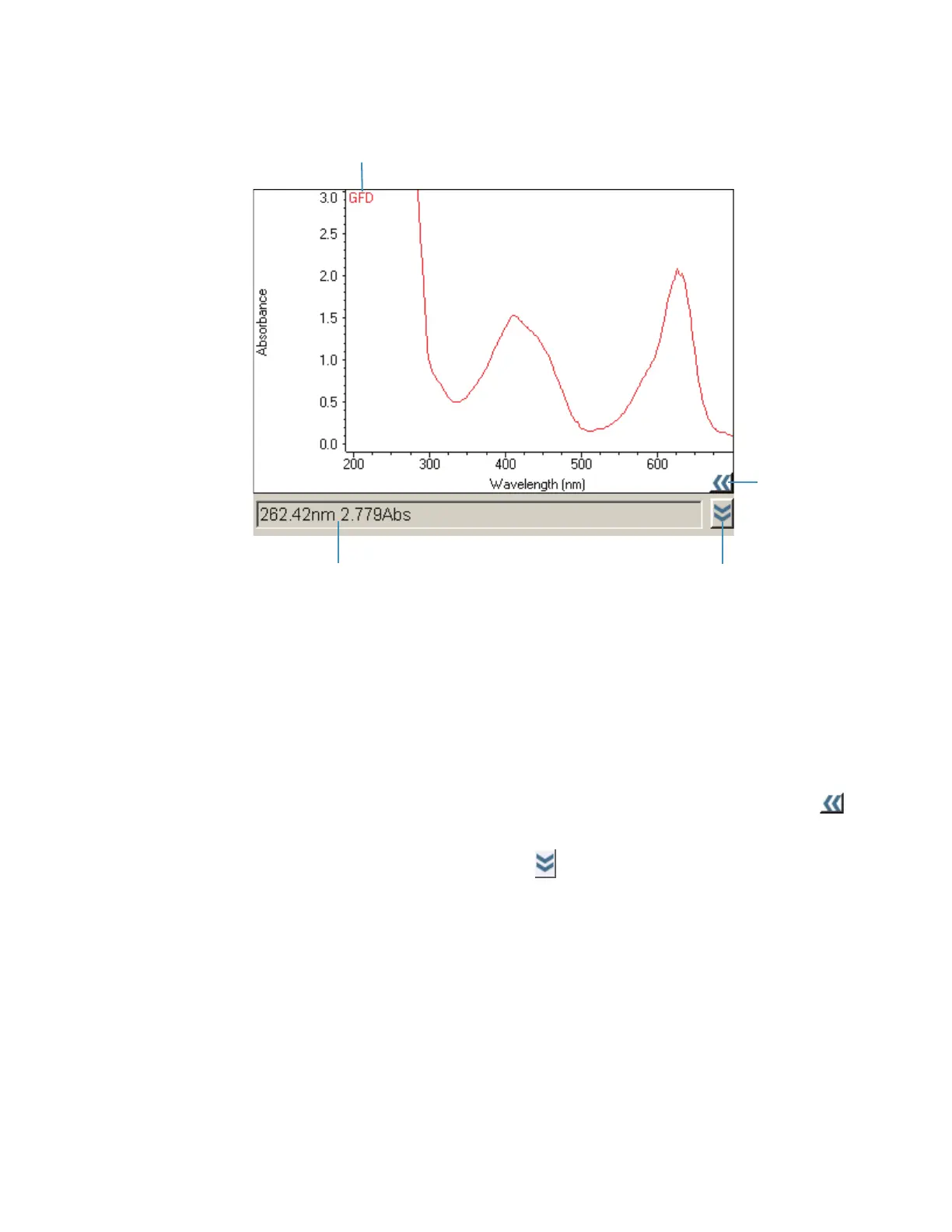
The sample IDs appear at the top of the data display, with the selected spectrum (or sample
points) and sample ID in red. To turn off the sample legend, right-click the data display, point
to Sample Legend and choose OFF.
The X and Y values of the pointer location appear below the data display.
To enlarge a region, draw a box around it and click inside the box. Alternatively, click (if
available) to reveal the view finder.
To expand the data display vertically, click .
To change the appearance of the axes or data, right-click an axis and choose Display
Attributes (if available for the current application). View the effects on the display while
adjusting the attributes. To change the color of the axes or their labels, click the appropriate
color box.
The Sample ID readout to the right of the display shows the name of the sample being
measured (or to be measured). The table below shows the results of analysis operations and
whether sample points fall within specified control limits.
Right-click the display to access these features (if available for the current data type):
Sample ID
X and Y values of pointer location
Click to expand vertically
Click to use
view finder




 To Next Page