2
INSIGHT Software
Operation
40 Evolution 200 Series User Guide Thermo Scientific
Using the Peak/Valley Measurement Tool
Using the Peak Area Tool
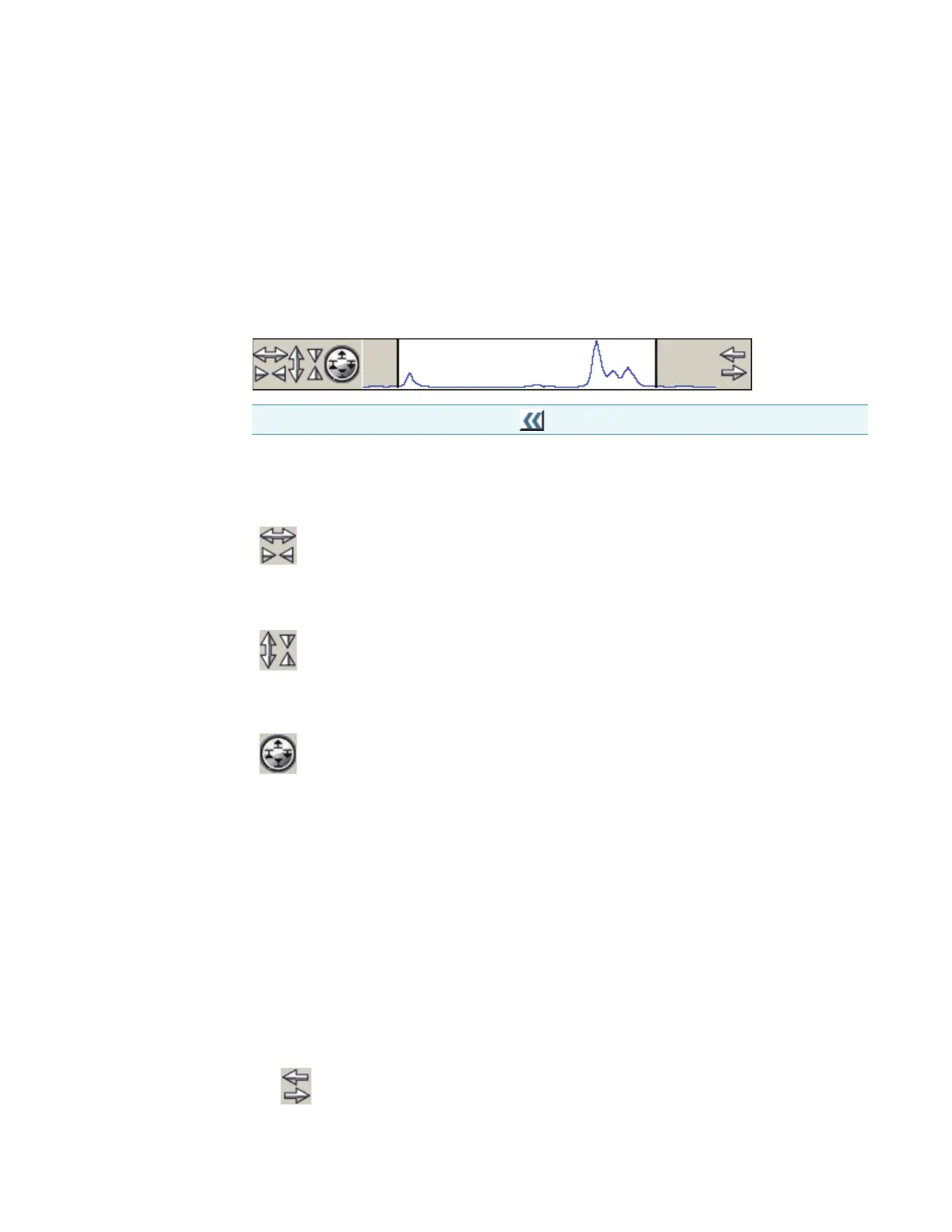
Using the View Finder
Using the View Finder
For data analysis operations such as locating peaks, use the view finder (if present) to adjust
the data display.
The currently displayed region is indicated by the region markers, the bold vertical lines.
Y To expand horizontally
Y To expand vertically
Y To expand or contract vertically while keeping the top or bottom of spectra in place
Y To display a different region of the same size
There are three ways to do this:
• To move the spectrum to the right, click the top half of the Roll button.
Note To display the view finder, click .
Click the top half of the Horizontal Expand/Contract button. To contract
horizontally, click the bottom half.
Click the left half of the Vertical Expand/Contract button. To contract vertically,
click the right half.
To expand vertically while keeping the bottom of the spectra in place, click the
symbol at the top of this button.
To expand vertically while keeping the top of the spectra in place, click the symbol
at the right.
To contract vertically while keeping the bottom of the spectra in place, click the
symbol at the bottom.
To contract vertically while keeping the top of the spectra in place, click the symbol
at the left.




 To Next Page