26
SPE-8W Smart Peltier Linear Cell Changer
Thermo Scientific Evolution 200 Series User Guide 389
Cell Changer Settings
In the selected application, use Settings > Accessories > Cell Changer to display the available
settings for a cell changer. The Cell Changer features appear only when a cell changer
accessory is installed.
Related Topics
Displaying the Temperature Status Monitor
Operation
Displaying the Cell Changer Status Monitor
When a supported cell changer is installed, the selected application can be configured to
display a cell changer status monitor above the data display.
Y To display a status monitor for an installed cell changer
1. Click Configure above the data display for the selected application. See “Instrument
Status Monitors” for more information.
A dialog box appears.
2. Select Cell changer status and click OK.
A status monitor showing the current cell changer position appears above the data display.
Feature Description
Accessory name Shows the type and serial number read from the installed sample
changer.
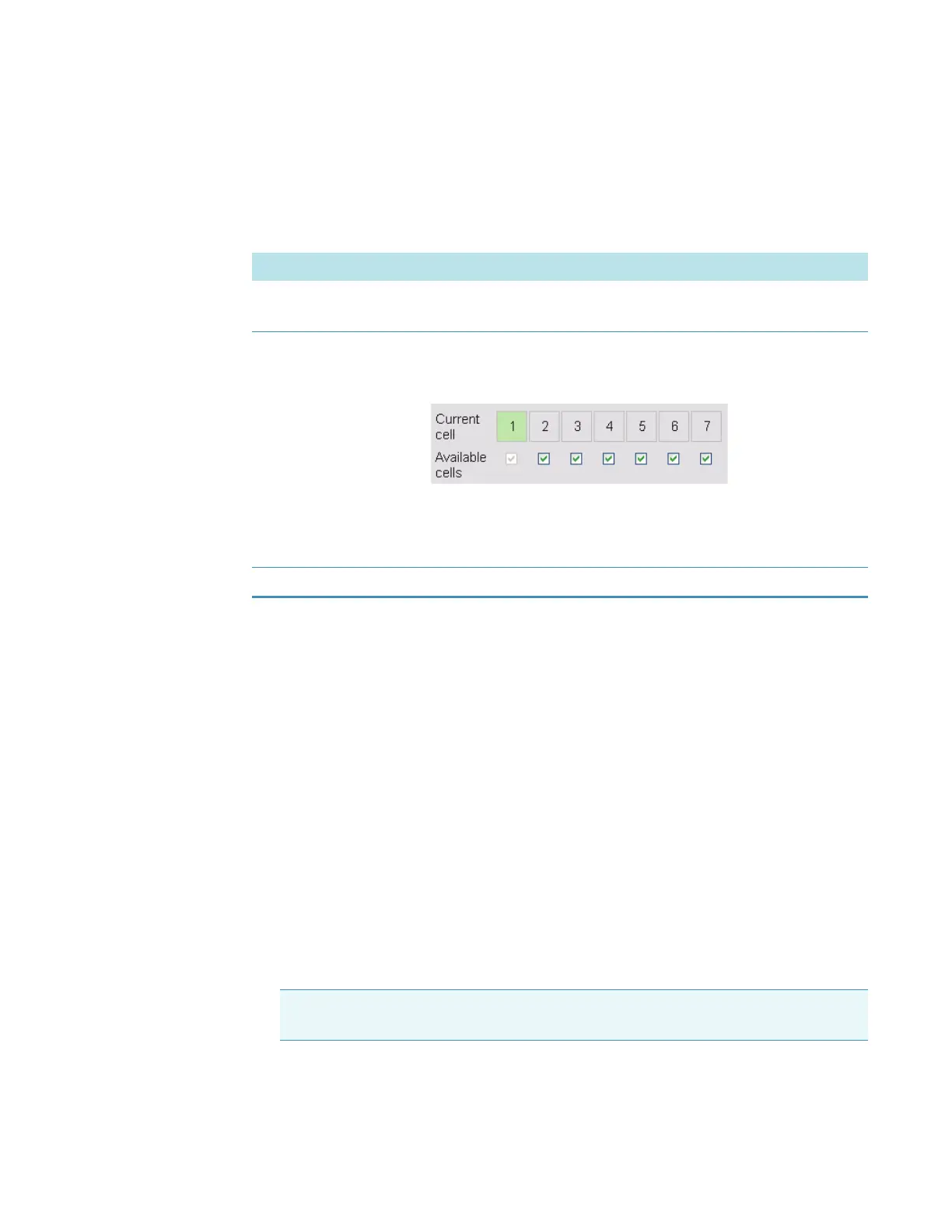
Current cell
Available cells
The numbered boxes match the cells in the changer head. The
green box indicates the cell positioned for measurement. To
manually position a cell in the light beam, click its numbered box.
The check boxes indicate cells enabled for use in the current
template or active workbook. To disable or enable a cell, click its
associated check box. Note that cell one is always enabled.
Reset Initializes the cell changer and moves cell one into the light beam.
Note The cell changer option appears in the dialog box only when a supported cell
changer accessory is installed.




 To Next Page