2
INSIGHT Software
Operation
Thermo Scientific Evolution 200 Series User Guide 83
Type a value in the Factor text box or use its up and down arrow buttons. Use Increment
to set the amount of change these buttons make to the factor when clicked. For example,
with Factor set to 1.000 and Increment set to 0.500, clicking the Factor up arrow button
changes the factor to 1.500.
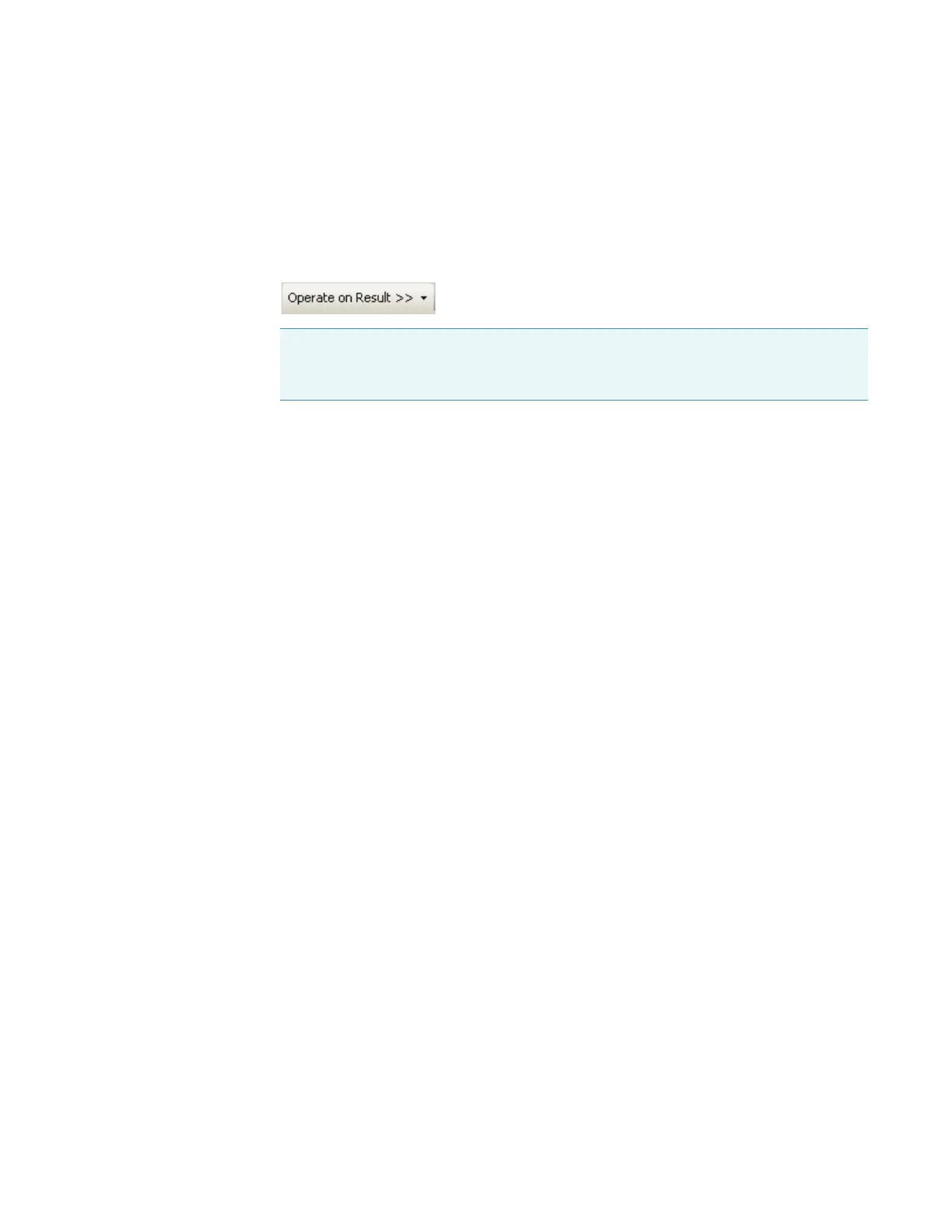
4. To perform a math operation on the addition result, click Operate on Result and choose
an operation. Otherwise, go to the next step.
Perform the operation as explained in the appropriate related topic below.
To return to the previous window, click Back.
To perform additional math operations, repeat this step.
5. To save the result in the current workbook, click Workbook and name the spectrum
when prompted.
The data is added to the list and is available for operations.
To add the result to the list without saving it, click Te m p or a r y. Asterisks at the beginning
of a spectrum name indicate the data is not saved.
6. Click Close to close each displayed math window.
Related Topics
Smoothing Scan Data
Converting Scan Data to a Derivative
Normalizing Scan Data
Subtracting a Scan Spectrum
Ratioing Two Scan Spectra
Averaging Scan Spectra
Adding, Subtracting, Multiplying or Dividing Scan Data by a Factor
Finding Peaks in Scan Data
Finding Value Level Crossings in Scan Data
Note To use the result in another Add operation, use Wor kboo k or Te m p o r a r y to
add it to the list (see step 5), click Add in the Operand 1 box, and continue with step
2.




 To Next Page