2
INSIGHT Software
Operation
84 Evolution 200 Series User Guide Thermo Scientific
Normalizing Scan Data
Use Normalize in the Math menu to adjust the Y scale of a scan spectrum so that a selected
data point has the desired Y value.
Y To normalize scan data
1. Choose Math (menu) > Normalize.
The selected spectrum appears in the Operands pane.
The workbook spectra are listed at the left. To add others:
a. Click Browse.
b. Select a folder in the left pane (use the features above it to navigate), a workbook in
the middle pane, and spectra in the upper-right pane. To select multiple spectra, hold
down Shift or Ctrl. Selected spectra appear in the lower-right pane.
c. Click OK. Each added spectrum is listed with asterisks at the beginning of its name
to indicate the data is not in the current workbook.
2. Select any other listed spectra to normalize and click Add.
To remove a spectrum from the Operands pane, click it and click Remove. To remove all
the spectra, click Clear All.
3. Select the desired Y value for the data point specified in the next step.
4. Select the wavelength of the data point.
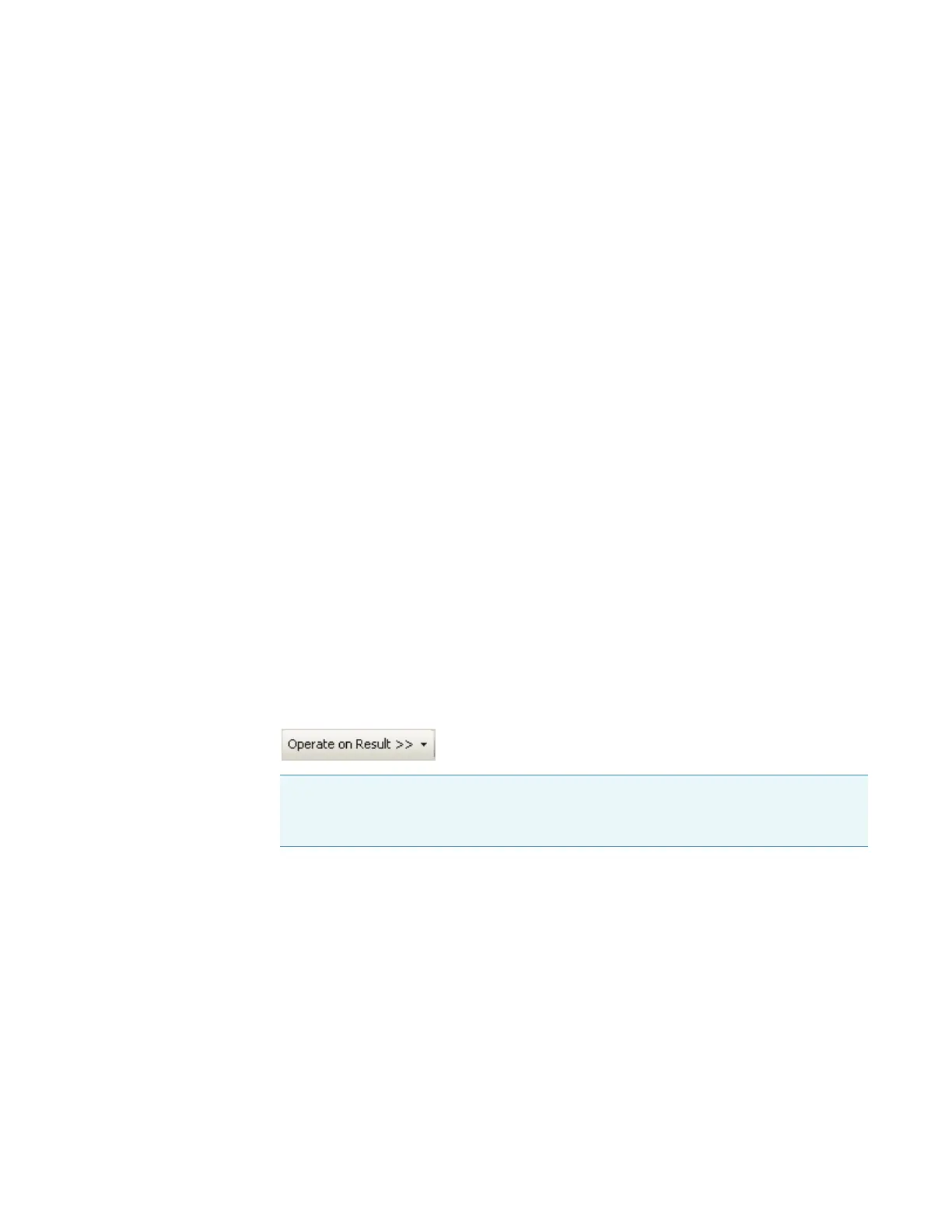
5. To perform a math operation on the normalized result, click Operate on Result and
choose an operation. Otherwise, go to the next step.
Perform the operation as explained in the appropriate related topic below.
To return to the previous window, click Back.
To perform additional math operations, repeat this step.
6. To save the result in the current workbook, click Workbook and name the spectrum or
spectra when prompted.
The data is added to the list and is available for operations.
To add the result to the list without saving it, click Te m p or a r y. Asterisks at the beginning
of a spectrum name indicate the data is not saved.
Note To use the result in another Normalize operation, use Workbook or
Te m p o r a r y to add it to the list (see step 6), click Add to make it an operand, and
continue with step 2.




 To Next Page