Note are defined in the scenario. They cannot be edited on the Scenario
Manager screen.
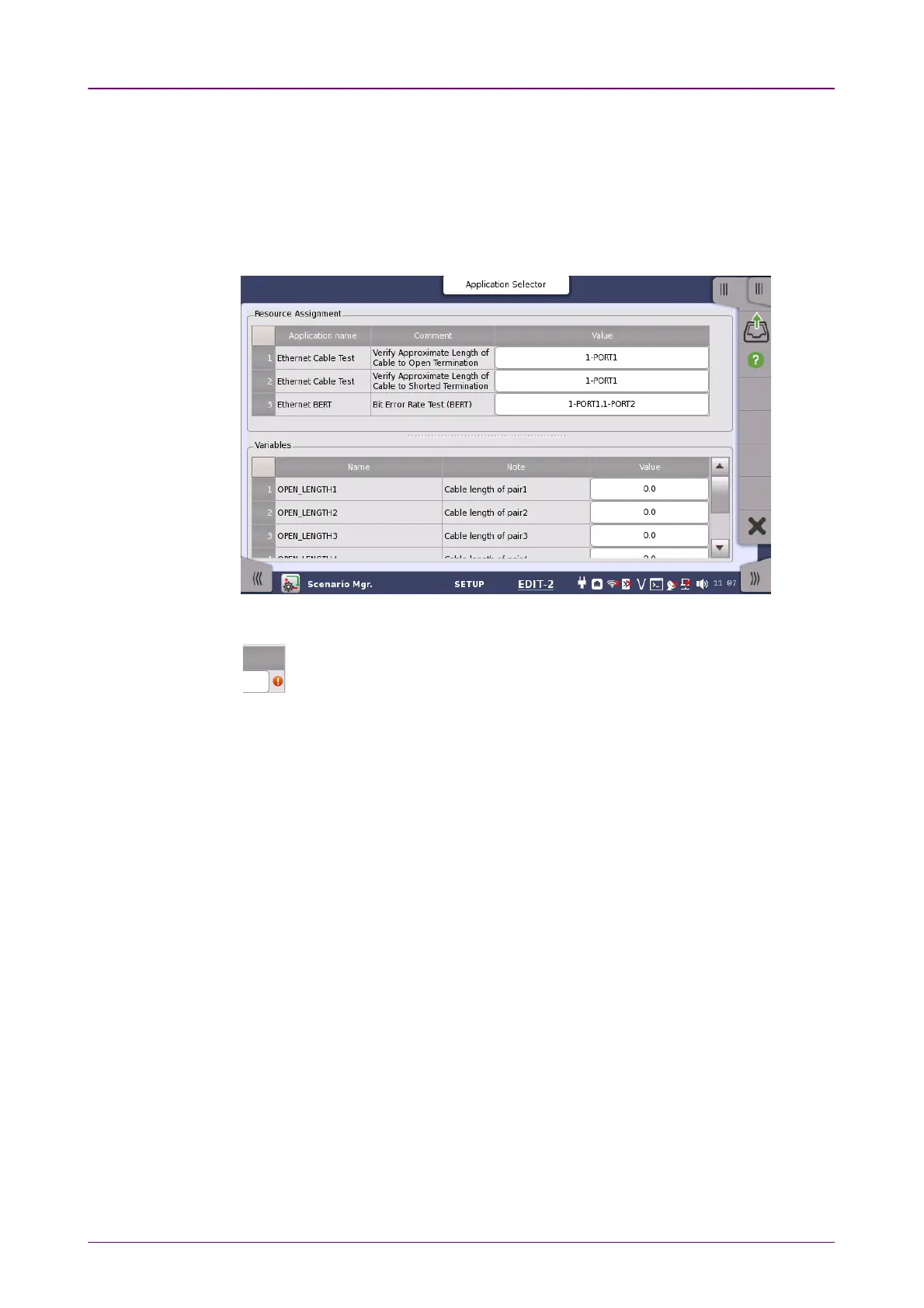
Editing the scenarioEditing the scenario
1. Touch the row of the scenario in the table.
2. Touch EditEdit button. The Edit screen appears.
3. Touching the ValueValue field opens the dialog box.
Touch the SETUPSETUP at the bottom of the screen to return to the setup screen.
The warning icon appears at right of Resource Assignment when the
port defined in the scenario does not exist. In this case, touch the
ValueValue field and set the available port(s).
Exporting the scenario to the fileExporting the scenario to the file
Allows user to save the edited scenario.
1. Touch the row of the scenario in the table.
2. Touch ExportExport button. The dialog box appears.
3. Enter the file name, then touch SaveSave.
Deleting the scenarioDeleting the scenario
This operation deletes the scenario in the table.
1. Touch the row of the scenario in the table.
2. Touch DeleteDelete button.
3. The confirmation dialog box appears. Touch YesYes.
Hiding/showing the scenario iconHiding/showing the scenario icon
Touch HideHide button to switch showing or hiding the scenario icon.
Hide: Does not show the scenario icon on the Utilities screen (Displayed
currently).
Show: Shows the scenario icon on the Utilities screen (Not displayed
currently).














 To Next Page