1010..11..22 Running the ScenarioRunning the Scenario
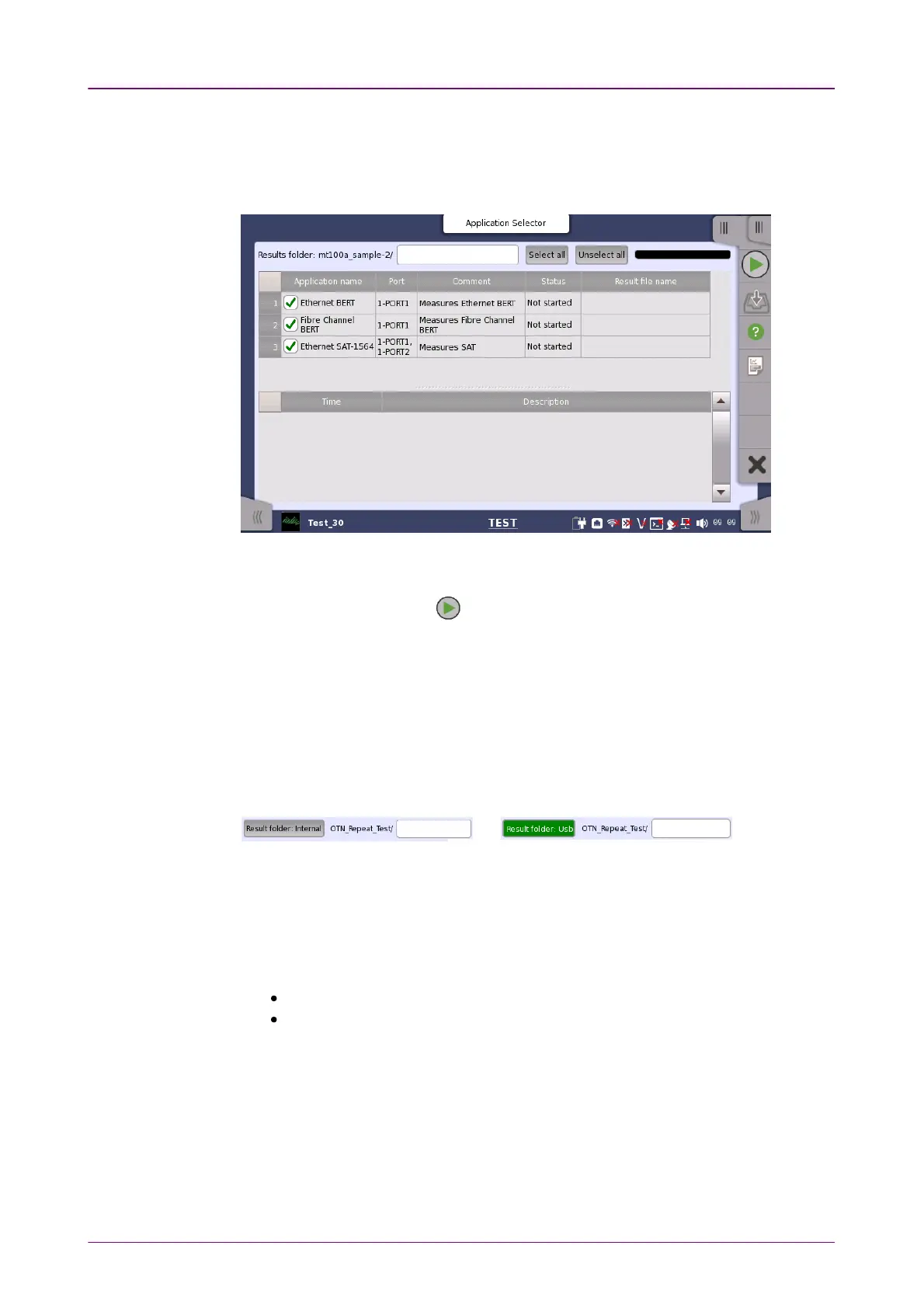
When scenario is loaded, the icon appears in Scenario of the Utilities screen. If
touching the icon, the following screen is displayed.
This screen displays the Pass/Fail results and status of the scenario execution.
Select the check box for the application name you want to run.
To run the scenario, touch in the Application Toolbar.
Results folderResults folder
The destination folder to save the result file is displayed. Touch the field to
open the dialog box and select the folder. If selecting AutoAuto, the folder name will
be generated automatically.
The button to specify the destination drive appears when touching an icon on
the Utilities screen after USB memory stick was connected to the Network
Master.
Even if Result Folder :UsbResult Folder :Usb has been set, result files are stored in Internal
memory temporary and moved to USB memory stick after the scenario
execution has finished.
In cases below, a warning message appears when Network Master attempts to
save result files to USB memory stick. If Network Master failed to save result
files to USB memory stick, they are stored in Internal memory.
The USB memory stick was removed.
The free space of the USB memory stick is insufficient.
Application and the result displayApplication and the result display
In the upper table, Application name, Port number for test use, and comment
which are written in the scenario are displayed. If the scenario has executed,
the test result and the result file name appear in the each column.
Status indication during Scenario executionStatus indication during Scenario execution
In the lower table, the status of the application and the time that has occurred
are displayed.














 To Next Page