44..11..22 Navigating in the GUINavigating in the GUI
As shown in the previous figure, you can navigate from the application selector
to a specific application in the
workspace
vertically. You can navigate between
the application selector and the result file browser in the
desktop
horizontally.
In this way, you can switch screens in both horizontal and vertical navigation.
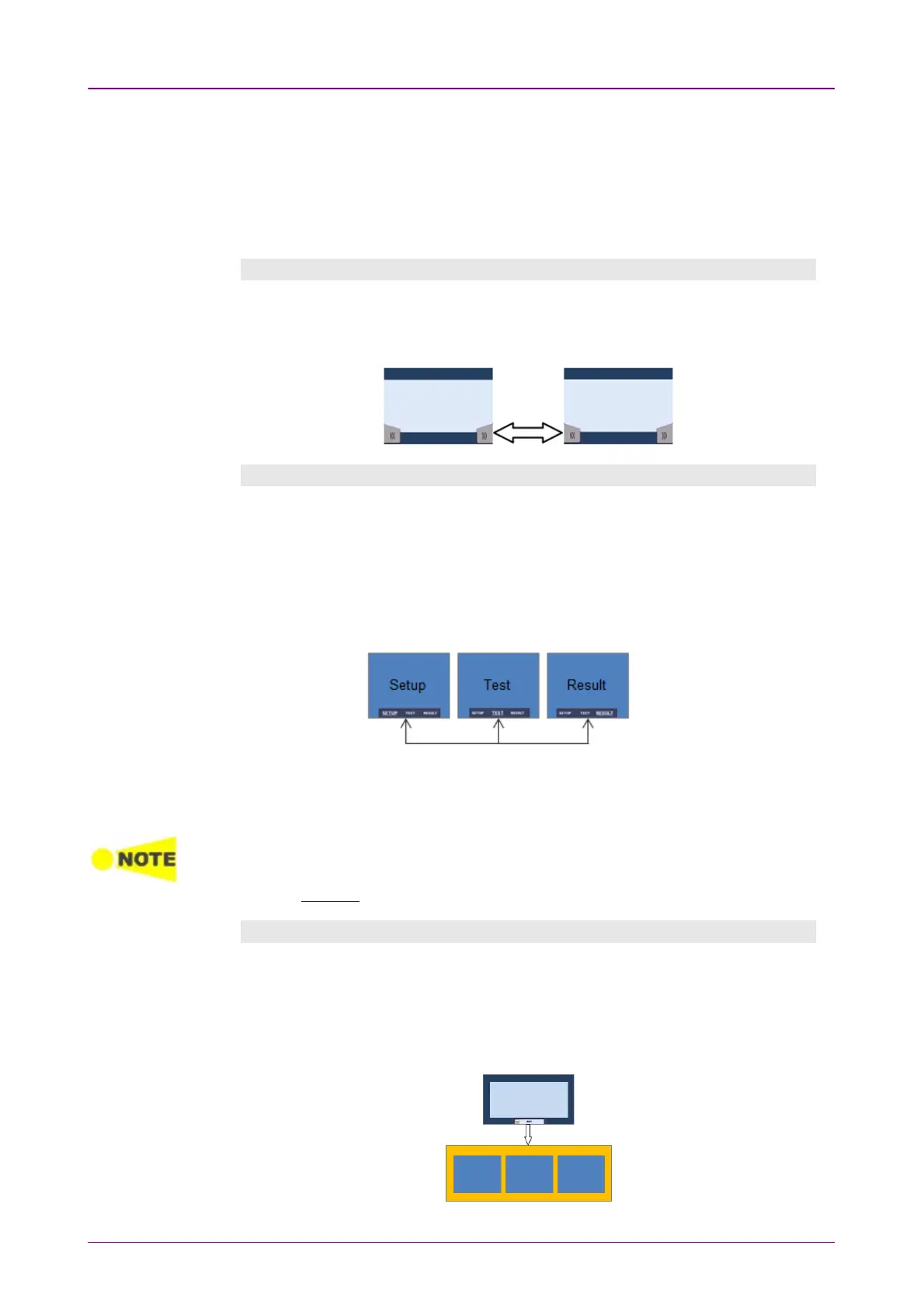
Horizontal navigation at desktop levelHorizontal navigation at desktop level
You can switch between the application selector and the result file browser by
touching the tab displayed in the bottom right-hand corner and the bottom left-
hand corner.
Horizontal navigation within a workspaceHorizontal navigation within a workspace
In the workspace you can step through the setup by touching the navigation
tabs displayed in the bottom corners of the screen. The right-hand tab brings
you to the next step in the setup, while the left-hand tab allows you to take a
step backwards.
Alternatively, you can use the
screen indicator
at the bottom of the screen to
switch between ports setup, test setup and test result.
It is also possible to loop back directly to the ports setup from the test result
screen if you need to rerun the test with different settings.
To get from the Test Setup to the Test Result screen during a new test, you must run the
test. This is done by touching the 'Start' icon in the Application toolbar, which is the
expandable toolbar shown on the right-hand side of the screen. Please refer to the
separate Toolbars section for information about the toolbars.
Vertical navigation between Vertical navigation between desktop and workspacedesktop and workspace
When an application is currently running, the application selector screen will
contain a tab at the bottom which allows you to go directly to the screen last
displayed in the application's workspace. Similarly, the result file browser
screen will contain a tab at the bottom which brings you to the test result
screen of the running application.














 To Next Page