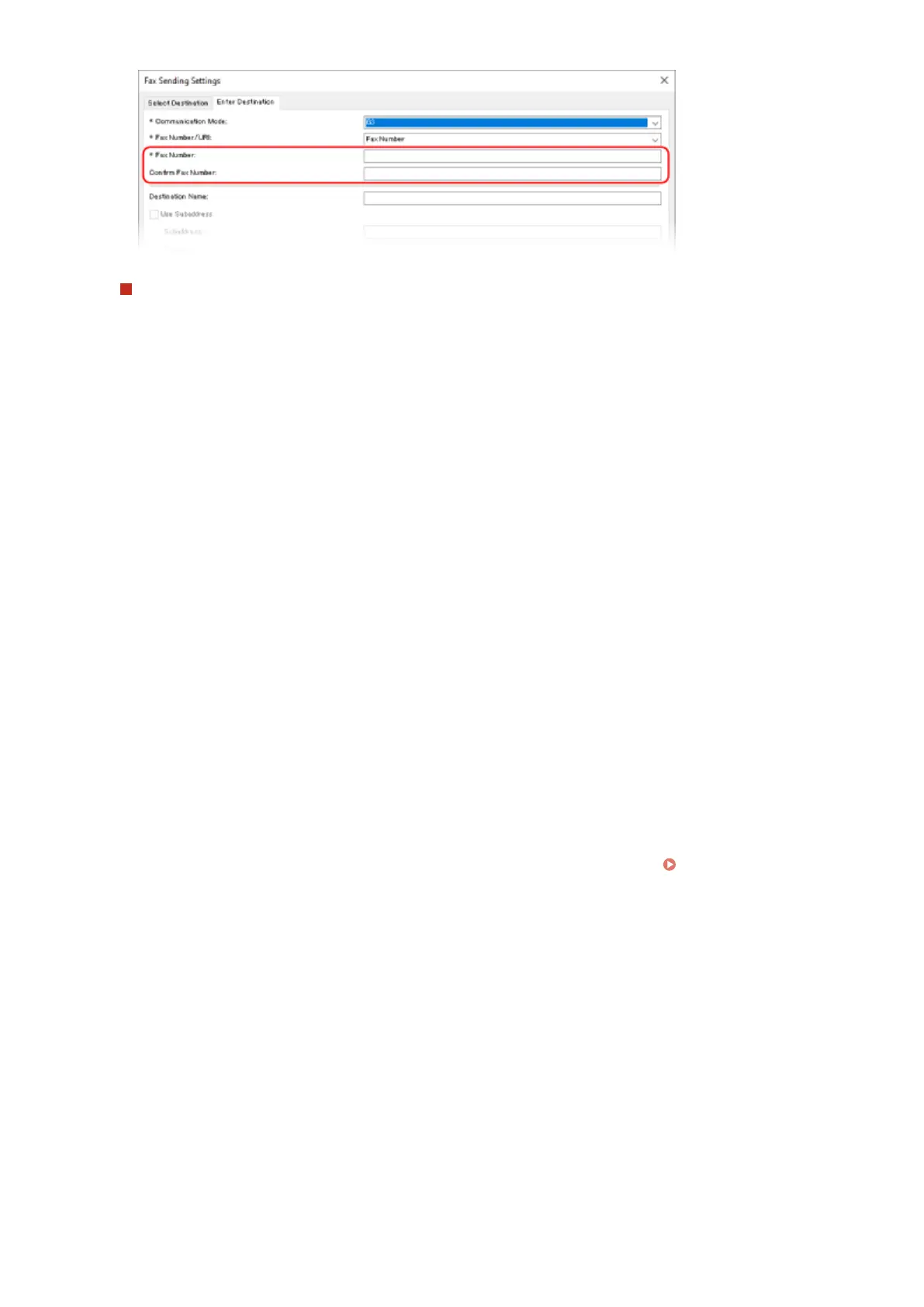
When Entering Multiple Fax Numbers
1
In [Select Destination] tab, click [Add Destination].
➠ The [Add Destination] scr
een is displayed.
2
Enter the destination name and fax number, and click [Add Next Destination].
When [Conrm Fax Number] can be enter
ed, enter the same fax number.
3
Repeat Step 2, and after entering all destinations, click [OK].
5
Congure the co
ver sheet, the setting for saving the TX Job Log, and other fax
setting, as needed.
● T
o congure the cover sheet details, click [Cover Sheet].
● To save the TX Job Log to the computer, select the [Store Sent Fax Information and Image] checkbox.
● For more information about the other fax settings, click [Help] on the [Fax Sending Settings] screen to display
help.
6
Click [Send].
➠ A scr
een conrming the send destination is displayed.
7
Check that the destination is correct, and click [OK].
➠ The fax is sent via the machine.
● Use [Status Monitor] on the oper
ation panel to view the sending status and log.
Checking the Status and
Log for Sent and Received Faxes(P. 243)
● When sending a fax with the [Store Sent Fax Information and Image] checkbox selected, you can view the log
also from the [Sent Fax Information and Image] tab of the fax driver.
◼ When Using macOS
1
Open the document you are sending on your computer.
2
In the application used to open the document, click [Print].
➠ The printing dialog bo
x appears.
Faxing
234











 To Next Page