3
Select the size of the placed original.
➠ The cop
y screen reappears.
4
Congure the layout (page or
der) when combining originals, as needed.
1
Press [N on 1].
➠ The [N on 1] scr
een is displayed.
2
Press [Select Layout].
➠ The [Select Layout] scr
een is displayed.
3
Select the page order.
➠ The [Scan Size] scr
een is displayed.
4
Select the size of the placed original.
➠ The cop
y screen reappears.
● When combining pages, the copy ratio is set automatically according to the following. You can also change
the copy ratio setting manually.
- Number of pages to be combined
- Original size setting
- Size of paper used for copying
● When pages are combined, a margin may be created around the copied images.
Collating Copies by Page (Collate)
When cop
ying multiple copies of a multi-page original, you can collate the copies in the page order of the original. This
is convenient when copying handouts for meetings.
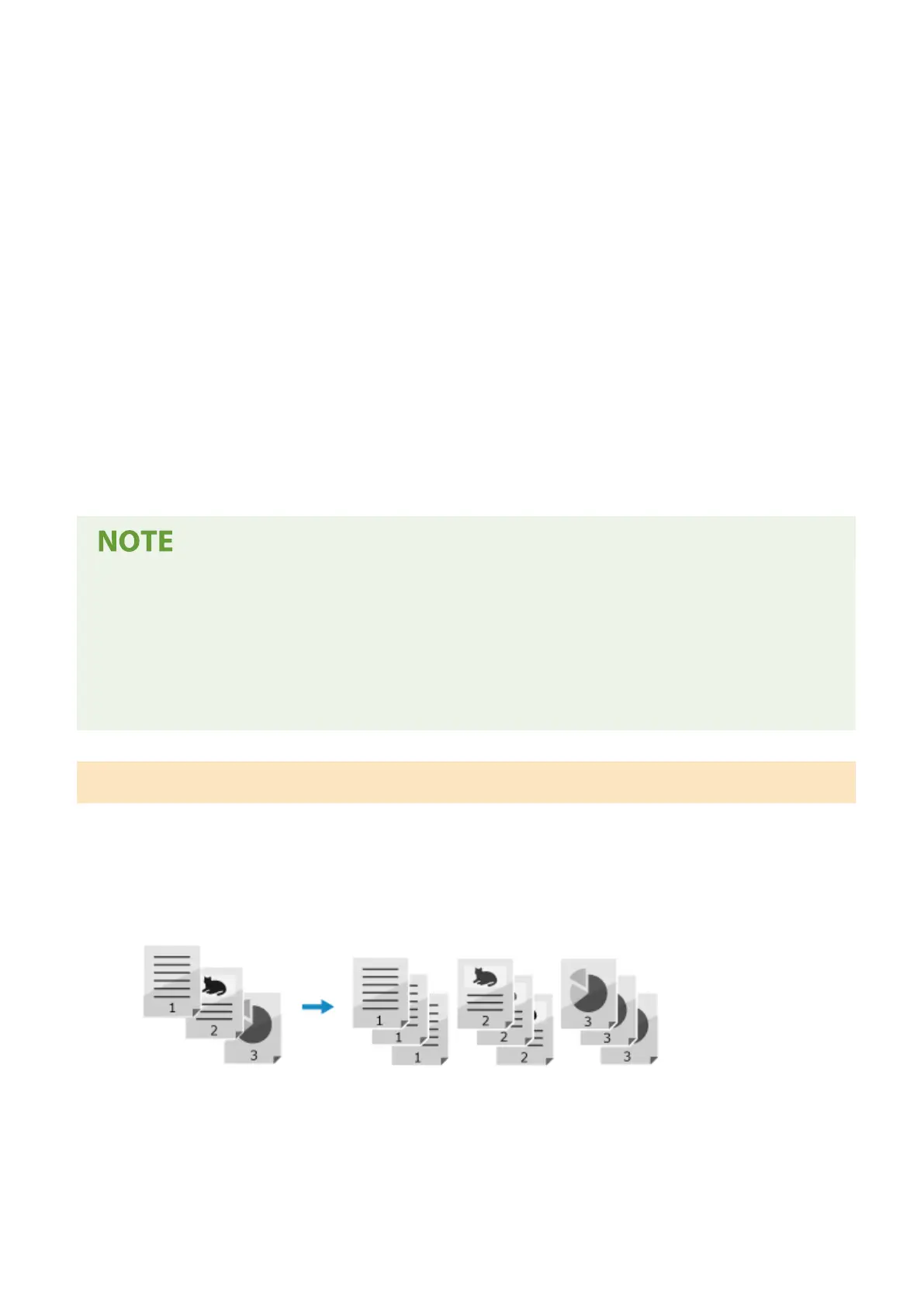
When Copying without Collating
The copies are grouped by the page of the original in the number of specied copies and not collated.
For example, when you are making three copies of a three-page original, the printouts are arranged in the
following order: 1, 1, 1, 2, 2, 2, 3, 3, 3.
When Copying with Collating
The copies ar
e collated into sets in the page order of the original.
For example, when you are making three copies of a three-page original, the printouts are arranged in the
following order: 1, 2, 3, 1, 2, 3, 1, 2, 3.
Copying
253











 To Next Page