1
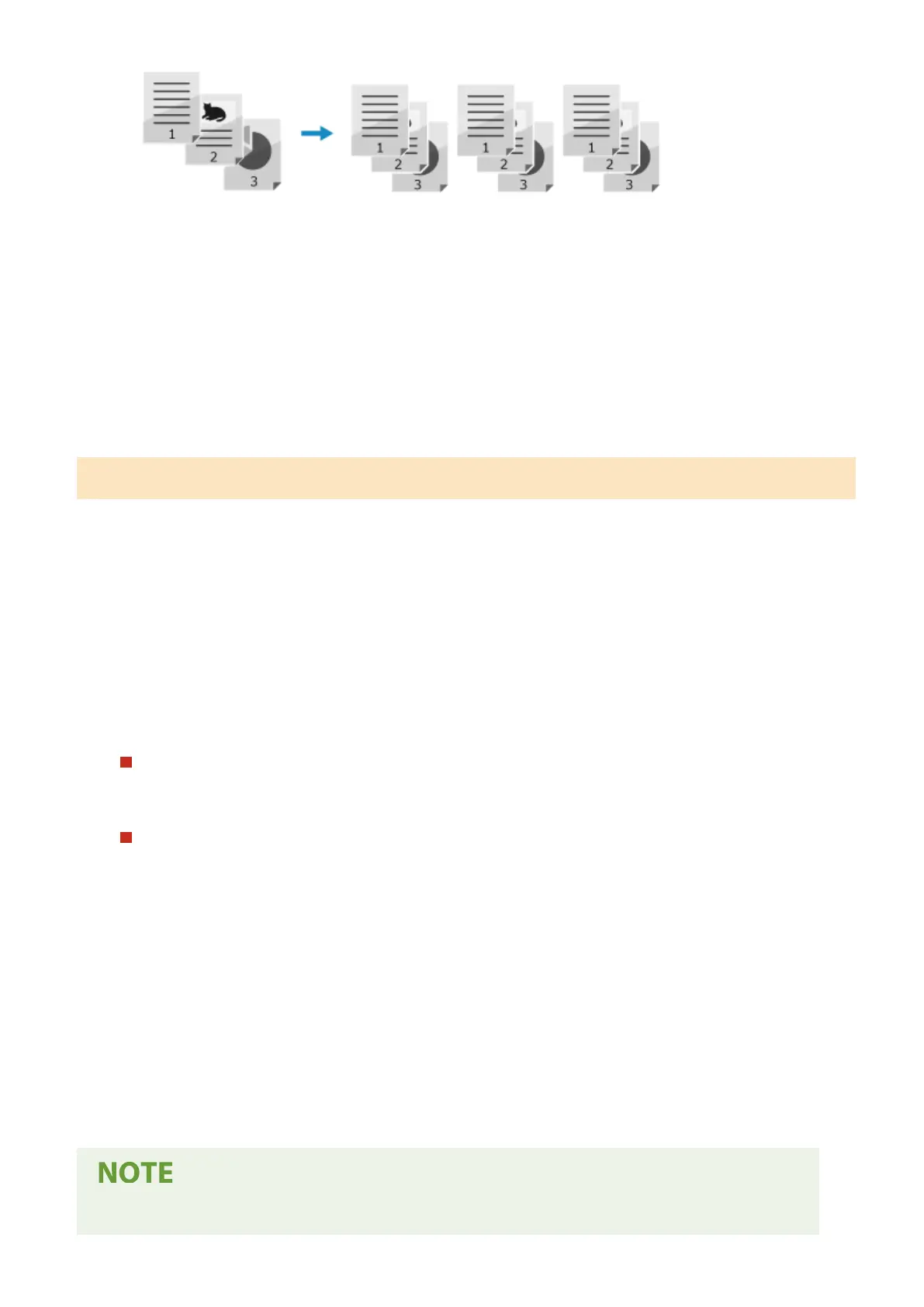
Press [Collate] on the copy screen.
➠ The [Collate] scr
een is displayed.
2
Press [On].
➠ The cop
y screen reappears.
Adjusting the Density
Y
ou can adjust the density to suit the original when copying.
If text or images in the original are too faint or dark, adjust the density of the entire original.
To create clean copies of an original with a colored background or a newspaper, adjust the density of the background.
1
Press [Density] on the copy screen.
➠ The [Density] scr
een is displayed.
2
Adjust the density.
Adjusting the Density of the Entire Original
Dr
ag the slider to the left or right to adjust the density, and press [Apply].
Press [+] to increase the density and [-] to lower it.
Adjusting the Density of the Background
1
Press [Background].
➠ The [Backgr
ound] screen is displayed.
2
Select the adjustment method and press [Apply].
[Auto]
An optimal density for the original is automatically set.
[Original T
ype] is automatically set to [Text].
[Adjust (Manual)]
Drag the slider to the left or right to adjust the density, and press the [Apply].
Press [+] to increase the density and [-] to lower it.
● When you adjust the density of the backgr
ound, parts other than the background may also be affected.
Copying
254











 To Next Page