2
Select a combination of the number of passports and whether to use 2-sided
printing.
[2 on 1 (2-Sided)]
Combines two passports onto one side of a sheet of paper b
y copying with 2-sided printing. Copies four
passports onto both sides of a sheet of paper with 2-sided printing.
[4 on 1 (2-Sided)]
Combines four passports onto one side of a sheet of paper by copying with 2-sided printing. Copies eight
passports onto both sides of a sheet of paper with 2-sided printing.
[2 on 1]
Combines two passports onto one side of a sheet of paper.
[4 on 1]
Combines four passports onto one side of a sheet of paper.
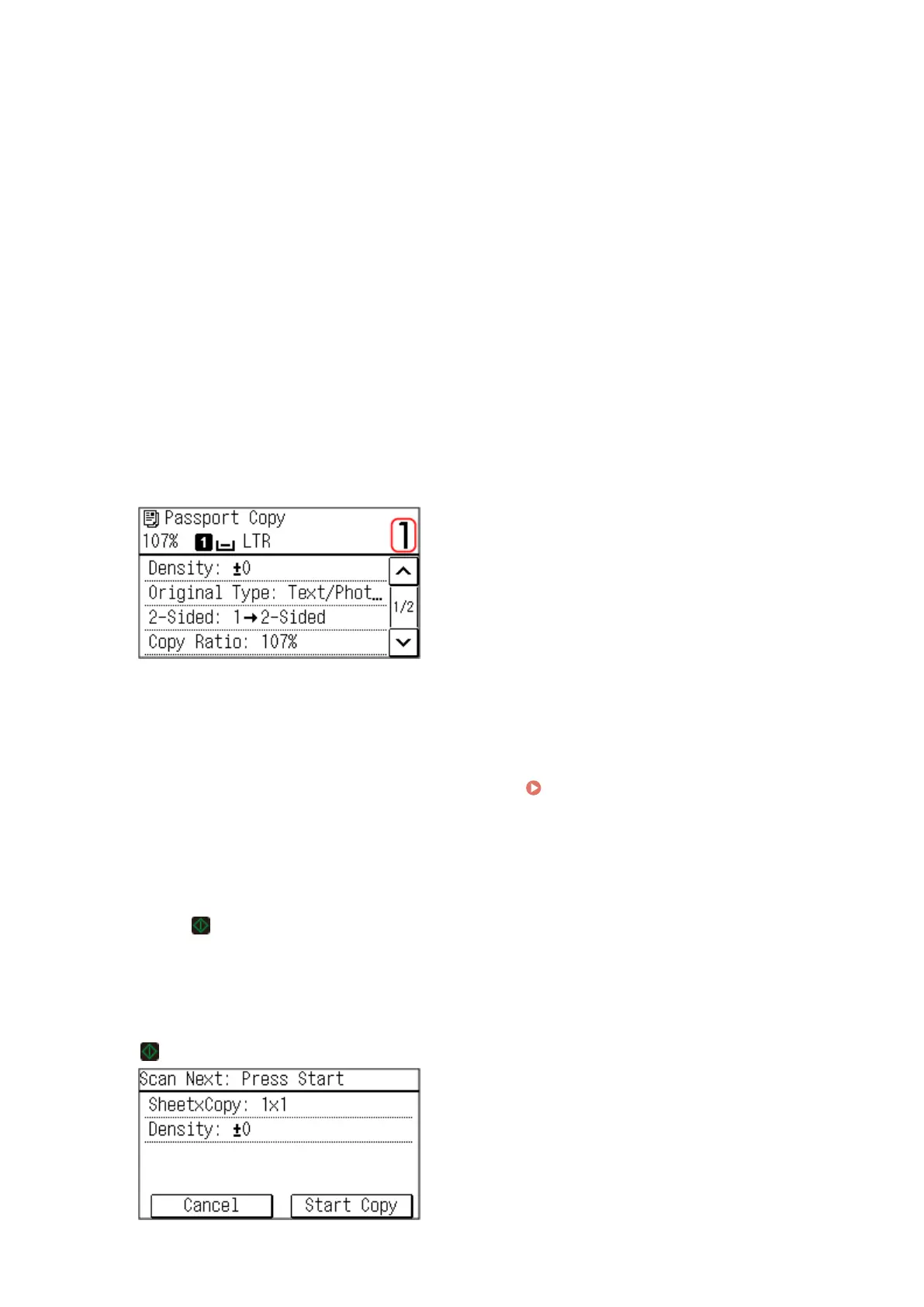
➠ The copy screen is displayed.
3
Set the number of copies.
Use the numeric keys to enter the number of copies.
* When you use Passport Cop
y to make copies, the copy ratio is set automatically according to the size of the
paper used for copying and the number of passports to combine. You can also press [Copy Ratio] to change
the copy ratio manually.
4
Congure the other cop
y settings, as needed.
Additional Copying Features (Touch
Panel Model)(P
. 251)
● Y
ou can adjust the density and image quality.
● You can change the number of passports to combine (N on 1) and the 2-sided copy settings selected in 3.
5
Press
.
➠ The rst passport is scanned.
6
When [Scan Next] is displayed, place the next passport on the platen glass, and press
.
Copying
272











 To Next Page