5
When [Connected.] appears on the operation panel, press [Close].
➠ When the machine is connected to the wir
eless LAN, [
] appears on the [Home] screen.
6
Wait a few minutes.
➠ By default, an IP addr
ess is set automatically.
To use a specific IP address, set this manually.
Setting IPv4 Addresses(P. 71)
Setting IPv6 Addresses(P. 75)
If an Error Message Appears during Operation and a Connection Cannot Be Established
● Pr
ess [Close], and repeat the procedure starting from Step 2.
5 Lines LCD Model
Required Preparations
● Access the wir
eless LAN router from a computer, and enable registration of a WPS PIN code.
* For details on how to register a WPS PIN code, see the manual of your wireless LAN router.
1
On the operation panel, select [Wireless LAN Set.] in the [Home] screen and press .
[Home] Screen(P. 113)
➠ The [Select Network] scr
een is displayed.
● If the login screen appears, enter the System Manager ID and PIN, and then press
. System Manager
ID and PIN(P
. 5)
● If the message [Enable the wireless LAN?] appears, select [Yes] and press
.
● If the message [Cannot nd the access point.] appears, pr
ess
.
2
Select [Other Connections] and press
.
3
Select [WPS PIN Code Mode] and press .
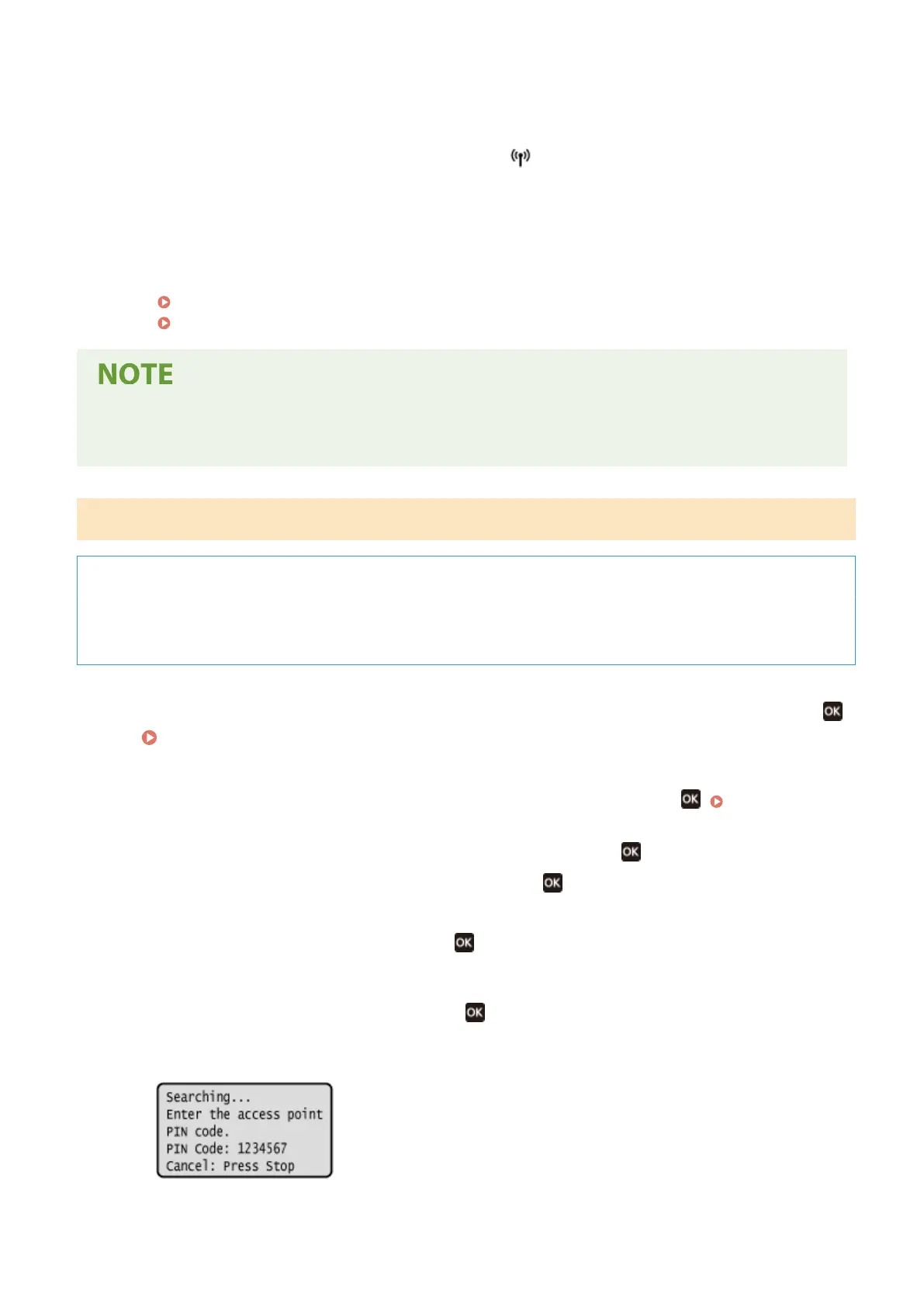
➠ A PIN code is gener
ated.
Once this screen is displayed, you must register the WPS PIN code to the wireless LAN router within 10
minutes.
Setting Up
61











 To Next Page