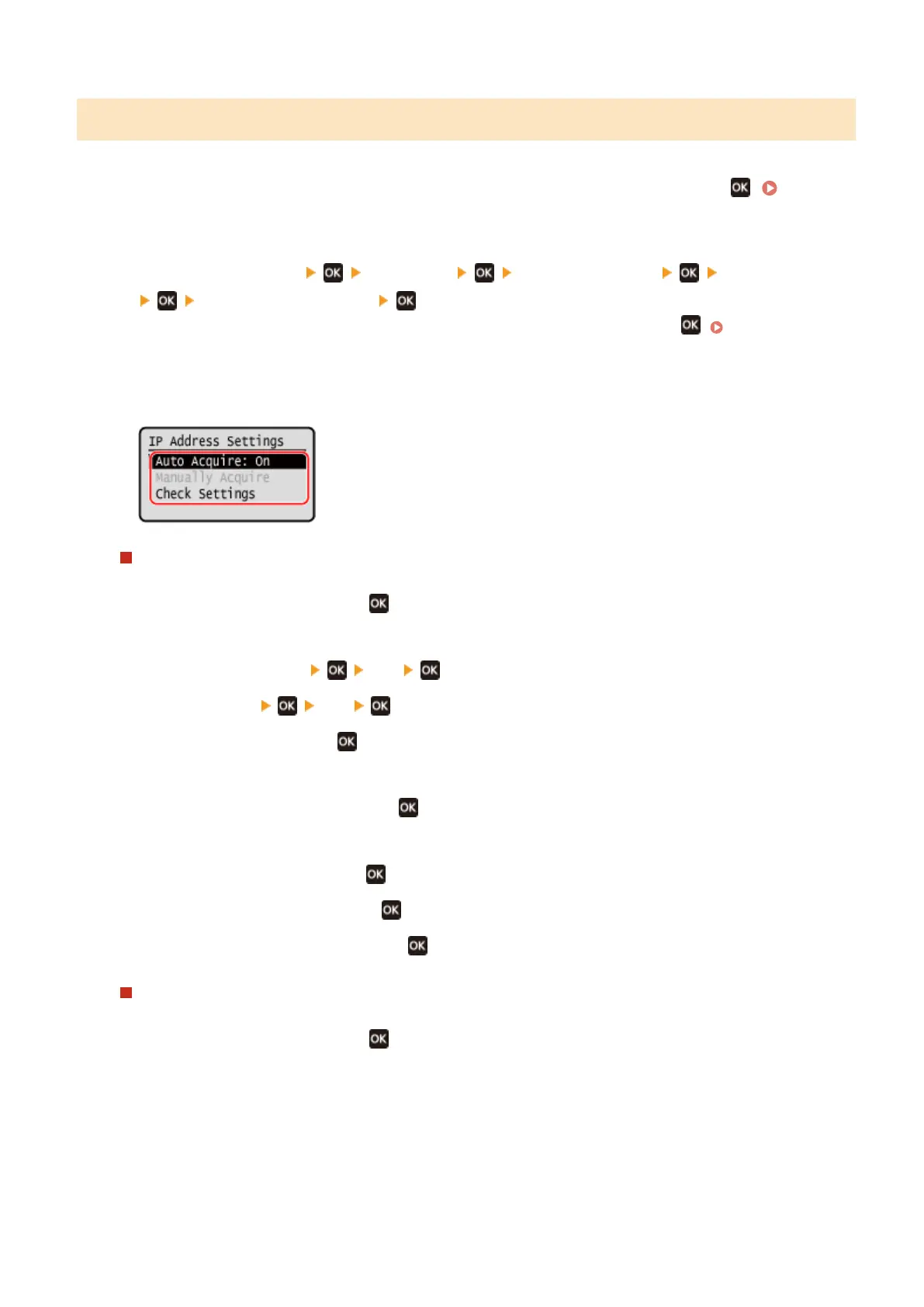
5 Lines LCD Model
1
On the operation panel, select [Menu] in the [Home] screen, and press
. [Home]
Scr
een(P. 113)
2
Press [Preferences]
[Network] [TCP/IP Settings] [IPv4 Settings]
[IP Address Settings] .
If the login screen appears, enter the System Manager ID and PIN, and then press . System Manager
ID and PIN(P
. 5)
3
Set the IP address.
When Manually Setting the IP Address
1
Select [Auto Acquire] and press
.
➠ The [Auto Acquir
e] screen is displayed.
2
Press [Select Protocol]
[Off] .
3
Press [Auto IP] [Off] .
4
Select [<Apply>] and press .
➠ The [IP Addr
ess Settings] screen is displayed.
5
Select [Manually Acquire] and press
.
➠ The IP addr
ess input screen is displayed.
6
Enter the IP address and press
.
7
Enter the subnet mask and press .
8
Enter the gateway address and press .
When Assigning an IP Address Automatically
1
Select [Auto Acquire] and press
.
➠ The [Auto Acquir
e] screen is displayed.
2
Congure the Auto Acquir
e setting, as needed.
[Select Protocol]
Normally, set to [DHCP]. However, when [DHCP] is set in an environment where DHCP cannot be used,
the machine will continue to conrm Auto Acquire in the network, creating unnecessary communication.
When not using DHCP, set this to [Off].
Setting Up
73











 To Next Page