Important
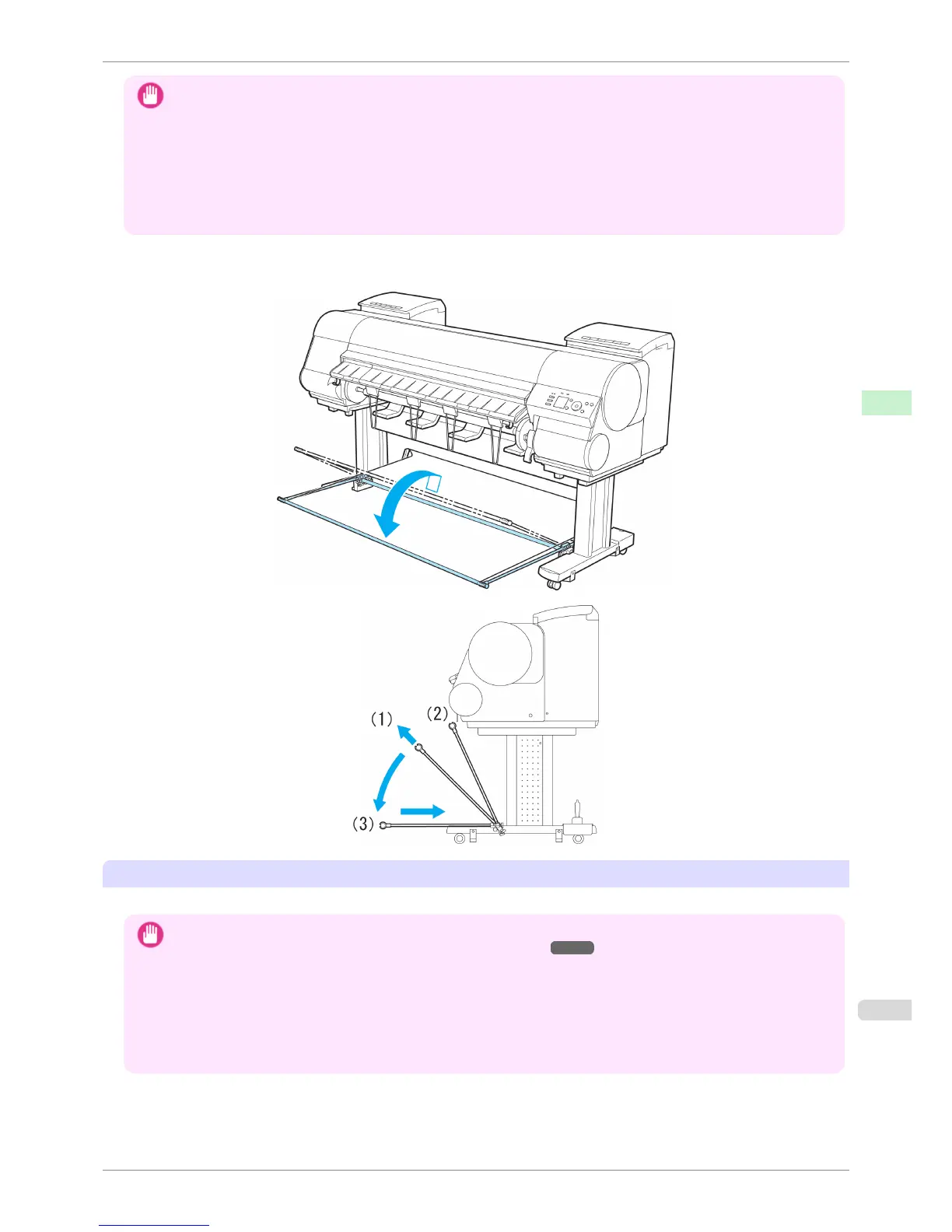
• When storing printed documents on the Output Stacker, always use it in position (1). If you do not, printed documents
may not be dropped into the Output Stacker, and the printed surface may become soiled.
• The Output Stacker can hold one sheet. When printing multiple pages, remove each sheet after it is printed.
• Before using the Output Stacker, remove the Rewind Spool. If you do not, it may prevent printed documents from being
held correctly, and they may be scratched.
• The Output Stacker can hold printed documents from rolls that are 62 inches (1,575 mm) long. When printing longer
documents, adjust the stacker for ejection in front, or use the optional Media Take-up Unit.
The Output Stacker locks into position if you lift it to position (1) or (2). To lower the Output Stacker, lift the front
Basket Rod lightly to release the lock, and then lower the stacker.
Using the output stacker for ejection in front
You can also set the stacker to the following position when printing banners or when printing on delicate paper.
Important
• When using the stacker for ejection in front, always select Cutting Mode > Eject. Selecting Automatic may damage
printed documents. (See "Specifying the Cutting Method for Rolls.") ➔ P.483
• During ejection in the front of the printer, be especially careful when using delicate paper or paper that curls easily.
• Depending on the type of paper, the edge may curl or bend during ejection. In this case, straighten out the paper. If the
paper is curled or bent, it may damage printed documents.
• Some types of paper may get caught between the Ejection Guide and Output Stacker during ejection. In this case, free
the paper from where it is caught. If the paper is caught, it may damage printed documents.
iPF8400S
Using the Output Stacker
User's Guide
Handling and Use of Paper Output Stacker
501














 To Next Page