Advanced Guide
Troubleshooting
Contents
>
Routine Maintenance
>
Replacing a FINE Cartridge
> Checking the Ink Status
C092
Checking the Ink Status
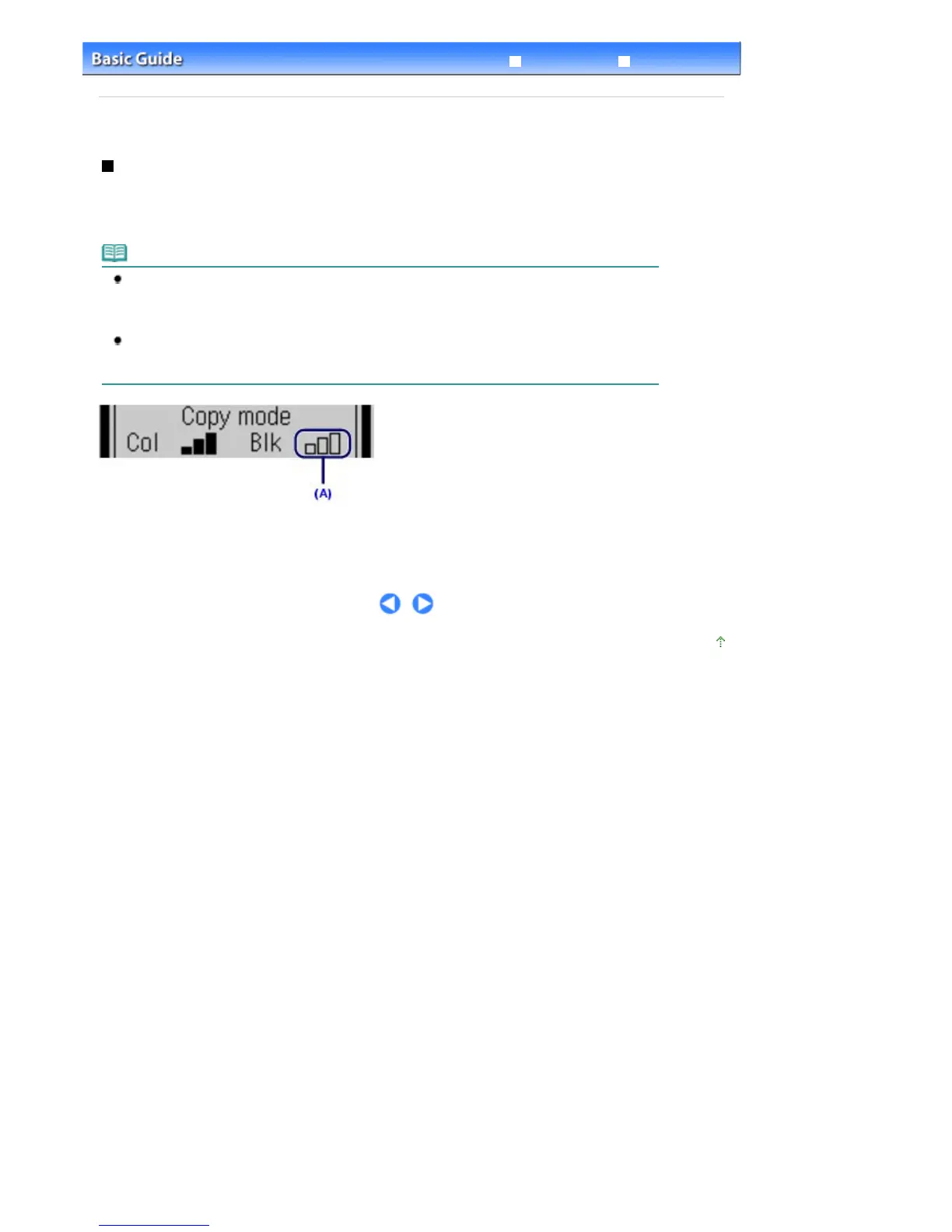
You can check the ink status on the LCD.
Make sure that the machine is turned on, then press the
COPY
,
FAX
, or
SCAN
button. The current ink
level will appear on the LCD for a few seconds.
Note
The ink level detector is mounted on the machine to detect the remaining ink level. The machine
considers as ink is full when a new FINE Cartridge is installed, and then starts to detect a remaining
ink level. If you install a used FINE Cartridge, the indicated ink level of it may not be correct. In such
case, refer to the ink level information only as a guide.
When remaining ink cautions or errors occur, the message will appear to inform you of the error.
Refer to "An Error Message Is Displayed on the LCD" in " Troubleshooting
" of the on-screen manual:
, and take an appropriate action.
Example: (A)
The ink is running low. Prepare a new ink cartridge.
Page top
Seite 111 von 922 SeitenChecking the Ink Status















 To Next Page