Advanced Guide
>
Printing from a Computer
>
Printing with the Bundled Application Software
>
Correcting
and Enhancing Photos
> Using the Red-Eye Correction Function
A061
Using the Red-Eye Correction Function
You can correct red eyes caused by a camera flash.
You can perform the Red-Eye Correction function either automatically or manually.
Note
Photo Print allows you to automatically correct red eyes when printing. To correct automatically,
select Enable Auto Photo Fix in Color correction for printing on the Advanced tab of the Preferences
dialog box and select the Enable Red-Eye Correction checkbox.
1.
Select photos in the Select Images screen, then click
(Correct/Enhance
Images).
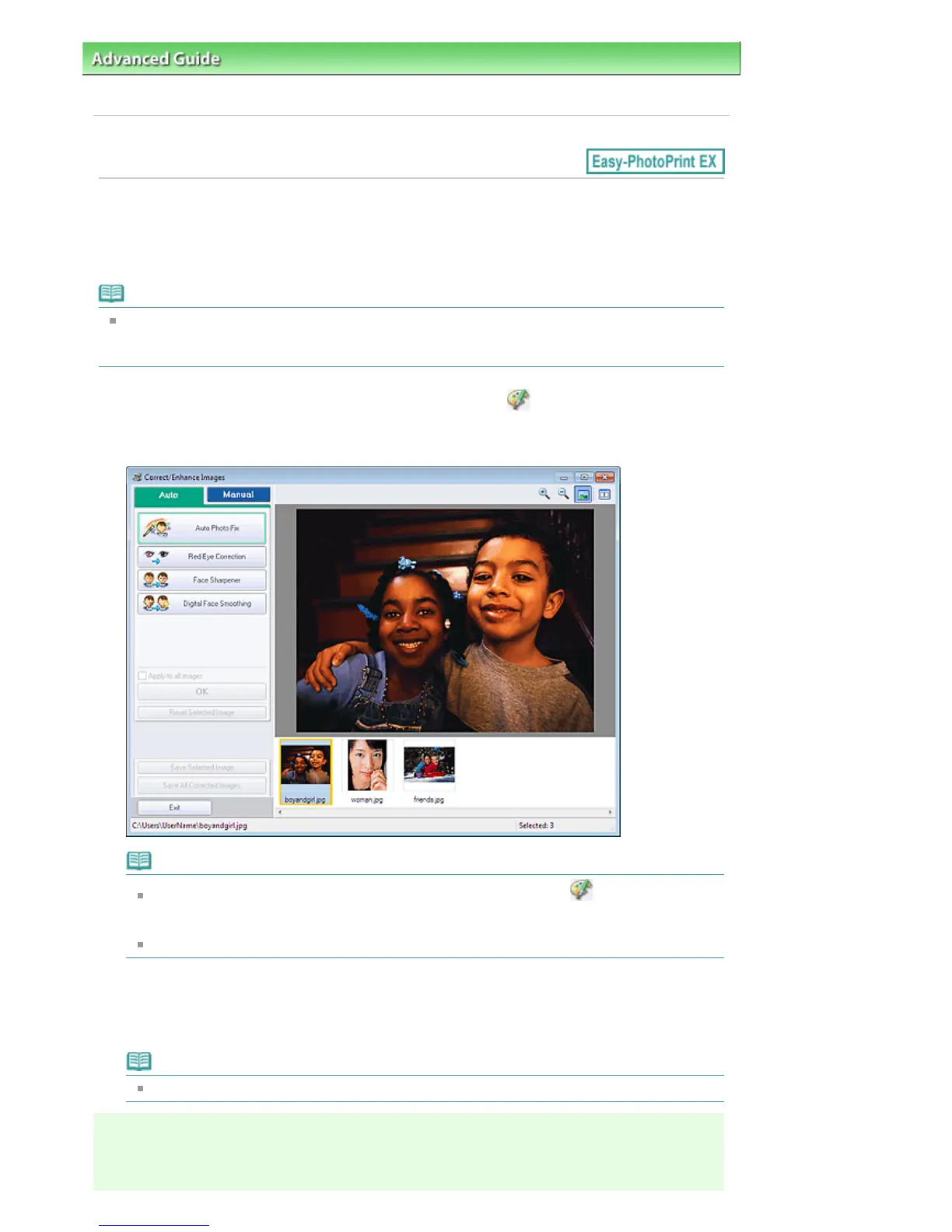
The Correct/Enhance Images window appears.
Note
You can also display the Correct/Enhance Images window by clicking (Correct/Enhance
Images) in the Layout/Print or Edit screen. In that case, only the image displayed in Preview
can be corrected/enhanced.
See "
Correct/Enhance Images Window " for details on the Correct/Enhance Images window.
2.
Select the image you want to correct from the thumbnail list in the Correct/Enhance
Images window.
The image appears in Preview.
Note
If only one image is selected, the thumbnail list does not appear below Preview.
Auto Correction
Seite 195 von 922 SeitenUsing the Red-Eye Correction Function















 To Next Page