Advanced Guide
Troubleshooting
Contents
> Printing from Your Computer
> Printing Documents
C053
Printing Documents
This section describes the procedure to print a document of A4 size on plain paper.
For details, refer to the on-screen manual:
Advanced Guide
.
Note
Operations may vary depending on your software application. For details on the operation, refer to
the instruction manual of your application.
The screens used in this section are for printing with Windows 7 operating system Home Premium
(hereafter referred to as "Windows 7").
The printer driver is included in the MP Drivers.
1.
Make sure that the machine is turned on.
See
Operation Panel
.
2.
Load paper.
See
Loading Plain Paper / Photo Paper
.
Here we make sure that A4 plain paper is loaded in the Rear Tray.
3.
Open the Paper Output Tray gently.
4.
Create (or open) a document to print using an appropriate software application.
5.
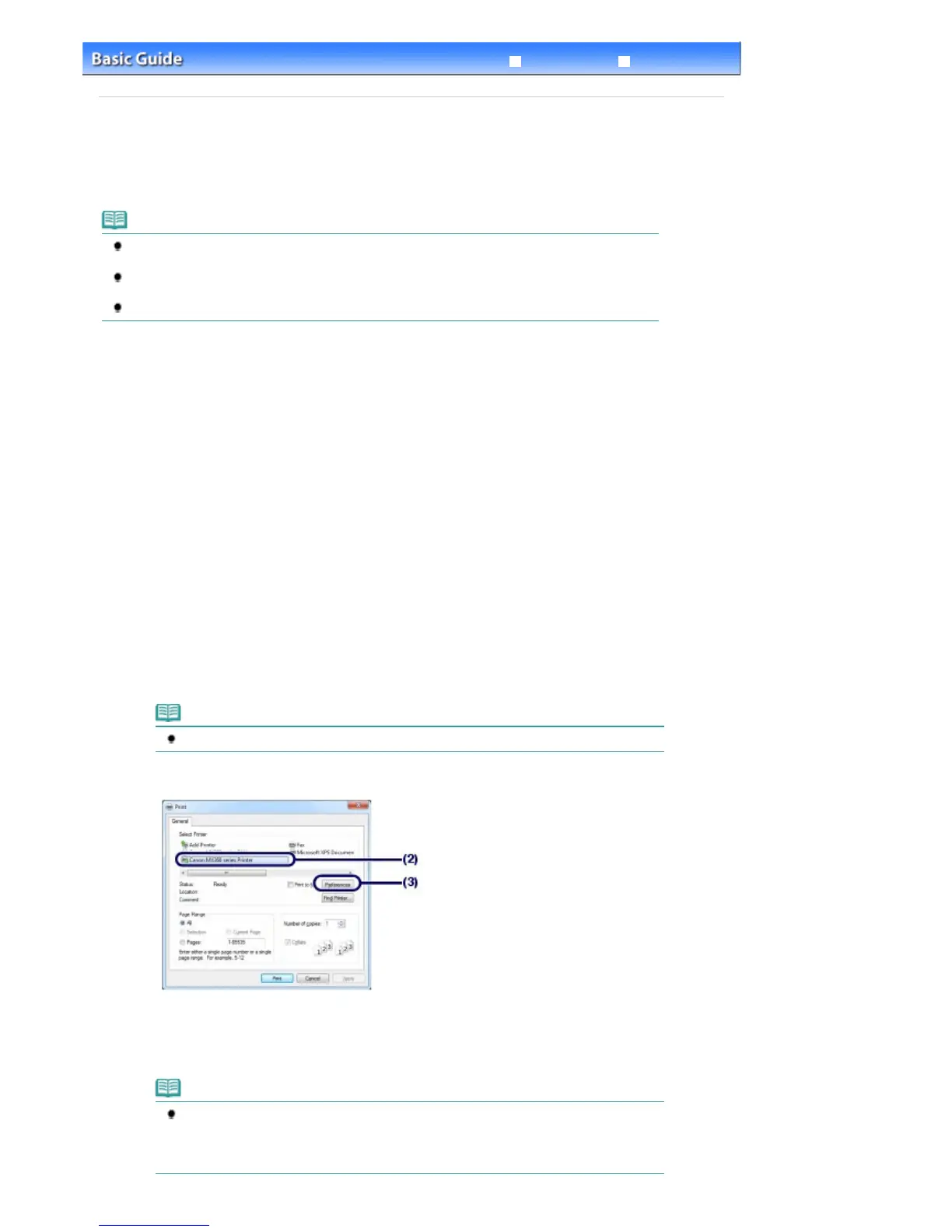
Open the printer driver setup window.
(1)
Select Print on the File menu or the command bar in your software application.
The Print dialog box will appear.
(2)
Make sure that your machine's name is selected.
Note
If another printer's name is selected, click and select your machine's name.
(3)
Click Preferences (or Properties).
6.
Specify the required print settings.
(1)
Select Business Document in Commonly Used Settings.
Note
When the print object such as Business Document or Photo Printing is selected in
Commonly Used Settings, the items in Additional Features will be selected automatically.
The settings suitable for the print object such as media type or print quality will also
appear.
Seite 63 von 922 SeitenPrinting Documents















 To Next Page