Advanced Guide
>
Printing Using the Operation Panel of the Machine
>
Copying > Reducing or Enlarging a
Copy
U033
Reducing or Enlarging a Copy
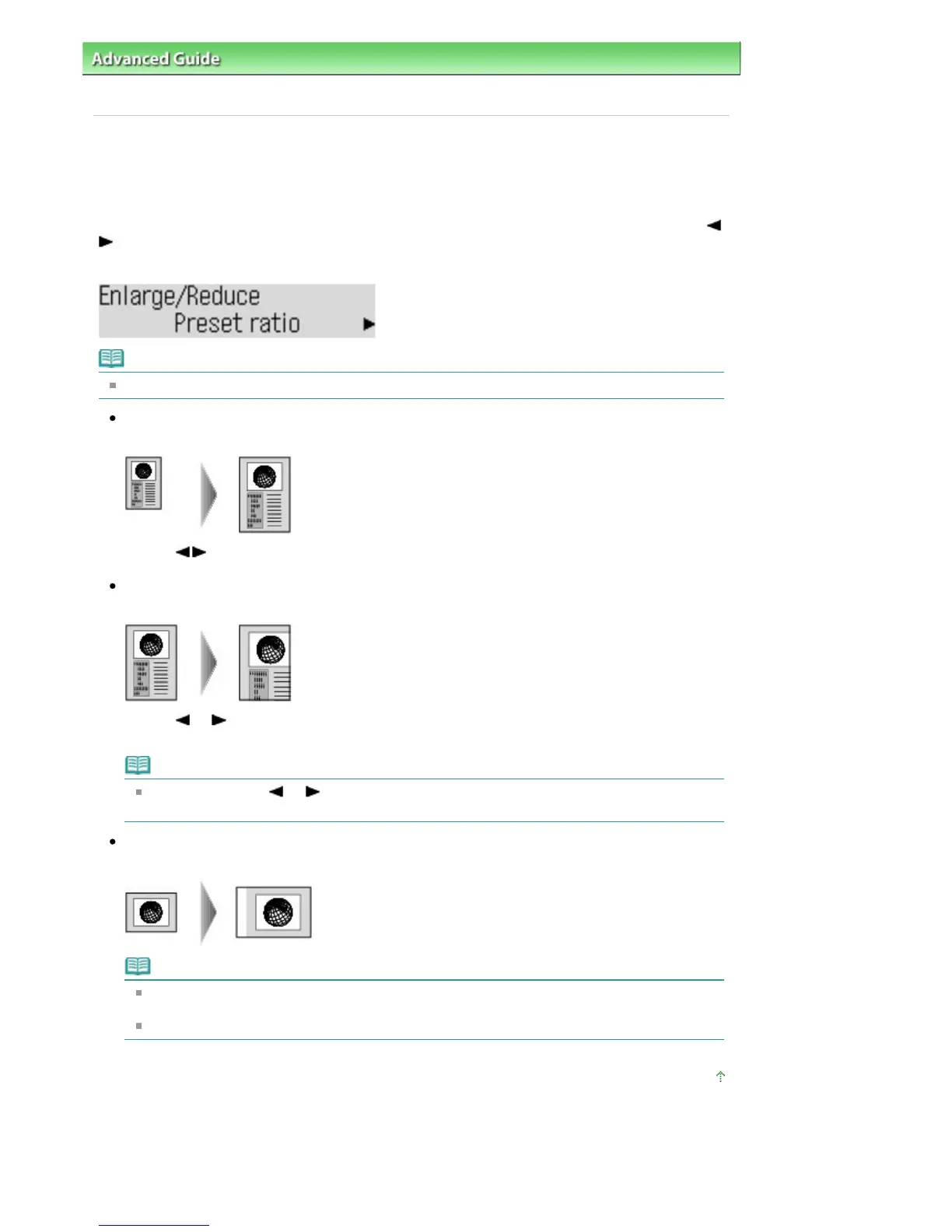
You can specify the magnification optionally or select the preset-ratio copying or fit-to-page copying.
The LCD below is displayed when you press the
Settings
button in the Copy standby screen. Use the
button to select the reduction/enlargement method, then press the
OK
button.
Ex:
Note
Some of the reduction/enlargement methods are not available depending on the copy menu.
Preset ratio
You can select one of the preset ratios to reduce or enlarge copies.
Use the
button to select a preset ratio to match the size of your original document and printing
paper, then press the
OK
button.
Magnification
You can specify the copy ratio as a percentage to reduce or enlarge copies.
Use the
(-)
(+) button or the Numeric buttons to specify the reduction or enlargement ratio (25
- 400%), then press the
OK
button.
Note
Press and hold the
(-)
(+) button to quickly advance through the ratios. For details, see
Key repeat
.
Fit to page
The machine automatically reduces or enlarges the image to fit the page size.
Note
When you select Fit to page, the document size may not be detected correctly depending on the
original. In this case, select Preset ratio or Magnification.
When Fit to page is selected, load the document on the Platen Glass.
Page top
Seite 352 von 922 SeitenReducing or Enlarging a Copy















 To Next Page