Advanced Guide
Troubleshooting
Contents
>
Preparing for Faxing
>
Specifying the Basic Settings for Faxing
> Registering User Information
Registering User Information
Important
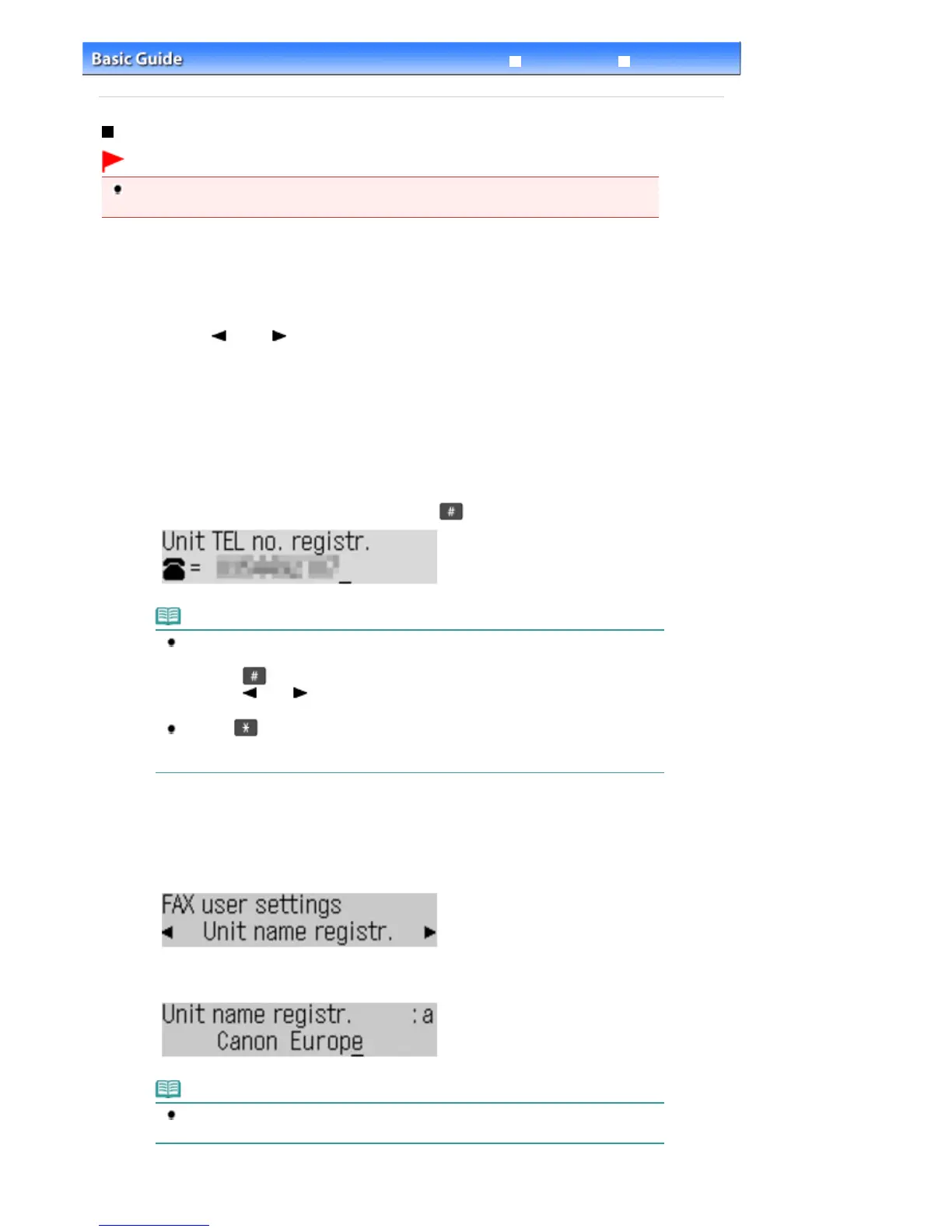
Before sending a fax, be sure to enter your fax/telephone number and name in Unit TEL no. registr.
and Unit name registr. in the FAX user settings screen (for US only).
1.
Display the Unit TEL no. registr. screen.
(1)
Press the
FAX
button, and press the
Menu
button.
The Fax settings menu will appear.
(2)
Use the
(-) or (+) button to select FAX user settings, and press the
OK
button.
The FAX user settings menu will appear.
(3)
Make sure that Unit TEL no. registr. is selected, and press the
OK
button.
2.
Enter the unit fax/telephone number.
(1)
Use the Numeric buttons to enter unit fax/telephone number (max. 20 digits,
including spaces).
To enter a plus sign (+) before the number, press the button.
Note
In the Unit TEL no. registr. screen, the following operations are available.
- Press a Numeric button to enter that number.
- Press the
button twice to enter a space.
- Press the
(-) or
(+) button to move the cursor.
- To delete a character, move the cursor under the character, and press the
Back
button.
The
Tone
button and the
Redial/Pause
button are available when entering the
recipient's fax/telephone number. These buttons are disabled in the Unit TEL no. registr.
screen.
(2)
Press the
OK
button.
3.
Enter a unit name.
(1)
Make sure that Unit name registr. is selected, and press the
OK
button.
(2)
Use the Numeric buttons to enter unit name (max. 24 characters, including
spaces).
Note
For details on how to enter or delete characters, see
Entering Numbers, Letters, and
Symbols.
(3)
Press the
OK
button.
Seite 24 von 922 SeitenRegistering User Information















 To Next Page