Advanced Guide
>
Printing Using the Operation Panel of the Machine
>
Copying
>
Using Useful Copy
Functions
> Copying without Borders (Borderless copy)
U039
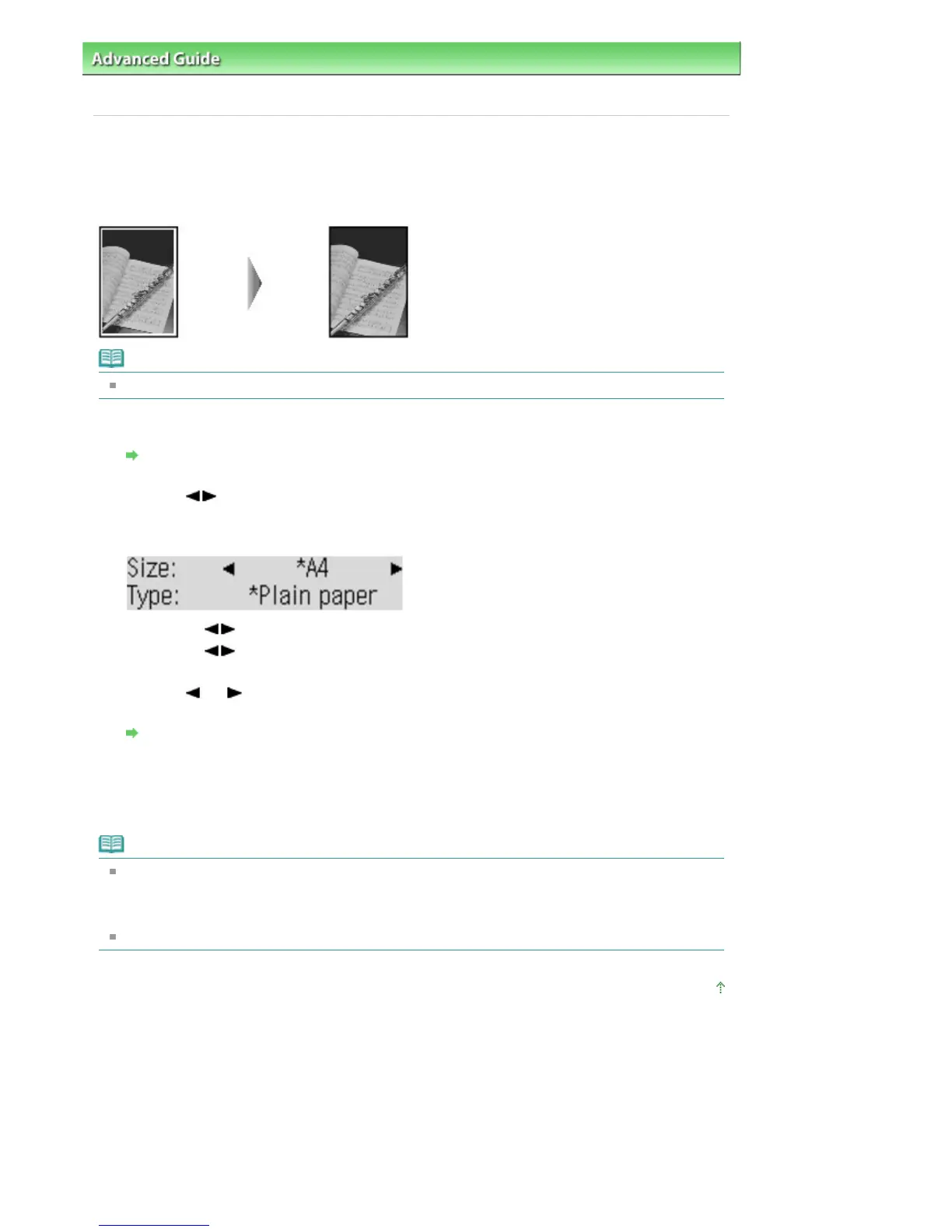
Copying without Borders (Borderless copy)
You can copy images so that they fill the entire page without borders.
Note
When you use this function, load the original on the Platen Glass.
1.
Display the Special copy screen.
How to Select a Copy Menu
2.
Use the
button to select Borderless copy, then press the
OK
button.
If a page size setting or a media type setting that cannot be used in borderless copying is selected,
the LCD displays the following message.
1.
Use the
button to select the page size, then press the
OK
button.
2.
Use the
button to select the media type, then press the
OK
button.
3.
Use the
(-) (+) button or the Numeric buttons to specify the number of copies.
Change the print settings as necessary.
Setting Items
4.
Press the
Color
button for color copying, or the
Black
button for black & white
copying.
The machine starts borderless copying.
Note
Slight cropping may occur at the edges since the copied image is enlarged to fill the whole page.
You can change the width to be cropped from the borders of the original image as needed.
However, the cropped area will be larger if the extension amount is large. For details, see
Extended
copy amt.
.
For details on the paper size and the media type available for borderless copying, see
Printing Area
.
Page top
Seite 358 von 922 SeitenCopying without Borders (Borderless copy)















 To Next Page