Advanced Guide
>
Scanning
>
Scanning with Other Application Software
>
Scanning with Advanced
Settings Using ScanGear (Scanner Driver)
> Scanning in Auto Scan Mode
S207
Scanning in Auto Scan Mode
Use the Auto Scan Mode tab to scan easily by automatically detecting the type of document placed on the
Platen or ADF (Auto Document Feeder).
Important
Supported document types are photos, postcards, business cards, magazines, newspapers, text
documents, and BD/DVD/CD. To scan other documents, specify the document type on the Basic
Mode tab or the Advanced Mode tab.
Scanning in Basic Mode
Scanning in Advanced Mode
Place documents of the same size when scanning two or more documents from the ADF.
1.
Place the document on the Platen or ADF, then start ScanGear (scanner driver).
Placing Documents
Starting ScanGear (Scanner Driver)
2.
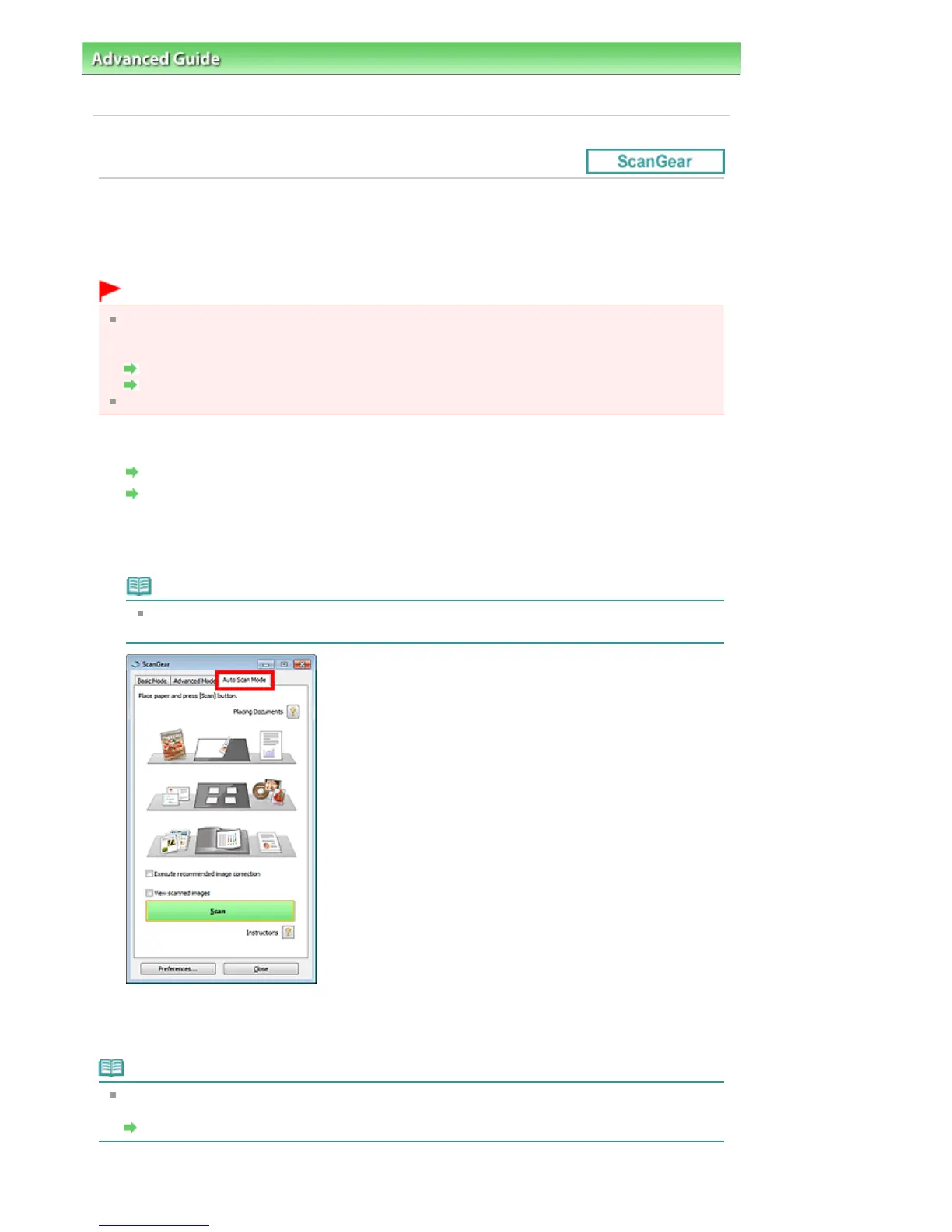
Click the Auto Scan Mode tab.
The Auto Scan Mode tab appears.
Note
Select the Execute recommended image correction checkbox to apply suitable corrections
automatically according to the type of document to be scanned.
3.
Click Scan.
Starts scanning.
Note
ScanGear's response after scanning can be specified in Status of ScanGear dialog after scanning
on the Scan tab of the Preferences dialog box.
Scan Tab















 To Next Page