Advanced Guide
>
Scanning
>
Scanning with the Bundled Application Software
>
Let's Try Scanning
>
Scanning Multiple Documents at One Time
S105
Scanning Multiple Documents at One Time
You can scan two or more photos (small documents) at one time by setting Document Size to Auto
Detect (Multiple Documents) in the Scan Settings dialog box of MP Navigator EX.
Important
The following types of documents may not be cropped correctly. In that case, adjust the cropping
frames (scan areas) in whole image view of ScanGear (scanner driver) and scan again.
- Photos that have a whitish border
- Documents printed on white paper, hand-written text, business cards, etc.
- Thin documents
- Thick documents
Scanning Multiple Documents at One Time with ScanGear (Scanner Driver)
1.
Place the documents on the Platen.
Placing Documents
2.
Start MP Navigator EX and open the Navigation Mode screen.
Starting MP Navigator EX
3.
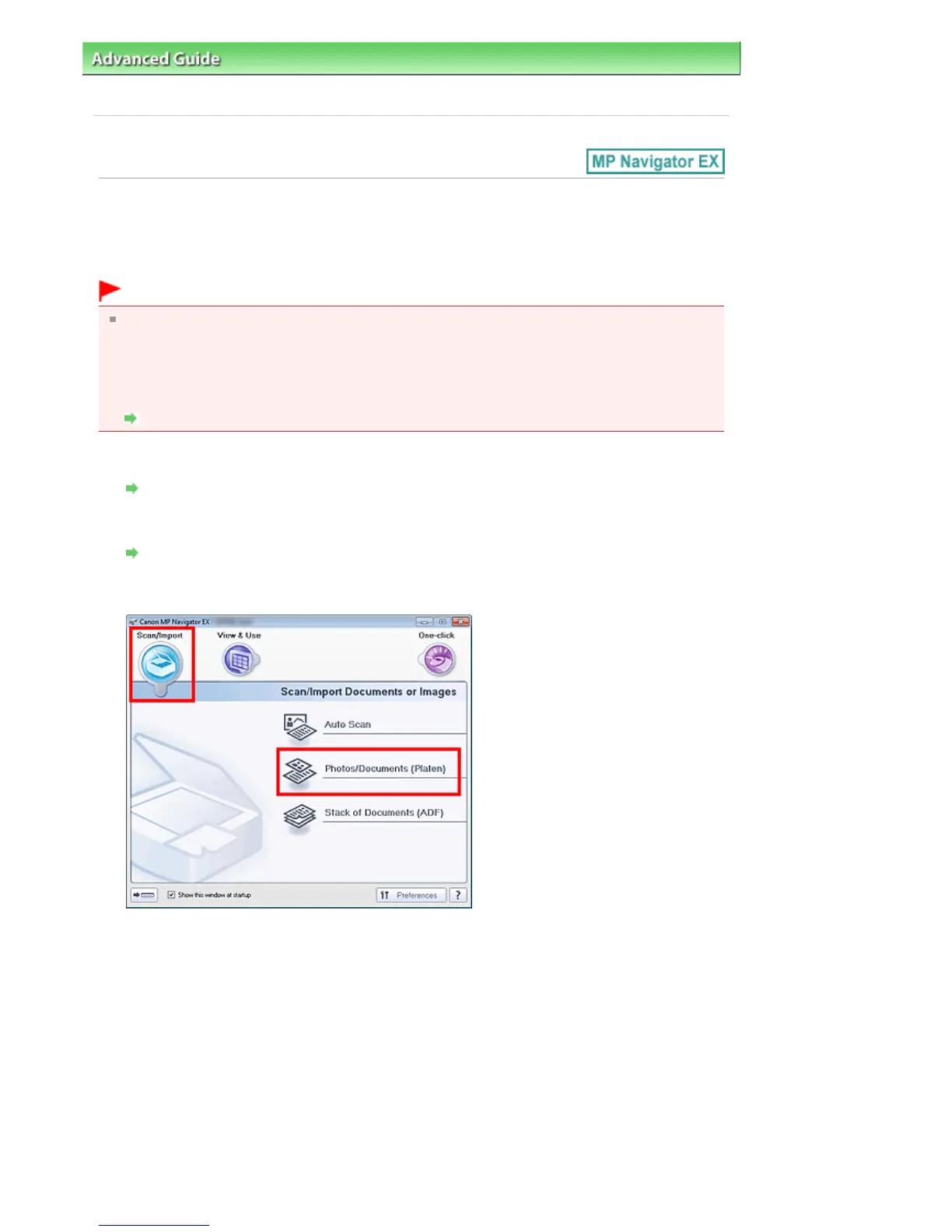
In Scan/Import, click Photos/Documents (Platen).
4.
Select Document Type according to the documents to be scanned.
Seite 395 von 922 SeitenScanning Multiple Documents at One Time















 To Next Page