Advanced Guide
>
Scanning
>
Scanning with Using the Operation Panel of the Machine
> Saving Scanned
Data on the USB Flash Drive Using the Operation Panel of the Machine
U048
Saving Scanned Data on the USB Flash Drive Using the
Operation Panel of the Machine
You can save scanned data on the USB flash drive using the Operation Panel of the machine.
Important
Do not remove the USB flash drive from the machine under the following conditions:
While scanning is in progress
Before saving the scanned data
For safety reasons, we recommend backing up the scanned data saved on a USB flash drive to
another media periodically to avoid unexpected accidents.
We assume no responsibility for damage to or loss of data for whatever reason even within the
1.
Make sure that the machine is turned on.
2.
Press the
SCAN
button.
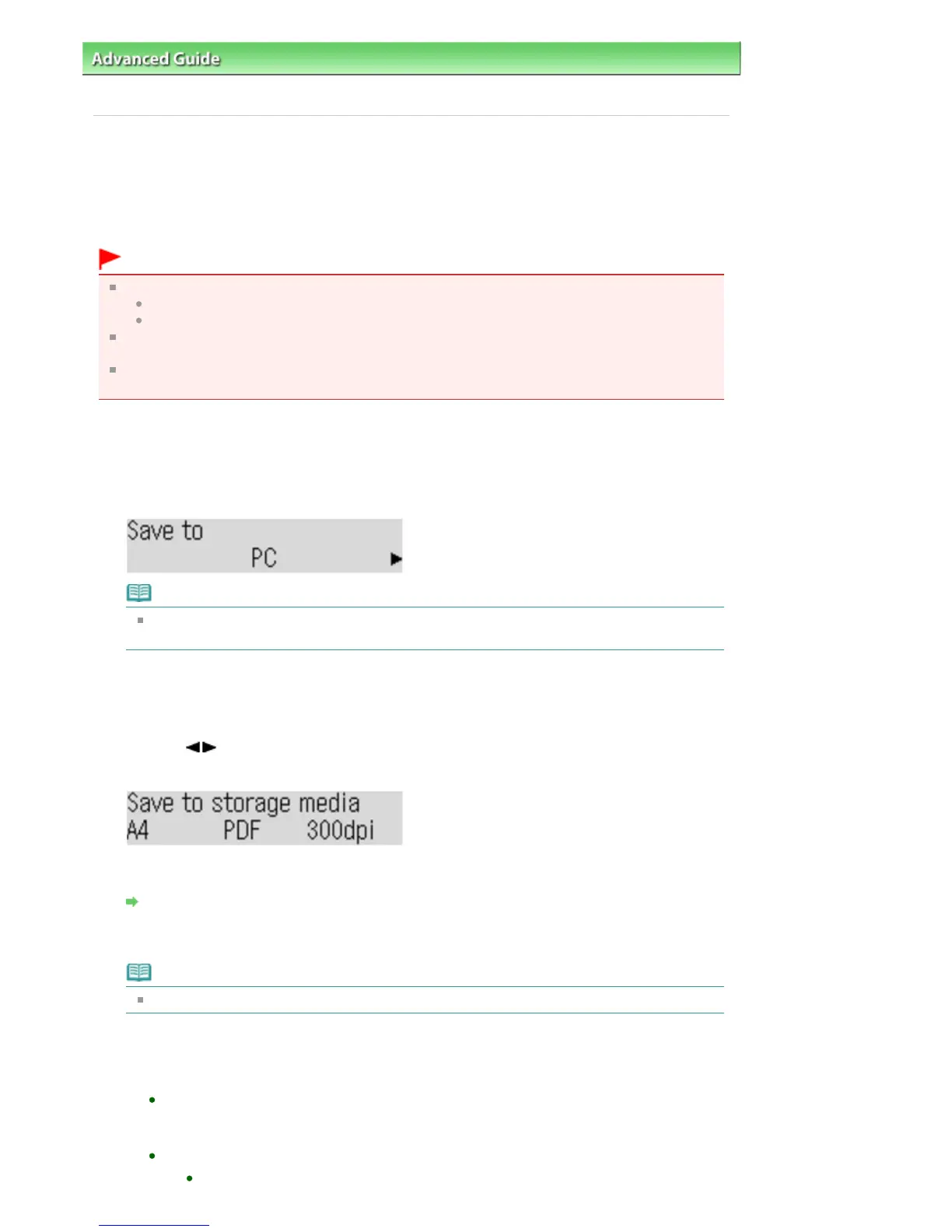
The screen to specify where to save the data is displayed.
Note
If PC scan standby is displayed on the LCD after you press the
SCAN
button, press the
Menu
button to display the screen for selecting to which you save the data.
3.
Insert the USB flash drive into the Direct Print Port.
See
Inserting the USB Flash Drive
for how to insert the USB flash drive into the Direct Print Port.
4.
Use the button to select USB flash drive, then press the
OK
button.
The Scan standby screen is displayed.
5.
Press the
Settings
button to adjust the settings as necessary.
Setting Items on the Operation Panel of the Machine
6.
Load the original document on the Platen Glass or in the ADF.
Note
Refer to
Loading Paper / Originals
for how to load the original.
7.
Press the
Color
button for color scanning, or the
Black
button for black & white
scanning.
If you load the original in the ADF:
The machine starts scanning and scanned data is saved on the USB flash drive.
If you load the original on the Platen Glass:
When you select other than PDF or Compact PDF for Data format, the machine starts
Seite 373 von 922 SeitenSaving Scanned Data on the USB Flash Drive Using the Operation Panel ...















 To Next Page