Advanced Guide
>
Scanning
>
Scanning with the Bundled Application Software
>
Utilizing Images in MP
Navigator EX
> Saving as PDF Files
S113
Saving as PDF Files
Save images scanned with MP Navigator EX as PDF files.
1.
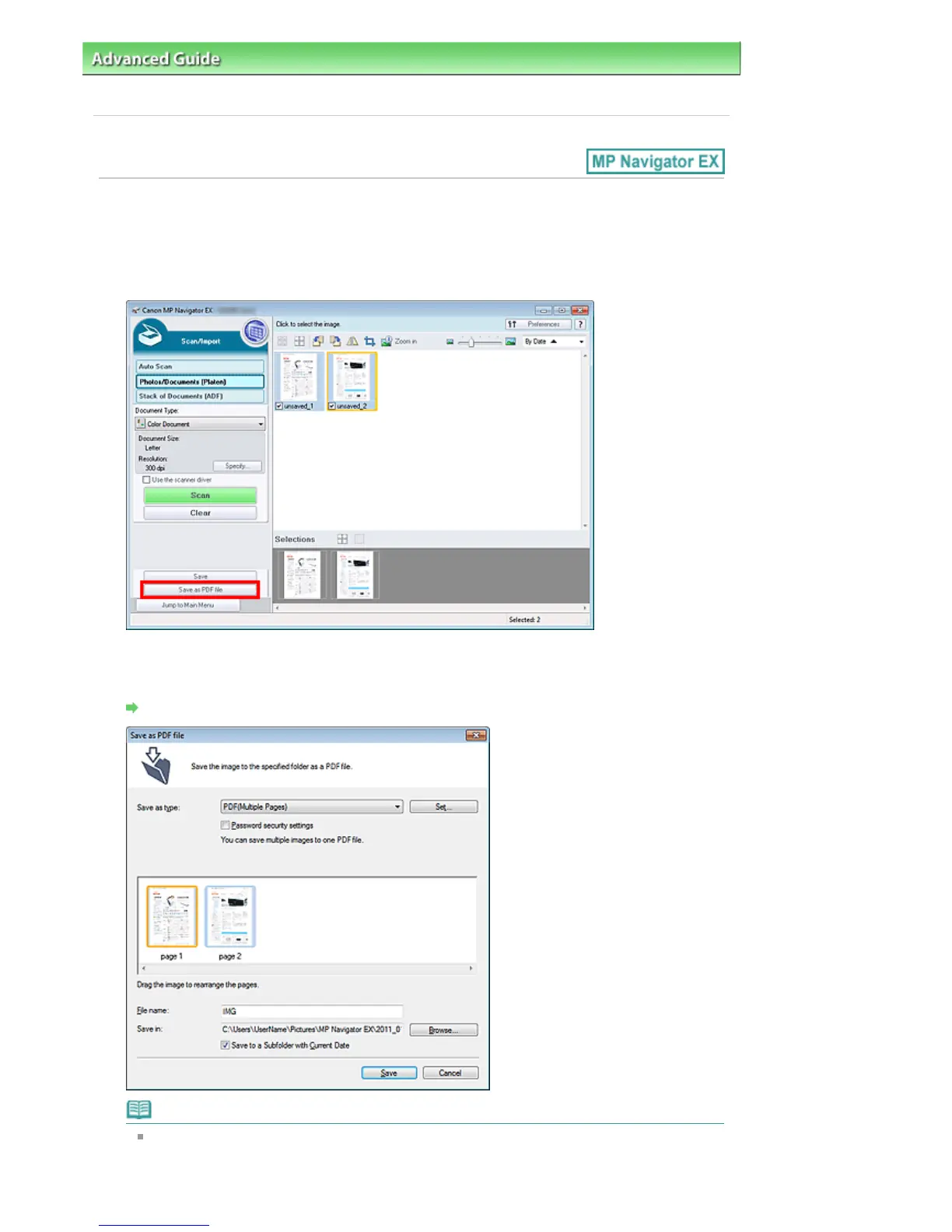
Select the checkboxes of the images you want to save, then click Save as PDF file.
2.
In the Save as PDF file dialog box, specify the save settings.
Specify the file type, file name, and destination folder.
Save as PDF file Dialog Box
Note
By default, the scanned images are saved in the following folders.
Windows 7: MP Navigator EX folder in My Pictures folder
Windows Vista: MP Navigator EX folder in Pictures folder
Seite 427 von 922 SeitenSaving as PDF Files















 To Next Page