Advanced Guide
>
Scanning
>
Scanning with Other Application Software
>
ScanGear (Scanner Driver)
Screens
> Auto Scan Mode Tab
S813
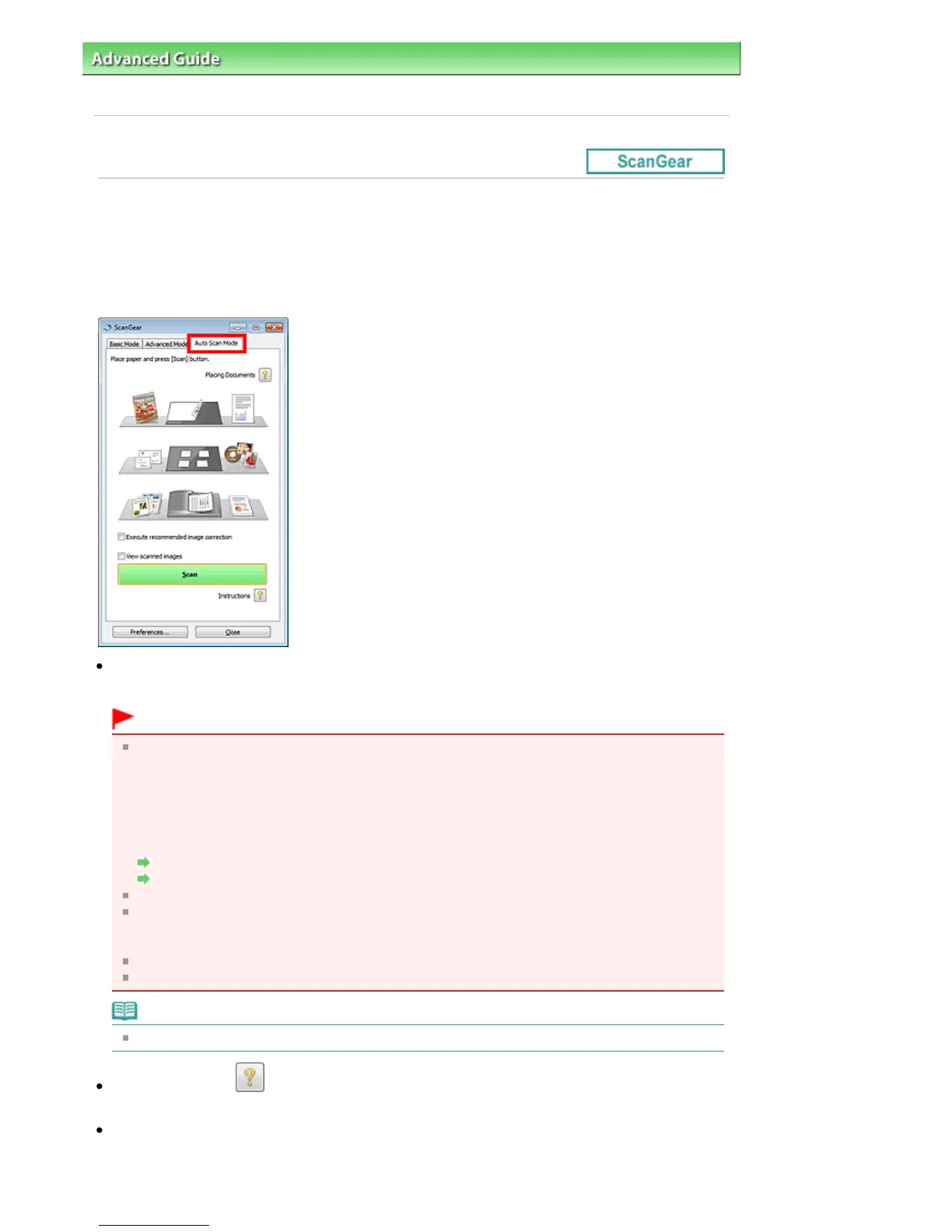
Auto Scan Mode Tab
This mode allows you to scan easily by simply placing documents on the Platen or ADF (Auto Document
Feeder) and clicking a button.
On the Auto Scan Mode tab, documents are automatically detected. You do not need to specify cropping
frames or make image corrections.
Supported Documents
Photos, postcards, business cards, magazines, newspapers, text documents, and BD/DVD/CD.
Important
The following types of documents cannot be scanned correctly. In that case, specify the document
type or size on the Basic Mode tab or the Advanced Mode tab and scan.
- A4 size photos
- Text documents smaller than 2L (5 inches x 7 inches) (127 mm x 178 mm), such as paperback
pages with the spine cut off
- Documents printed on thin white paper
- Long narrow documents such as panoramic photos
Scanning in Basic Mode
Scanning in Advanced Mode
Reflective disc labels may not be scanned properly.
Place documents correctly according to the type of document to be scanned. Otherwise,
documents may not be scanned correctly.
See "
Placing Documents
" for details on how to place documents.
Scanning takes longer than usual when scanning from the ADF for the first time.
Place documents of the same size when scanning two or more documents from the ADF.
Note
Scan from the "
Basic Mode Tab
" or "
Advanced Mode Tab
" to reduce moire.
Placing Documents
"
Placing Documents
" appears.
Execute recommended image correction
Apply suitable corrections automatically based on the document type.
Seite 598 von 922 SeitenAuto Scan Mode Tab















 To Next Page