Important
When this checkbox is selected in ScanGear (scanner driver) started from MP Navigator EX, the
files can be saved in JPEG/Exif or PDF format only.
Scanning may take longer than usual when this checkbox is selected.
You can set this setting when Recommended is selected on the Color Settings tab of the
Preferences dialog box.
The color tone may change from the source image due to corrections. In that case, deselect the
checkbox and scan.
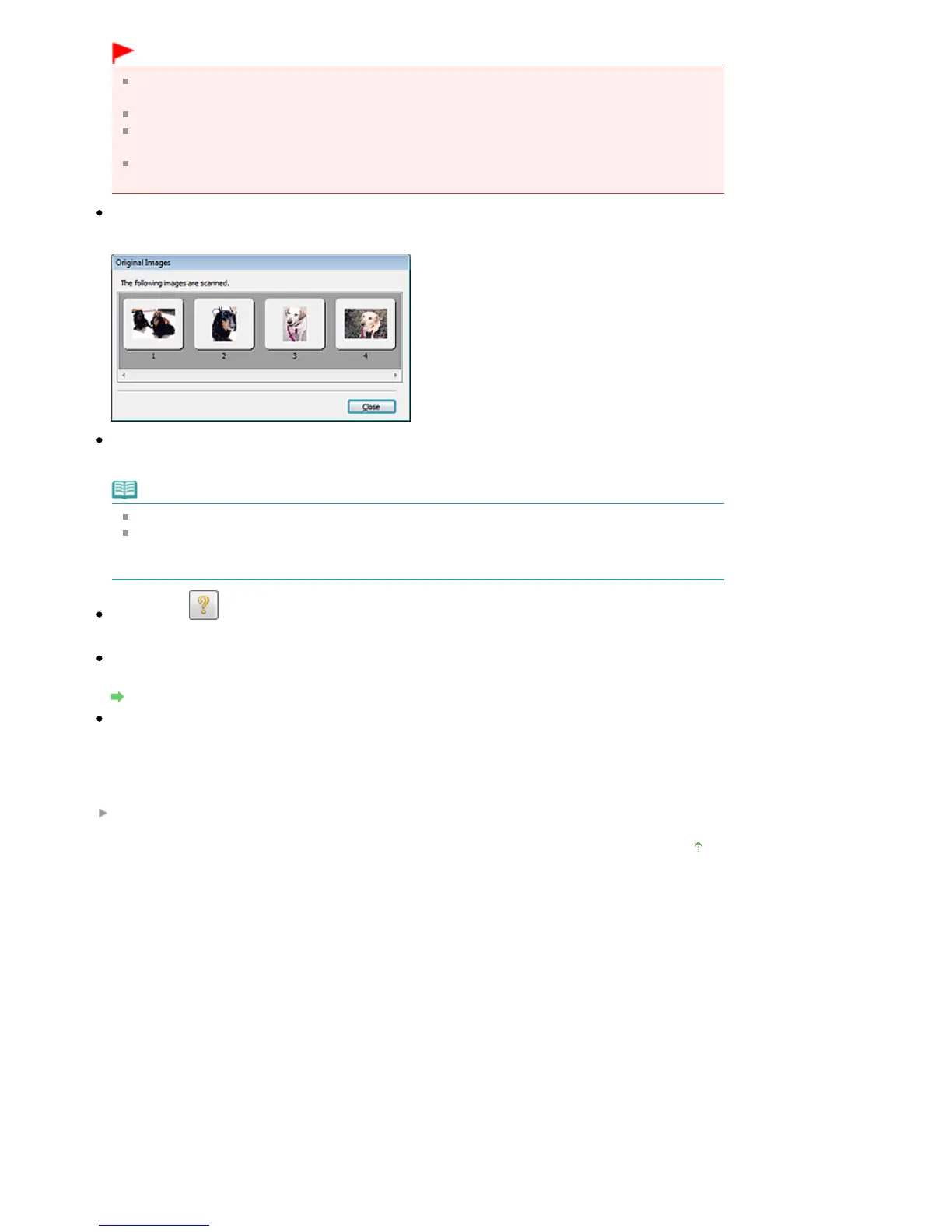
View scanned images
Display the thumbnails of scanned images in a different window.
Scan
Scanning starts.
Note
When scanning starts, the progress will be displayed. Click Cancel to cancel the scan.
When scanning is completed, a dialog box prompting you to select the next action may open.
Follow the prompt to complete. For details, see Status of ScanGear dialog after scanning in "
Scan Tab
" (Preferences dialog box).
Instructions
This page appears.
Preferences...
The Preferences dialog box opens and you can make scan/preview settings.
Preferences Dialog Box
Close
Closes ScanGear.
Related Topic
Scanning in Auto Scan Mode
Page top
Seite 599 von 922 SeitenAuto Scan Mode Tab















 To Next Page