Advanced Guide
>
Scanning
>
Scanning with Other Application Software
>
Correcting Images and
Adjusting Colors with ScanGear (Scanner Driver)
> Adjusting Tone Curve
S306
Adjusting Tone Curve
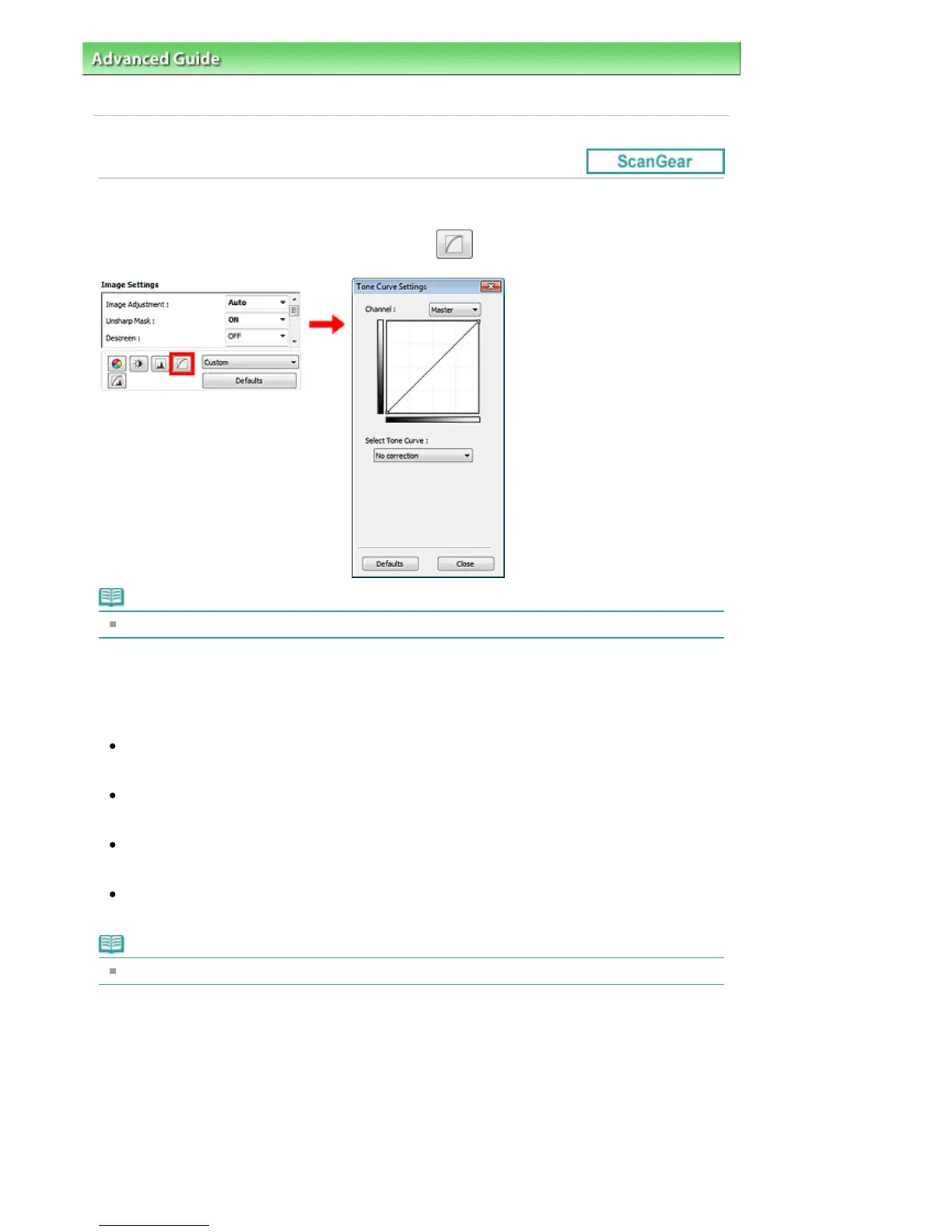
In ScanGear (scanner driver)'s Advanced Mode tab, click (Tone Curve Settings).
Note
Click Defaults to reset all adjustments in the current window.
Channel
Each dot of an image is a mixture of Red, Green, and Blue in various proportions (gradation). These
colors can be adjusted individually as a "channel."
Master
Adjust the Red, Green, and Blue combined.
Red
Adjust the Red channel.
Green
Adjust the Green channel.
Blue
Adjust the Blue channel.
Note
Only Grayscale will be displayed in Channel when Color Mode is Grayscale.
Reading Tone Curves
With ScanGear, scanning images via a scanner is the input, and displaying to a monitor is the output.
"Tone Curve" shows the balance of tone input and output for each Channel.
Seite 569 von 922 SeitenAdjusting Tone Curve















 To Next Page