Advanced Guide
>
About Bluetooth Communication
>
Printing Data via Bluetooth Communication
>
Registering the Printer
B009
Registering the Printer
Register the printer as a Bluetooth device using Add a Bluetooth Device (Bluetooth Devices except for
Windows 7) under Control Panel.
Note
Before registering the printer on Add a Bluetooth Device (Bluetooth Devices except for Windows 7)
under Control Panel, enable the Bluetooth function of your computer.
For more information, refer to your computer's operation manual.
If you want to re-register the printer as a Bluetooth device, first delete the registered printer, and then
re-register it.
See Deleting the Printer
.
The procedure to authenticate the computer may vary depending on the computer you are using.
In Windows 7 or Windows Vista:
In Windows XP:
In Windows 7 or Windows Vista:
The following procedure is described using the screens in Windows 7.
1.
Log into a user account with the administrator privilege.
2.
Select items from Control Panel as shown below.
In Windows 7, click Control Panel, then Add a Bluetooth Device under Hardware and
Sound.
In Windows Vista, click Control Panel, Bluetooth Device under Hardware and Sound,
then Add Wireless Device.
3.
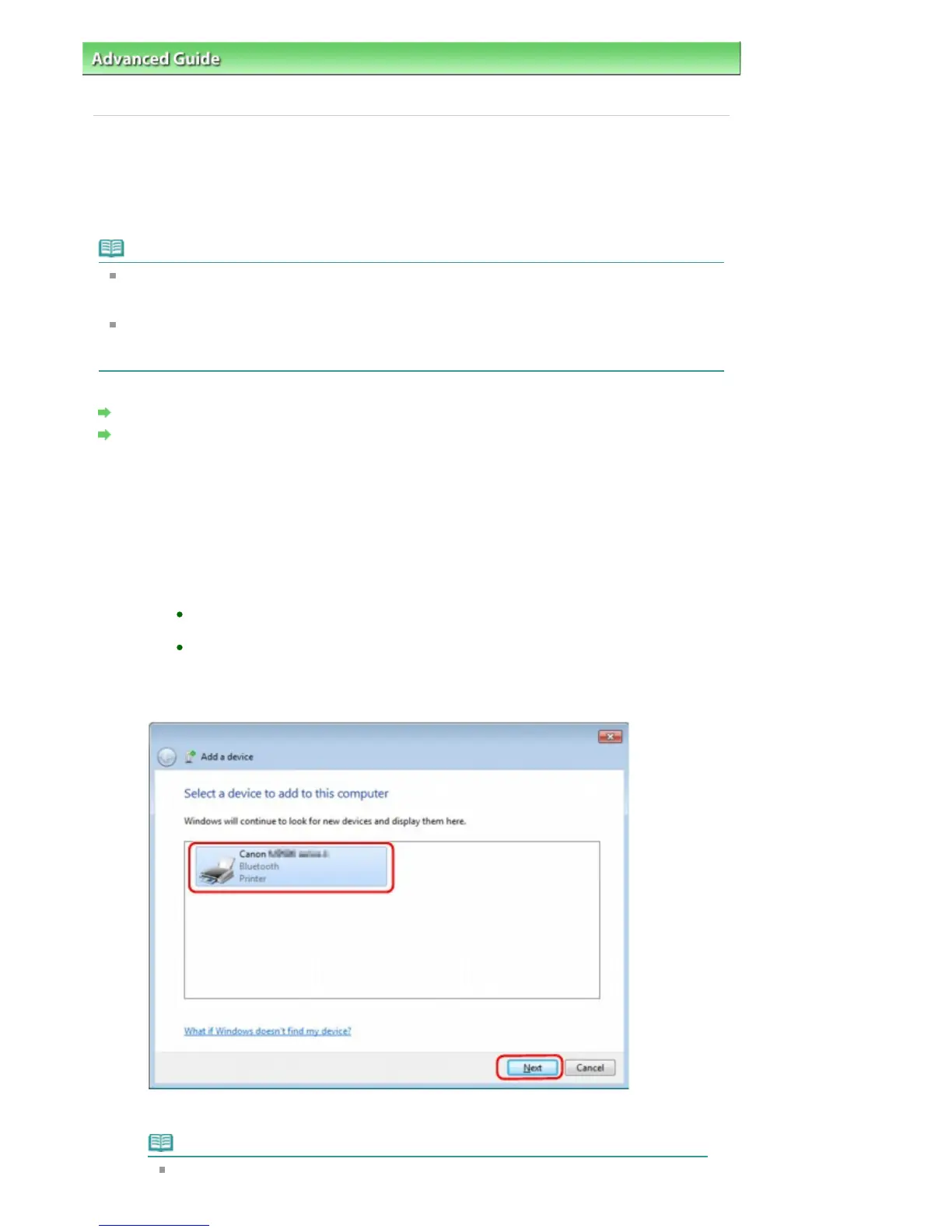
Select the device name of the printer and click Next.
Select the same device name as that checked under Checking the Device Name of the
Printer
.
Note
If the device name is not displayed, see Check 3: Is the printer name which you want to
Seite 752 von 922 SeitenRegistering the Printer















 To Next Page