Advanced Guide
>
Printing from a Computer
>
Printing with the Bundled Application Software
>
Photo Print
Settings
> Cropping Photos (Photo Print)
A073
Cropping Photos (Photo Print)
Cropping a photo is the act of removing the unnecessary portions of the photo by selecting the
necessary portions.
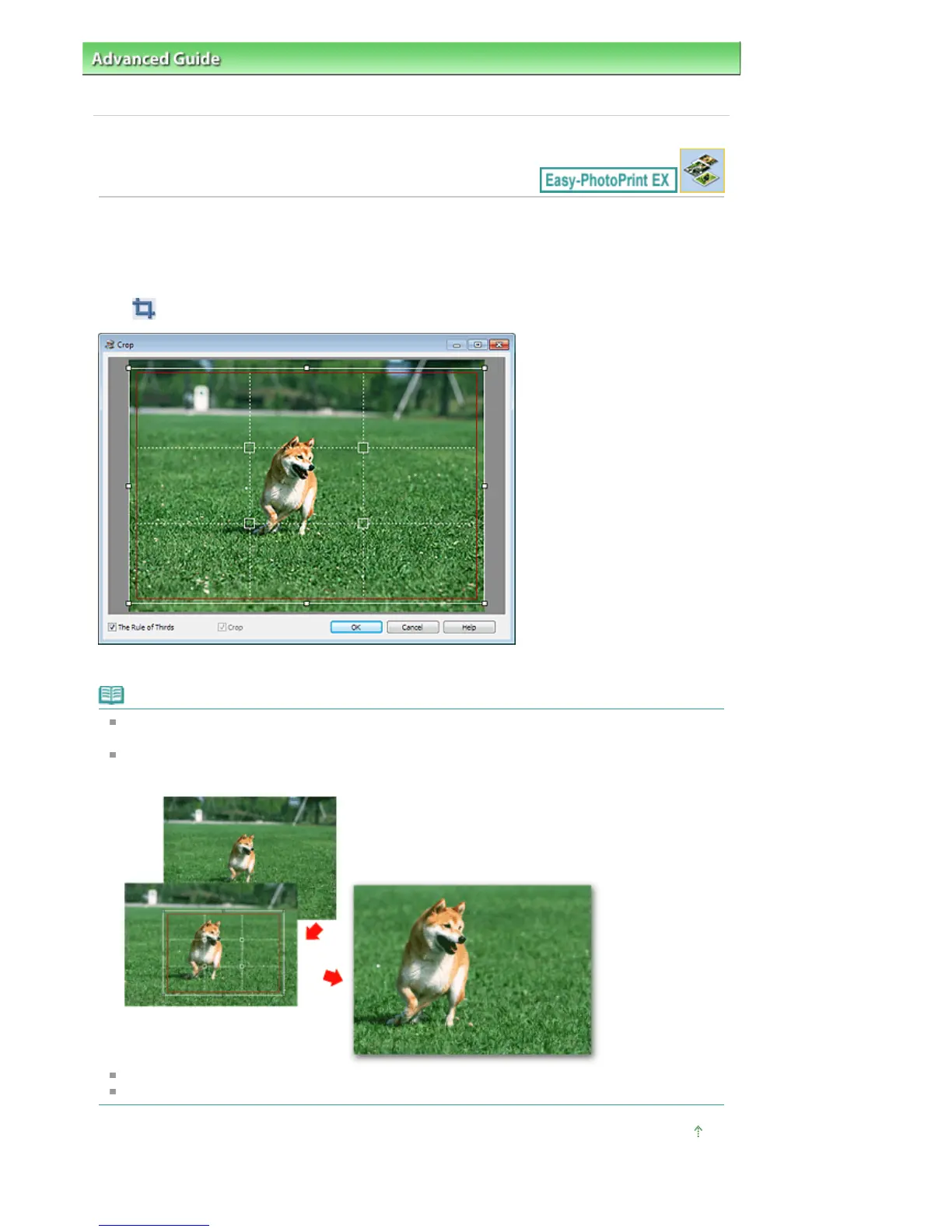
Click (Crop Image) in the Layout/Print screen or double-click the preview image.
Drag the white squares on the image to adjust the area to be cropped and click OK.
Note
To move the cropping area, place the cursor within the white frame and drag it. Drag the white lines
to enlarge/reduce the cropping area.
Select the The Rule of Thirds checkbox to display white broken lines. To create a balanced
composition, drag any of the intersecting points (white squares) or white broken lines over the main
subject of the photo.
The cropping effect applies only to the print result. The original image will not be cropped.
See Help for details on the Crop window.
Page top
Seite 238 von 922 SeitenCropping Photos (Photo Print)















 To Next Page