Advanced Guide
>
Printing from a Computer
>
Printing with Other Application Software
>
Changing the
Print Quality and Correcting Image Data
> Representing Image Data with a Single Color
P022
Representing Image Data with a Single Color
This feature is unavailable when the XPS printer driver is used.
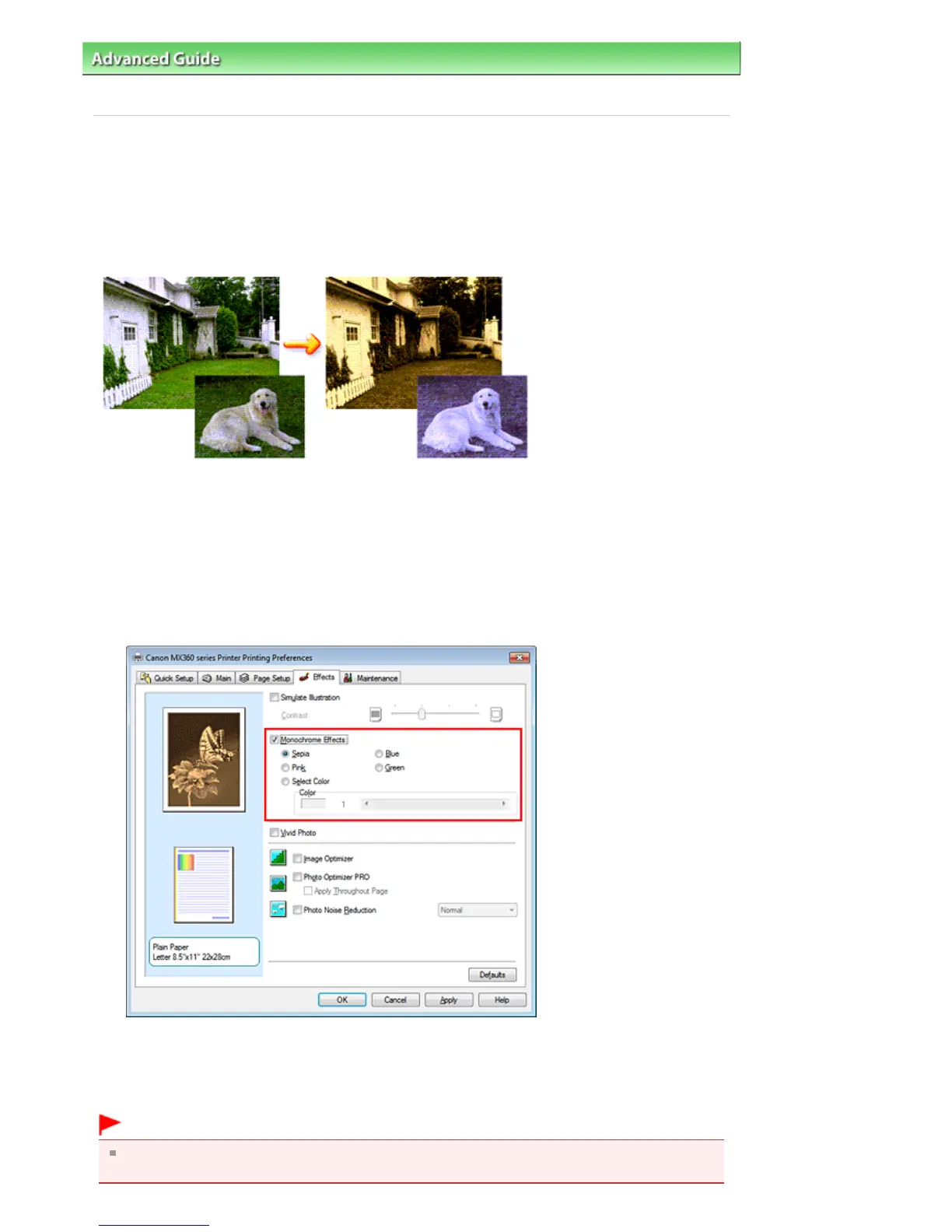
With the Monochrome Effects function, you can benefit from coloring effects such as changing a
photograph to a sepia tone image.
The procedure for performing Monochrome Effects is as follows:
1.
Open the
printer driver setup window
2.
Set Monochrome Effects
Check the Monochrome Effects check box on the Effects tab and select your desired color.
When you use Select Color, move the Color slider to specify the color you want.
The current settings are displayed in the settings preview on the left side of the printer driver.
3.
Complete the setup
Click OK.
When you execute print, the image will be printed with a single color.
Important
When the Grayscale Printing check box on the Main tab is checked, Monochrome Effects appears
grayed out and is unavailable.
Seite 330 von 922 SeitenRepresenting Image Data with a Single Color















 To Next Page