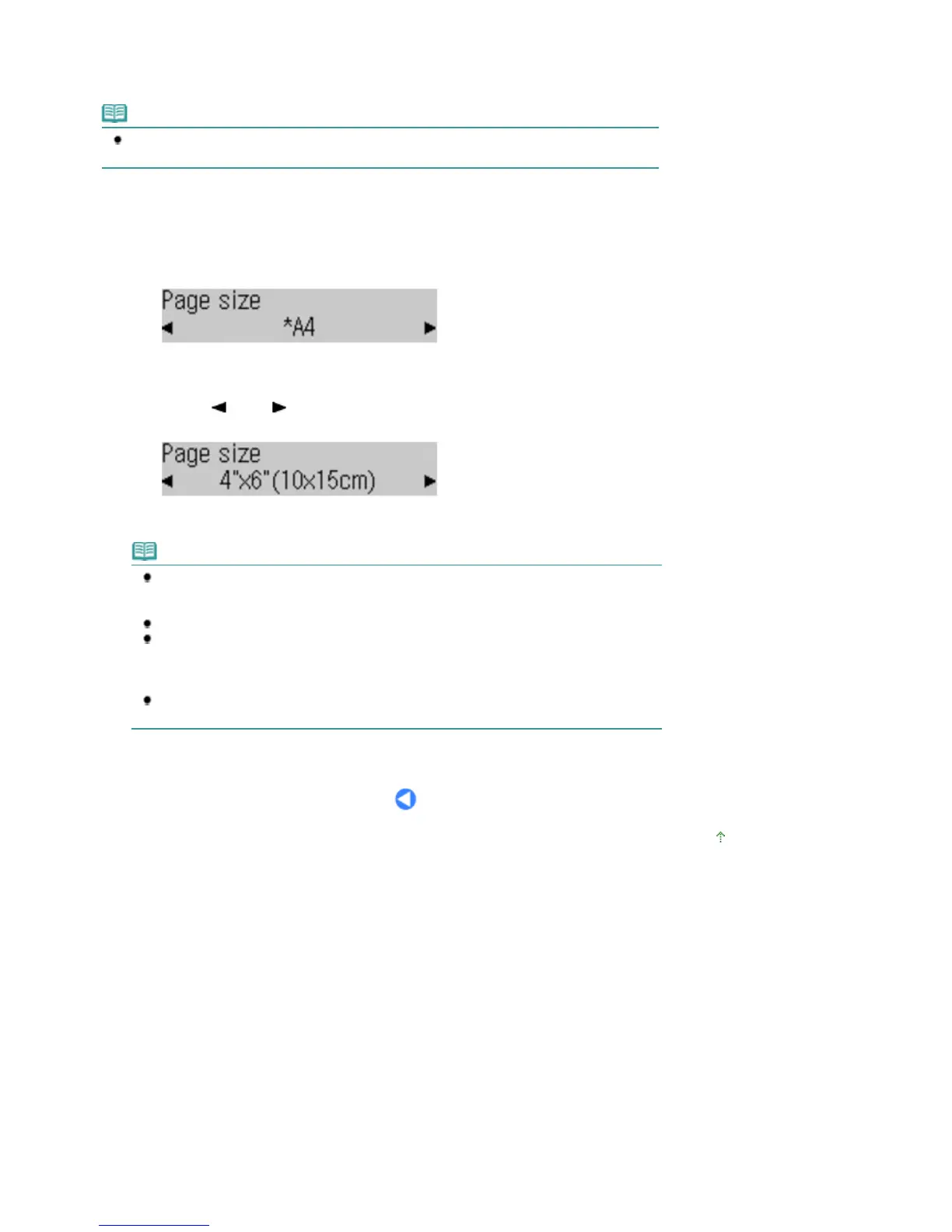
This section describes the procedure to change settings, taking the procedure to specify 4"x6"(10x15cm)
for Page size in the copy mode as an example.
When printing from a computer, see Printing from Your Computer
.
Note
To change the settings used when printing from a PictBridge compliant device or wireless
communication device, refer to the on-screen manual:
.
1.
Display the setting options.
(1)
Press the
COPY
button to switch to the copy mode.
(2)
Press the
Settings
button repeatedly until Page size appears.
2.
Change the setting option.
(1)
Use the
(-) or (+) button to select a page size.
Example: Select 4"x6"(10x15cm) here.
(2)
Press the
OK
button.
Note
To change the settings other than Page size, press the
Settings
button repeatedly until the
desired option appears.
For details on the setting options available by pressing the Settings button
For the settings in the copy mode, see
Changing the Settings
.
For the settings in the fax mode, see Preparing for Receiving a Fax
.
You can also adjust the scan contrast and resolution of sending faxes with the
FAX Quality
button.
For details, see step 2 in Sending a Fax with the Numeric Buttons
.
For details on the settings used for saving scanned data on a computer or a USB flash drive in
the scan mode, refer to the on-screen manual:















 To Next Page