Advanced Guide
>
How to Use This Manual
> Printing This Manual
Printing This Manual
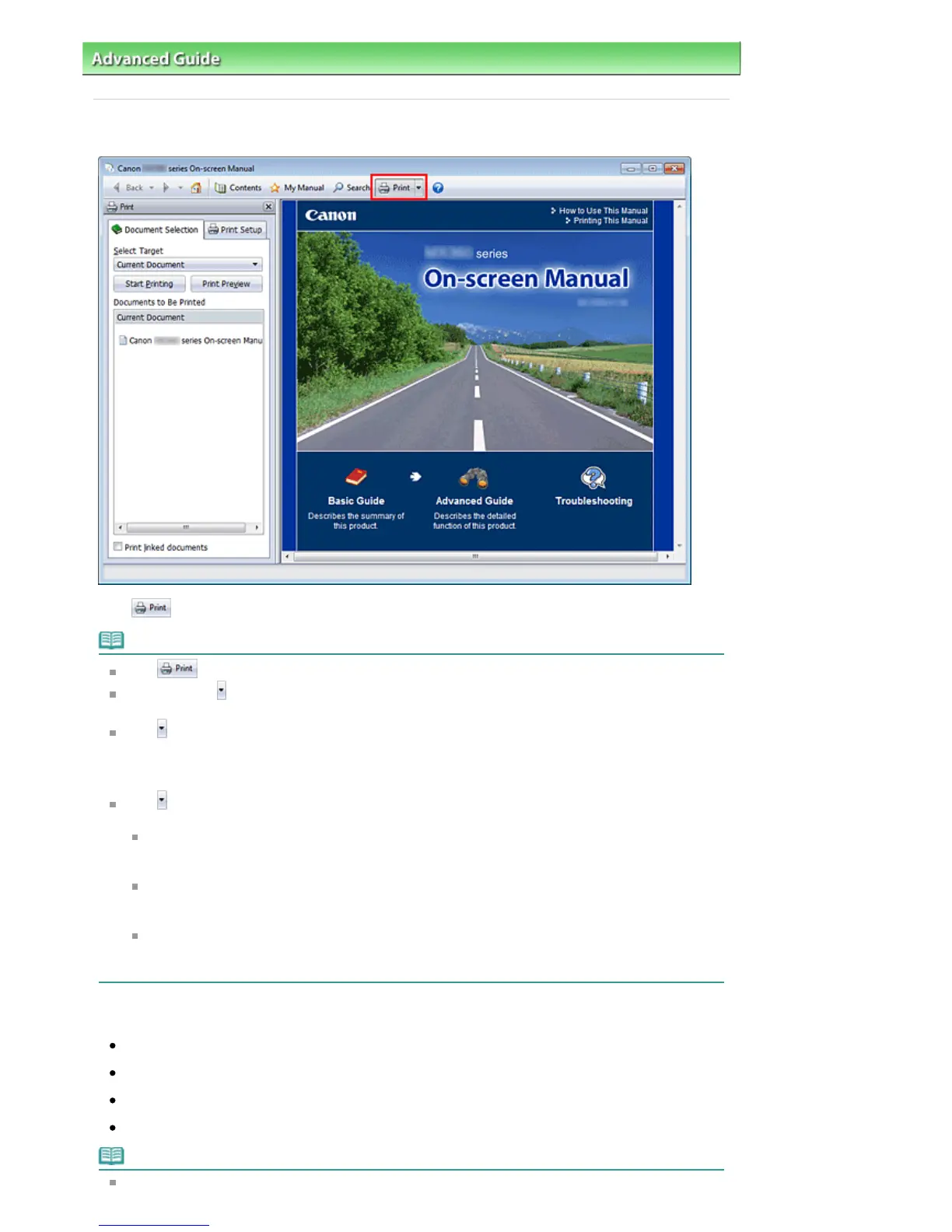
Click to display the print pane to the left of the on-screen manual.
Note
Click to close or display the print pane.
When you click
and then click Page Setup, the Page Setup dialog box appears. You can then
easily set up the paper to be used for printing.
Click , and then click Print Settings to display the Print dialog box. When the dialog box is
displayed, select the printer to be used for printing. The Print Setup tab also allows you to select the
printer to be used.
After selecting the printer to be used, click Properties... to specify the print settings.
Click , and then click Option Settings to display the Option Settings dialog box. You can then set up
the printing operation.
Print document title and page number
When this check box is checked, the manual name and the page number are printed in the
header (top of the document).
Print background color and images
When this check box is checked, the background color and the image are printed. Some
images are printed regardless of whether this check box is checked or not.
Check number of pages to be printed before printing
When this check box is checked, the Print Page Count Confirmation dialog box is displayed
before printing starts. This dialog box allows you to check how many pages will be printed.
On the Document Selection tab, select the method for printing the document. The following four methods
of printing are available:
Print Current Document
Print Selected Documents
Print My Manual
Print All Documents
Note
You can select the type to be printed, and then easily specify print settings on the Print Setup tab.
Seite 132 von 922 SeitenPrinting This Manual















 To Next Page