Advanced Guide
>
Printing from a Computer
>
Printing with the Bundled Application Software
>
Printing
Photos
> Printing
A014
Printing
1.
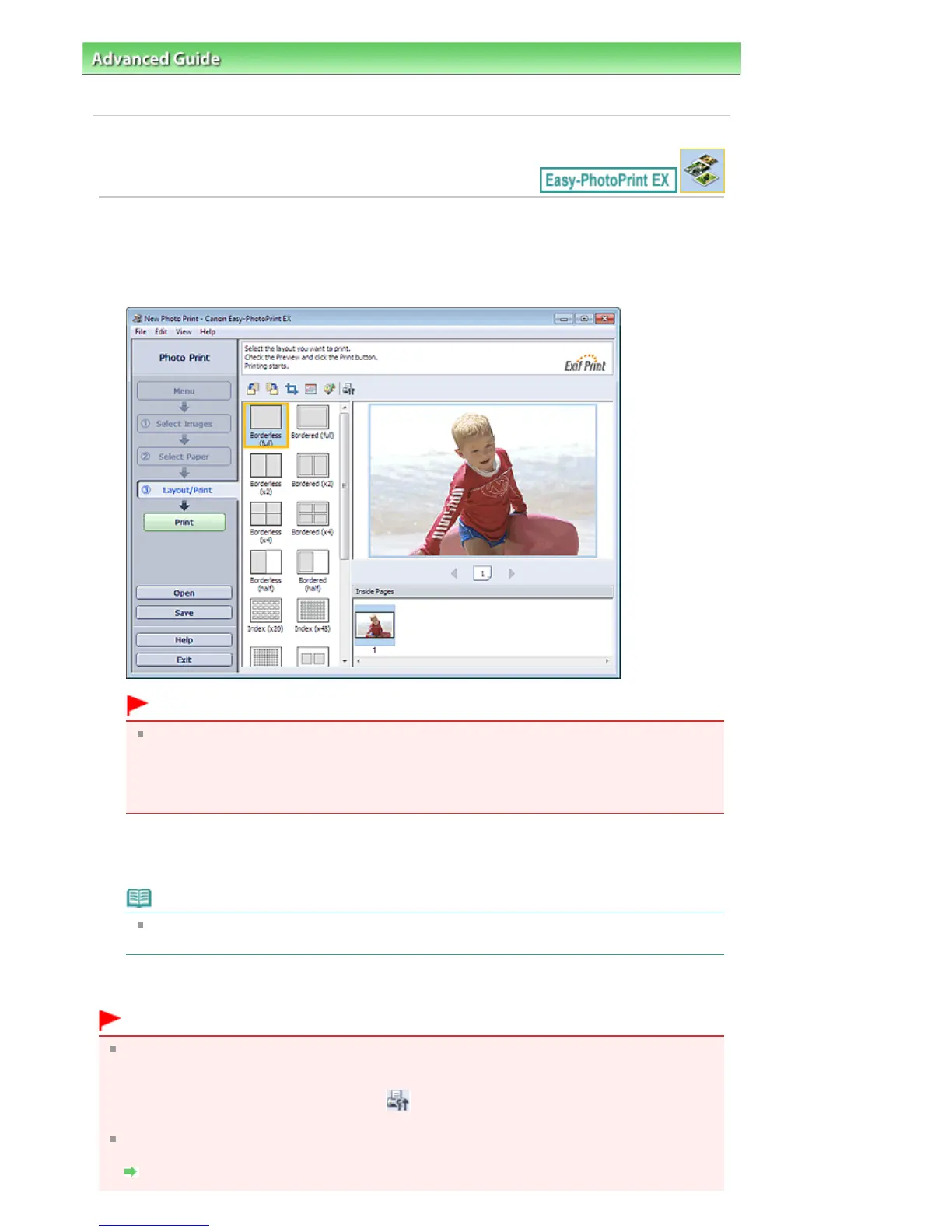
Click Layout/Print.
The Layout/Print screen appears.
Important
The thumbnails (reduced images) displayed in the screen may appear as follows:
- A black line appears along an edge of the image.
- An edge of the image appears cropped.
However, such images will be displayed normally when enlarged or previewed, and print
results will not be affected.
2.
Select a layout you want to use.
Click a borderless layout to print borderless photos.
Note
The layouts that can be selected may vary depending on the printer, paper size, and media
type.
3.
Click Print.
Important
While printing high-resolution images, data may be printed only to the middle if many images are
printed at one time. In such cases, select the Spool print job page by page checkbox in the
Preferences dialog box, and then print again.
To display the Preferences dialog box, click
(Settings) or select Preferences... from the File
menu.
The photo print settings will be discarded if you exit Easy-PhotoPrint EX without saving the settings.
It is recommended that you save the printed image if you want to print it again.
Saving Photos
Seite 152 von 922 SeitenPrinting















 To Next Page