Advanced Guide
>
Printing Using the Operation Panel of the Machine
>
Copying
>
Using Useful Copy
Functions
> Copying Four Pages to Fit onto a Single Page (4-on-1 copy)
U041
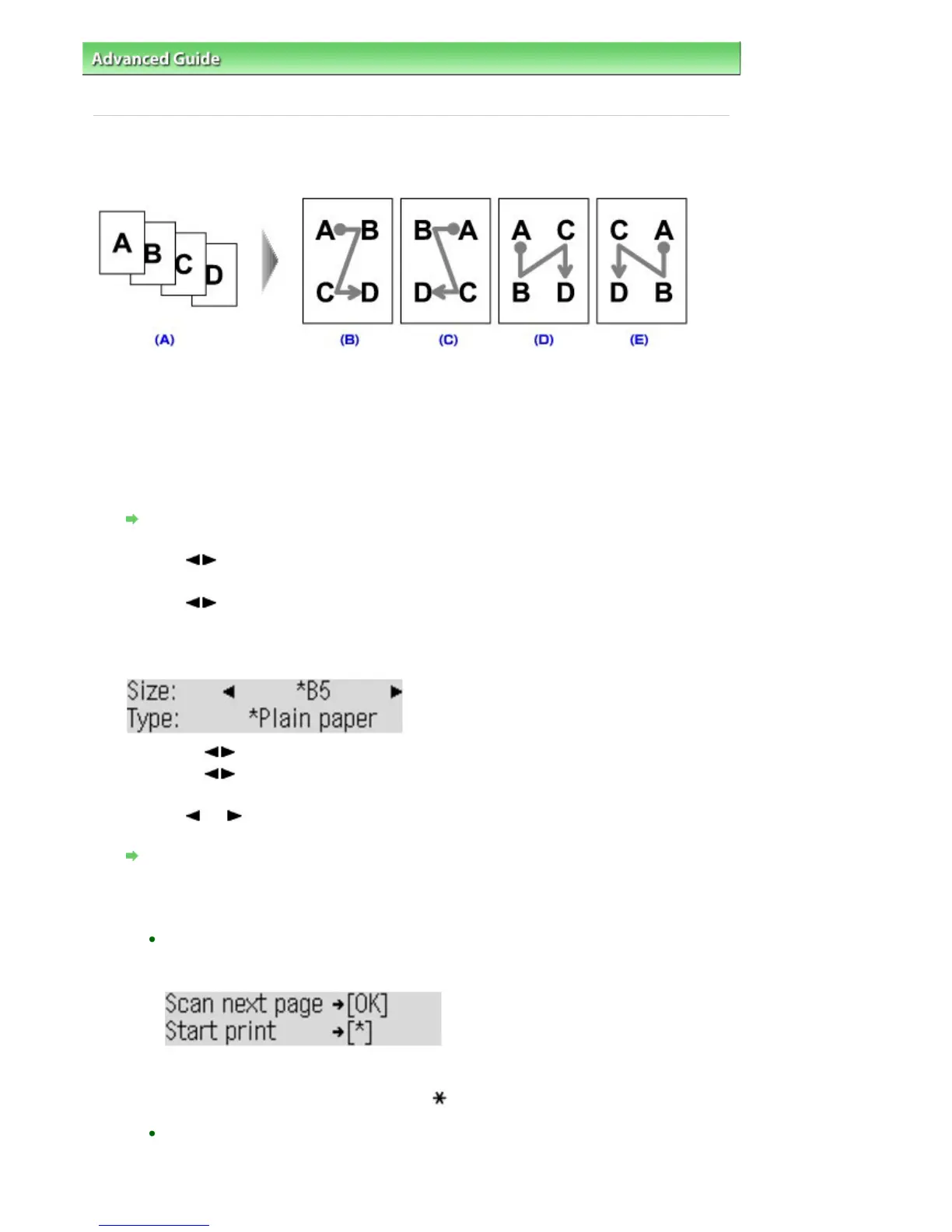
Copying Four Pages to Fit onto a Single Page (4-on-1 copy)
(A) Originals
(B) Layout 1
(C) Layout 2
(D) Layout 3
(E) Layout 4
1.
Display the Special copy screen.
How to Select a Copy Menu
2.
Use the
button to select 4-on-1 copy, then press the
OK
button.
3.
Use the button to specify the layout pattern, then press the
OK
button.
You can select Layout 1, Layout 2, Layout 3, or Layout 4.
If a page size setting or a media type setting that cannot be used in 4-on-1 copying is selected, the
LCD displays the following message.
1.
Use the
button to select the page size, then press the
OK
button.
2.
Use the
button to select the media type, then press the
OK
button.
4.
Use the
(-) (+) button or the Numeric buttons to specify the number of copies.
Change the print settings as necessary.
Setting Items
5.
Press the
Color
button for color copying, or the
Black
button for black & white
copying.
When the document has been loaded on the Platen Glass:
When the machine finishes scanning each sheet from the first to the third document, the
message below is displayed.
If you have the next sheet of document to scan, load it on the Platen Glass and press the
OK
button. The machine starts copying.
If you do not need more scanning, press the button to start copying. The machine starts
copying.
When the document has been loaded in the ADF:
The machine starts scanning the next sheet of document automatically after one sheet of
document finishes being scanned.
Seite 356 von 922 SeitenCopying Four Pages to Fit onto a Single Page (4-on-1 copy)















 To Next Page