Advanced Guide
>
Scanning
>
Scanning with the Bundled Application Software
>
Useful MP Navigator EX
Functions
> Adjusting Images
S406
Adjusting Images
You can make fine adjustments to the overall brightness, contrast, etc. of images.
1.
Scan documents into MP Navigator EX and save them, then open the View & Use
Note
See "
Let's Try Scanning
" to scan images into MP Navigator EX.
You can also select images saved on a computer.
Opening Images Saved on a Computer
2.
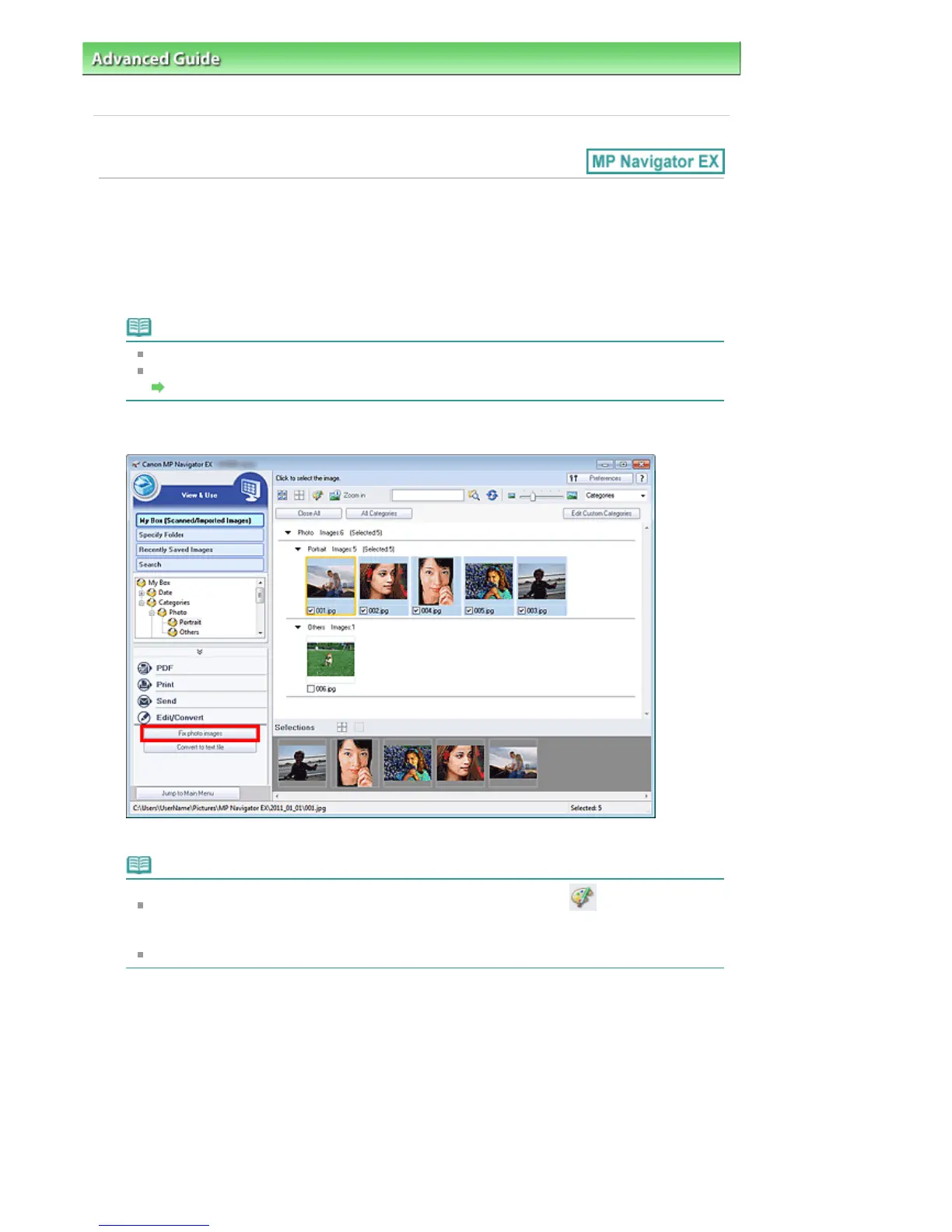
Click Edit/Convert, then click Fix photo images on the list.
The Correct/Enhance Images window opens.
Note
The Correct/Enhance Images window can also be opened by clicking (Image Correction/
Enhancement) on the Toolbar or in the Zoom in dialog box. In that case, only the target image
(outlined in orange) can be corrected/enhanced.
See "
Correct/Enhance Images Window " for details on the Correct/Enhance Images window.
3.
Select the image you want to adjust from the thumbnail list.
The selected image appears in Preview.
Seite 416 von 922 SeitenAdjusting Images















 To Next Page