Important
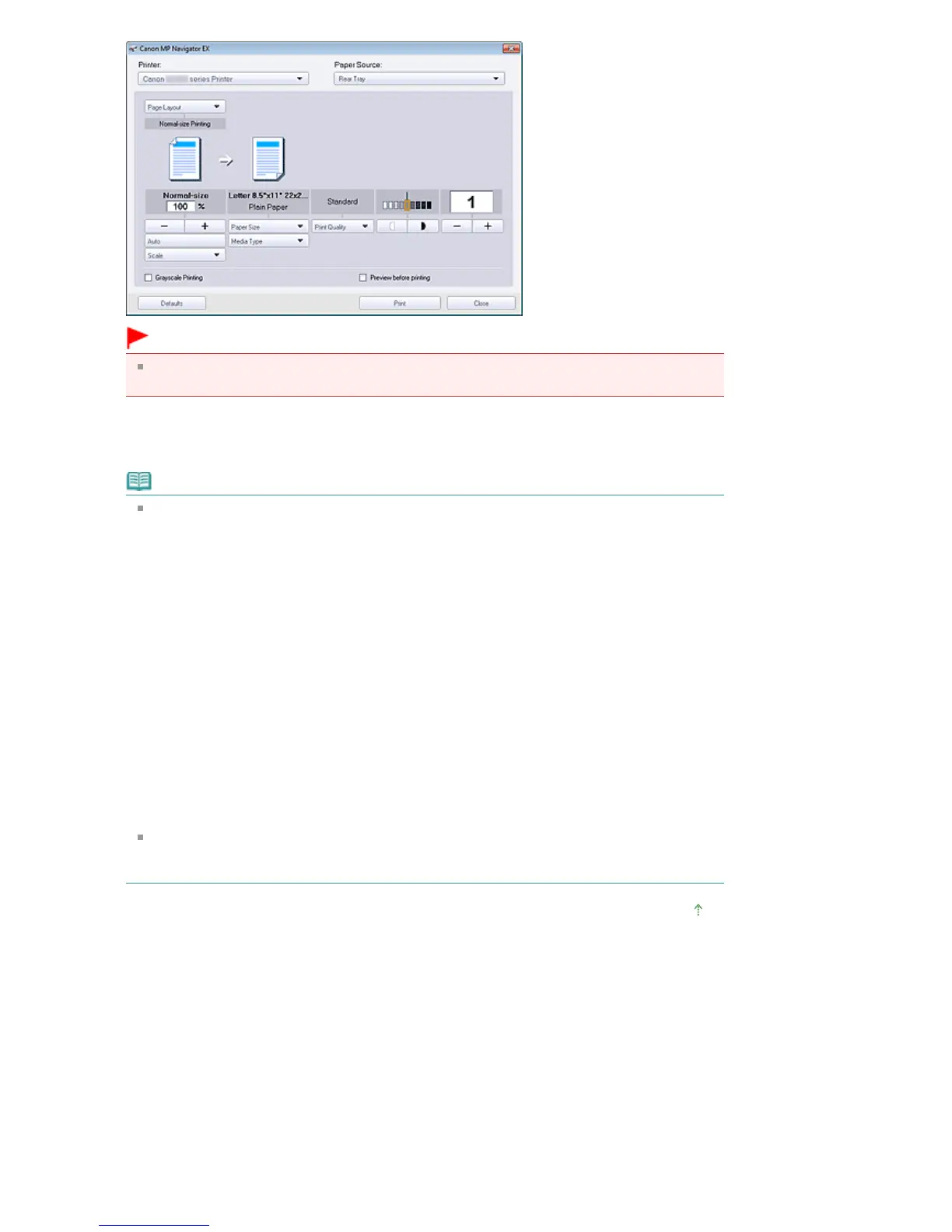
At normal-size (100%), some images may be printed small or with some portions cropped. In
that case, select Auto to resize the print in proportion to the paper size.
4.
Click Print.
Starts printing.
Note
When printing a multiple-page PDF file via Print Document, printing may take time depending
on your computer. In that case, follow these steps and change settings.
Windows 7:
1. From the Start menu, select Devices and Printers.
2. Right-click the icon of your printer and click Printer Properties.
The printer properties dialog box opens.
3. Click the Advanced tab.
4. Select Spool print documents so program finishes printing faster.
5. Select Start printing after last page is spooled.
6. After printing, return the setting on the Advanced tab to Start printing immediately.
Windows Vista/Windows XP:
1. From the Start menu, select Control Panel.
2. Click Printer.
(Windows XP: Click Printers and Other Hardware > Printers and Faxes.)
3. Right-click the icon of your printer and click Properties.
The printer properties dialog box opens.
4. Click the Advanced tab.
5. Select Spool print documents so program finishes printing faster.
6. Select Start printing after last page is spooled.
7. After printing, return the setting on the Advanced tab to Start printing immediately.
To cancel while spooling, click Cancel. To cancel while printing, click Cancel Printing in the
confirmation window for the printer status. To open a confirmation window for the printer status,
click printer icon on the taskbar.
Page top
Seite 433 von 922 SeitenPrinting Documents















 To Next Page