Advanced Guide
>
Scanning
>
Scanning with the Bundled Application Software
>
MP Navigator EX Screens
> Scan/Import Documents or Images Tab
S702
Scan/Import Documents or Images Tab
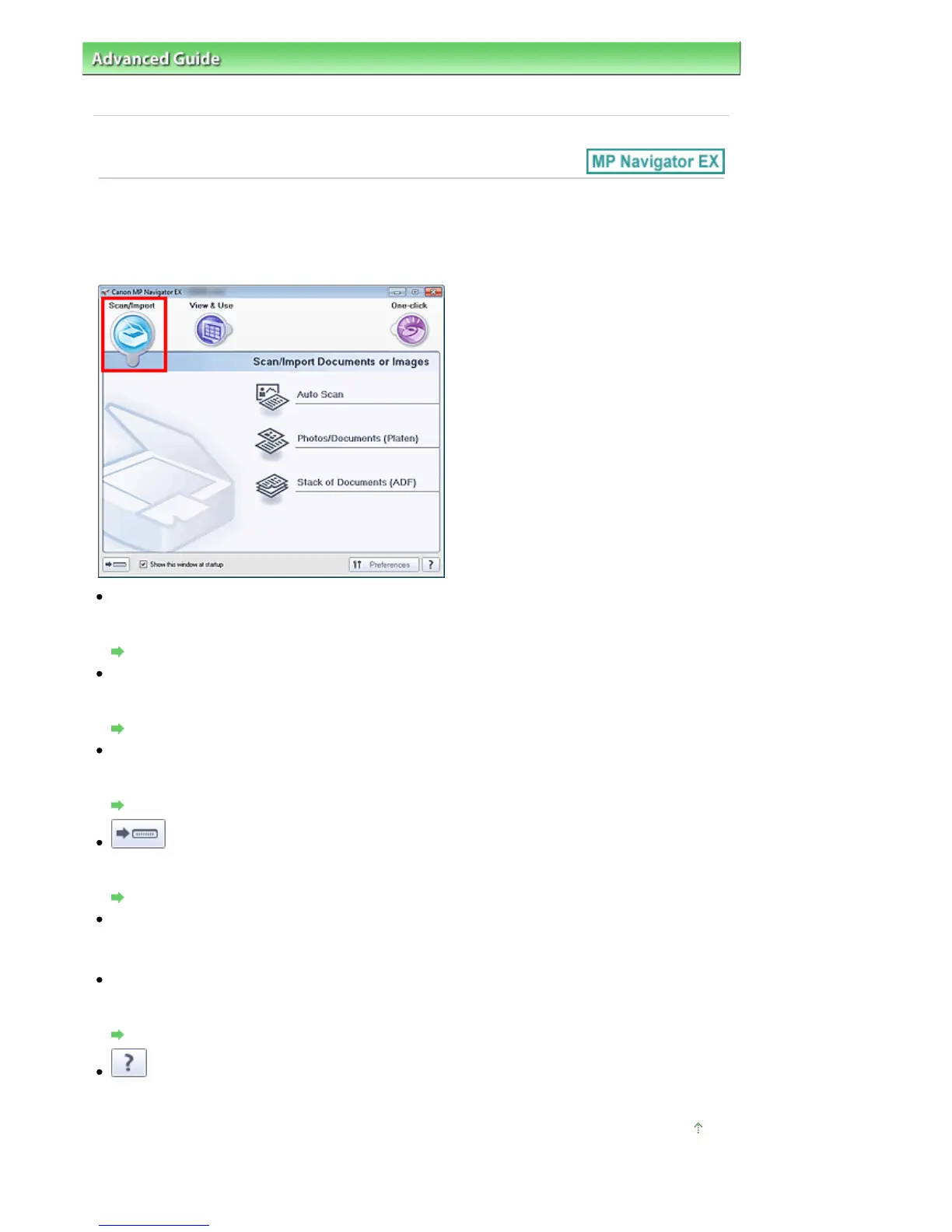
Select Scan/Import in the Navigation Mode screen to display the Scan/Import Documents or Images tab.
You can scan photos and documents.
Auto Scan
Opens the Scan/Import window with Auto Scan selected.
Scan documents easily by automatically detecting the document type.
Auto Scan Screen (Scan/Import Window)
Photos/Documents (Platen)
Opens the Scan/Import window with Photos/Documents (Platen) selected.
Scan photos and documents placed on the Platen.
Photos/Documents (Platen) Screen (Scan/Import Window)
Stack of Documents (ADF)
Opens the Scan/Import window with Stack of Documents (ADF) selected.
Place multiple documents on the ADF (Auto Document Feeder) and scan at one time.
Stack of Documents (ADF) Screen (Scan/Import Window)
(Switch Mode)
Switches to One-click Mode screen. In the One-click Mode screen, you can complete from scanning to
saving, etc. at one time by simply clicking the corresponding icon.
One-click Mode Screen
Show this window at startup
Select this checkbox to open the Main Menu at startup. If this checkbox is not selected, the last used
screen appears.
Preferences
The Preferences dialog box opens. In the Preferences dialog box, you can make advanced settings to
MP Navigator EX functions.
Preferences Dialog Box
(Guide)
Opens this guide.
Page top
Seite 448 von 922 SeitenScan/Import Documents or Images Tab















 To Next Page