(5)
Load an original on the Platen Glass or in the ADF.
See
Loading Originals.
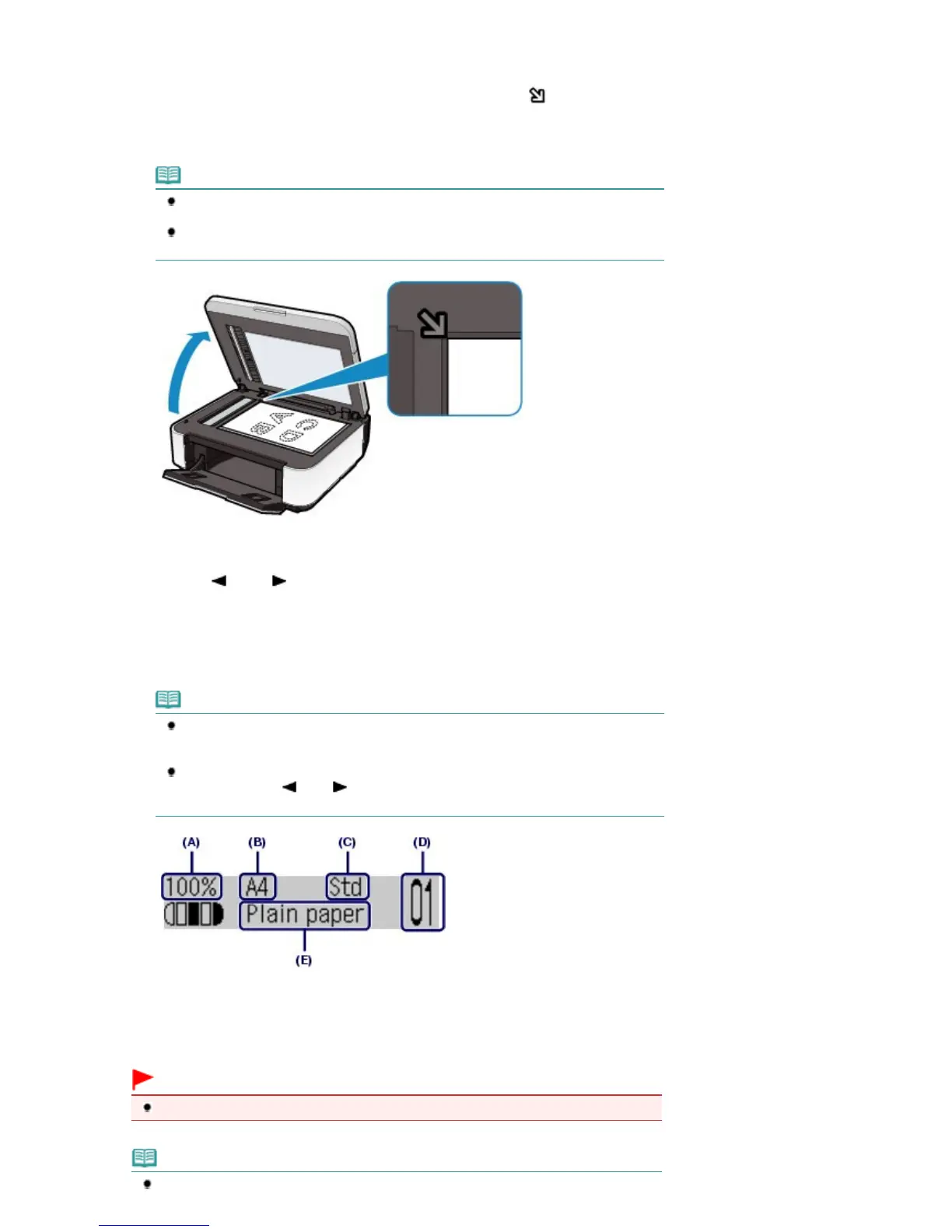
To load the original on the Platen Glass, align it with the alignment mark
WITH THE SIDE TO COPY
FACING DOWN as shown below.
Then close the Document Cover gently.
Note
For details on the types and conditions of the original which can be copied, and how to
load the original in the ADF, see Loading Originals
.
Characters and lines written with a light colored pen or highlight pen may not be copied
properly.
2.
Start copying.
(1)
Use the
(-) or (+) button or the Numeric buttons to specify the number of
copies (D).
(2)
Confirm the page size, media type, and other settings.
Here we confirm that 100% for Enlarge/Reduce (A), A4 for Page size (B), Plain paper for Media type (E),
and Std (Standard) for Image quality (C) are specified.
Note
To change or confirm the page size, media type, or other settings, press the
Settings
button repeatedly until the desired setting item appears.
See
Changing the Settings
.
To make copies in various layout, press the
Menu
button to display the Special copy
menu, and use the
(-) or
(+) button to select the functions.
See
Using Various Copy Functions
.
(3)
Press the
Color
button for color copying, or the
Black
button for black & white
copying.
The machine starts copying.
Remove the original on the Platen Glass or the Document Output Slot after copying is completed.
Important
Do not open the Document Cover or move the loaded original until copying is completed.
Note















 To Next Page