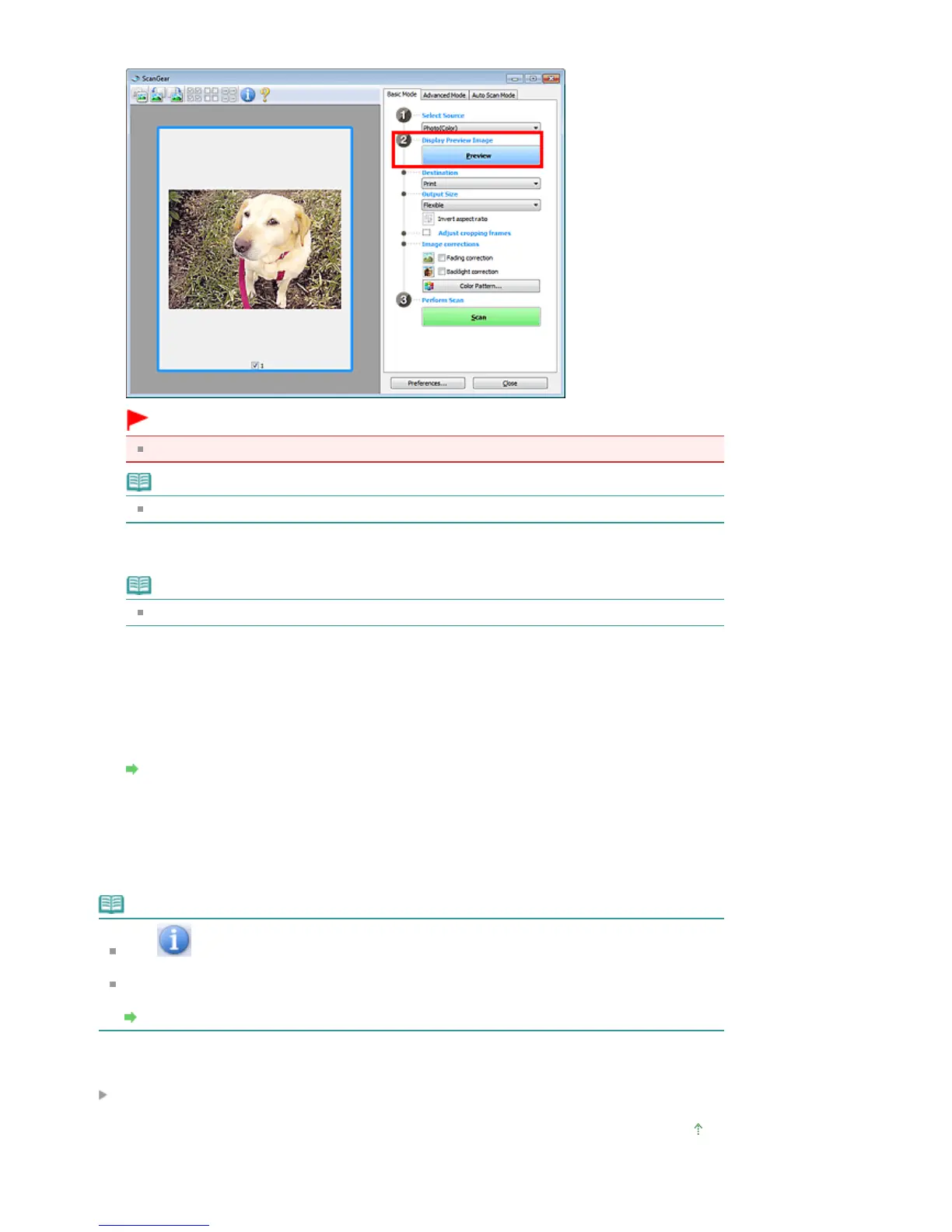
Preview image appears in the Preview area.
Important
Preview is not displayed when an ADF type is selected for Select Source.
Note
Colors are adjusted based on the document type selected in Select Source.
4.
Set Destination.
Note
Skip ahead to Step 7 when an ADF type is selected for Select Source.
5.
Set Output Size.
Output size options vary by the item selected in Destination.
6.
Adjust the size and position of the cropping frame (scan area) on the preview image.
Adjusting Cropping Frames
7.
Set Image corrections as required.
8.
Click Scan.
Starts scanning.
Note
Click (Information) to open a dialog box in which you can check the current scan settings
(document type, etc.).
ScanGear's response after scanning can be specified in Status of ScanGear dialog after scanning
on the Scan tab of the Preferences dialog box.
Scan Tab
Related Topic
Basic Mode Tab
Page top
Seite 546 von 922 SeitenScanning in Basic Mode















 To Next Page