Preview Area
This is where a trial image is displayed after you click Preview. You can also check the results of the
settings (image corrections, color adjustments, etc.) made in "
Settings and Operation Buttons
."
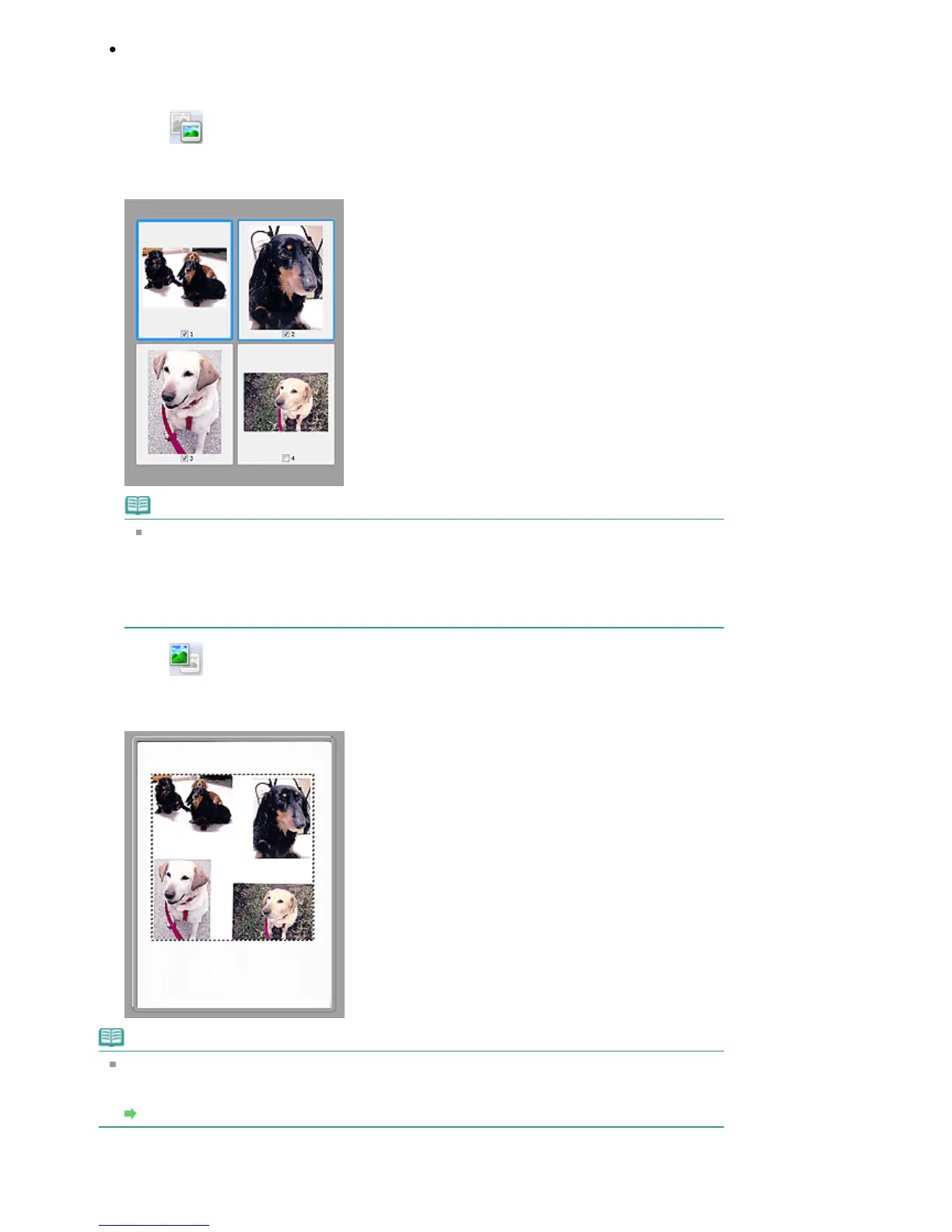
When
(Thumbnail) is displayed on the Toolbar
Thumbnails of images cropped to the document size are displayed. Only the images with the
checkbox selected will be scanned.
Note
When multiple images are previewed, different outlines indicate different selection status.
- Focus Frame (thick blue outline): The displayed settings will be applied.
- Selected Frame (thin blue outline): The settings will be applied to the Focus Frame and
Selected Frames simultaneously. You can select multiple images by clicking them while
pressing the Ctrl key.
- Unselected (no outline): The settings will not be applied.
When
(Whole Image) is displayed on the Toolbar
Items on the Platen are scanned and displayed as a single image. All portions in the cropping
frames will be scanned.
Note
You can specify the scan area (cropping frame) on the displayed image. In thumbnail view, you can
only create one cropping frame per image. In whole image view, you can create multiple cropping
frames.
Adjusting Cropping Frames
Related Topic
Seite 584 von 922 SeitenAdvanced Mode Tab















 To Next Page