Select how to scan the document.
File type
Select a file format from JPEG, BMP, PNG, and TIFF.
Resolution (DPI)
Enter the resolution. Specify a value between 50 dpi and 600 dpi.
Resolution
Brightness
Move the slider to adjust the brightness. Move it to the left to darken and right to brighten the
image. You can also enter a value (-100 to 100).
Contrast
Move the slider to adjust the contrast. Moving it to the left will decrease the contrast of the image,
thus softening the image. Moving it to the right will increase the contrast of the image, thus
sharpening the image. You can also enter a value (-100 to 100).
Preview or scan images as separate files
Select this checkbox to preview or scan multiple images as separate files.
4.
Click Preview to preview the image.
The preview image appears on the right.
5.
Click Scan.
When scanning is completed, the scanned image appears in the application.
Scanning with WIA Driver 1.0
The following is an example of scanning using "Paint."
1.
Place the document on the Platen or ADF.
Placing Documents
2.
Click From scanner or camera from . (Select the command to scan a
document in the application.)
3.
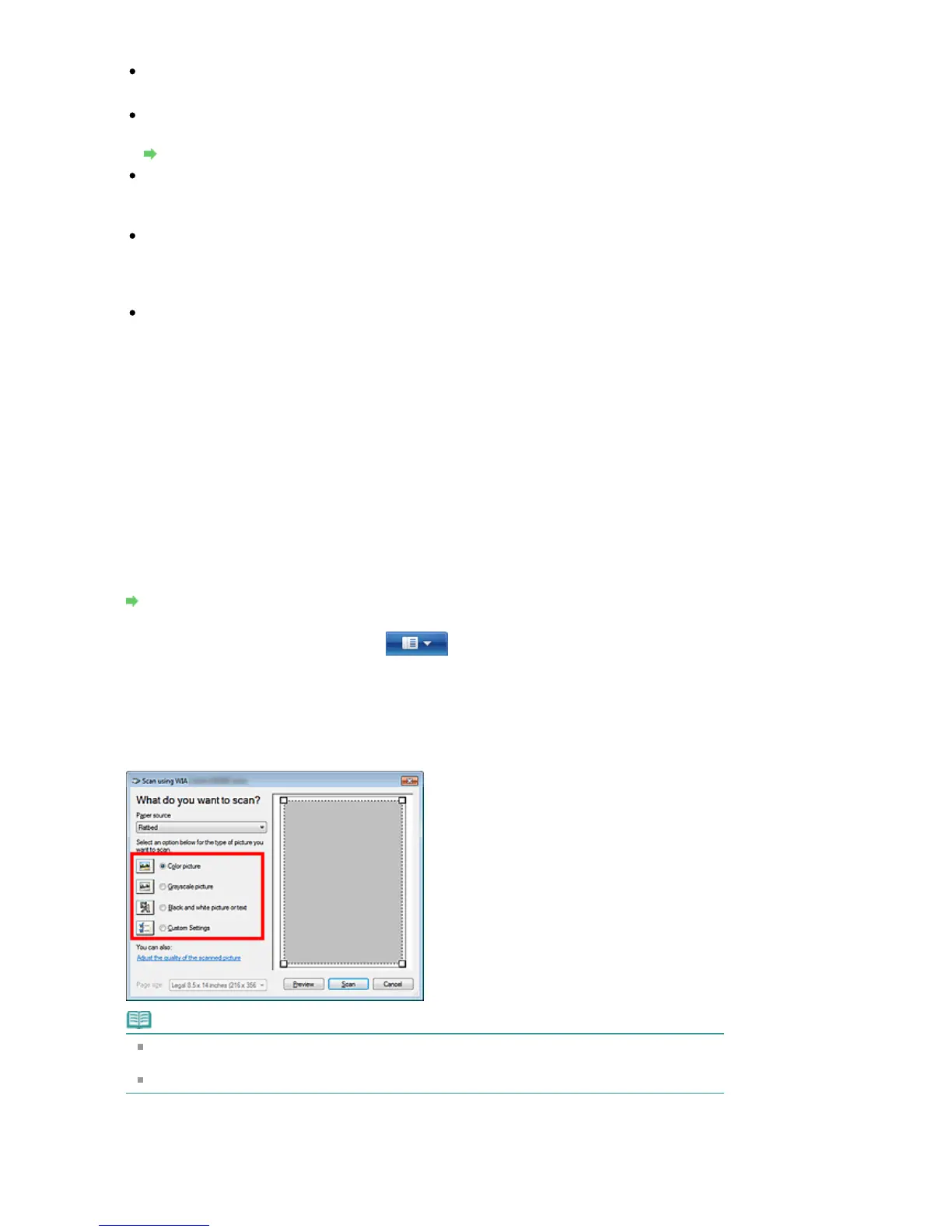
Select an image type according to the document to be scanned.
To scan from the Platen, select Flatbed for Paper source. To scan from the ADF, select Document
Feeder.
Note
To scan with the values previously set in Adjust the quality of the scanned picture, select
Custom Settings.
Selecting Document Feeder for Paper source enables you to select Page size.
4.
Click Adjust the quality of the scanned picture and set the preferences as required.
Seite 617 von 922 SeitenScanning with WIA Driver















 To Next Page