Advanced Guide
>
Faxing
>
Sending Faxes Using the Operation Panel of the Machine
> Sending a Fax
Using the Speed Dialing Feature
F009
Sending a Fax Using the Speed Dialing Feature
Registering recipient's fax/telephone number and name for coded speed dial or group dial enables you
to send faxes easily.
Important
It may be possible that faxes will reach unintended recipients due to the misdialing or incorrect
registration of fax/telephone numbers. When you send important documents, it is recommended
that you send them after speaking on the telephone. For details, see Sending a Fax after Speaking
on Telephone
.
1.
Make sure that the machine is turned on.
2.
Press the
FAX
button.
The Fax standby screen is displayed.
3.
Load documents on the Platen Glass or in the ADF.
4.
Note
For details on how to adjust the scan contrast and resolution, refer to
Faxing
.
5.
Press the
Coded Dial
button.
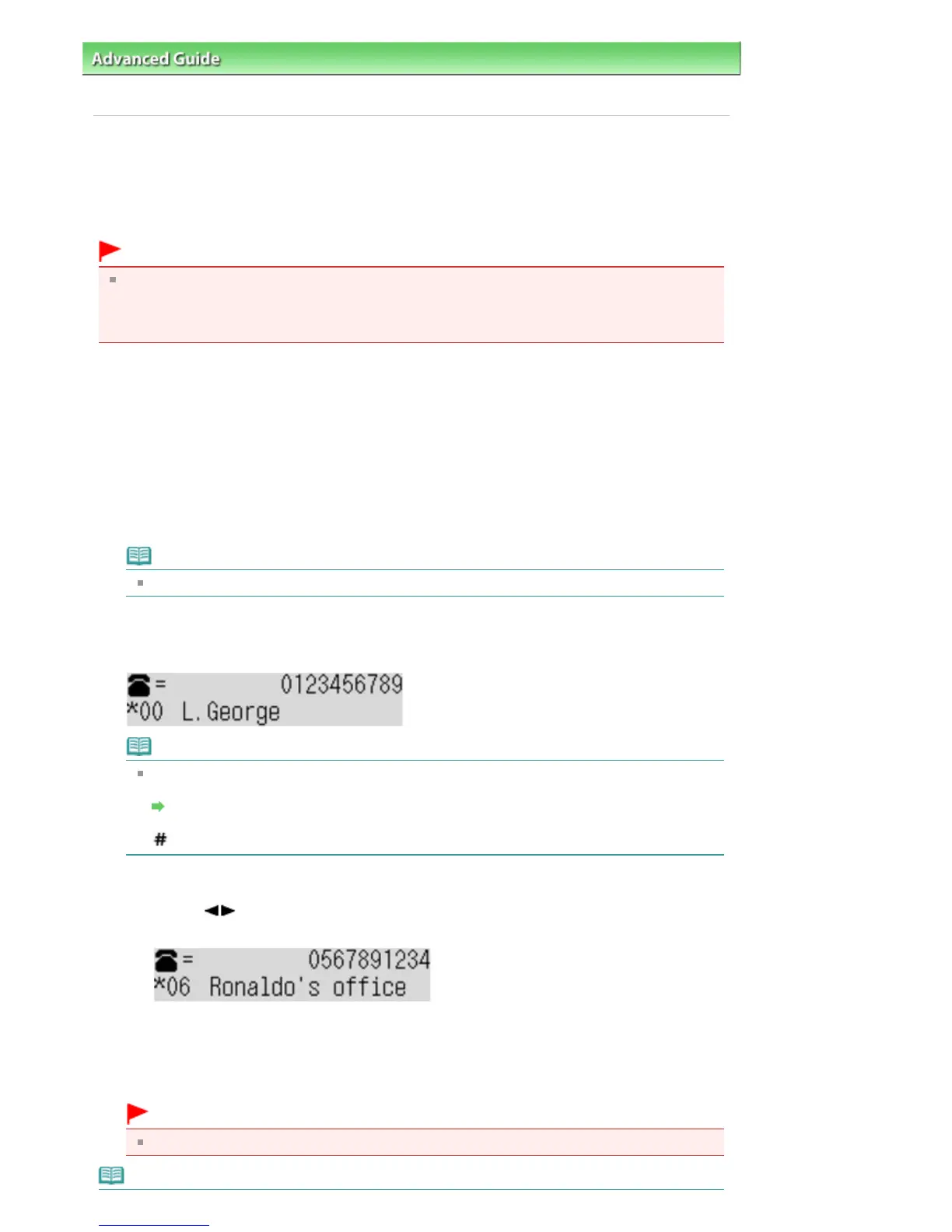
The screen to select a coded speed dial code or a group dial code is displayed.
Note
When Enter first letter is displayed on the LCD, you can search the recipient's name by sorting
in alphabetical order and send the fax.
Searching a Registered Recipient by Name
To return to the screen to select the coded speed dial code or the group dial code, press the
button.
6.
Select a coded speed dial code or a group dial code.
1.
Use the
button or the Numeric buttons to select a coded speed dial code or a group dial
code.
2.
Press the
OK
button.
7.
Press the
Color
button for color transmission, or the
Black
button for black & white
transmission.
Important
Color transmission is available only when the recipient's fax machine supports color faxing.
Note
Seite 626 von 922 SeitenSending a Fax Using the Speed Dialing Feature















 To Next Page