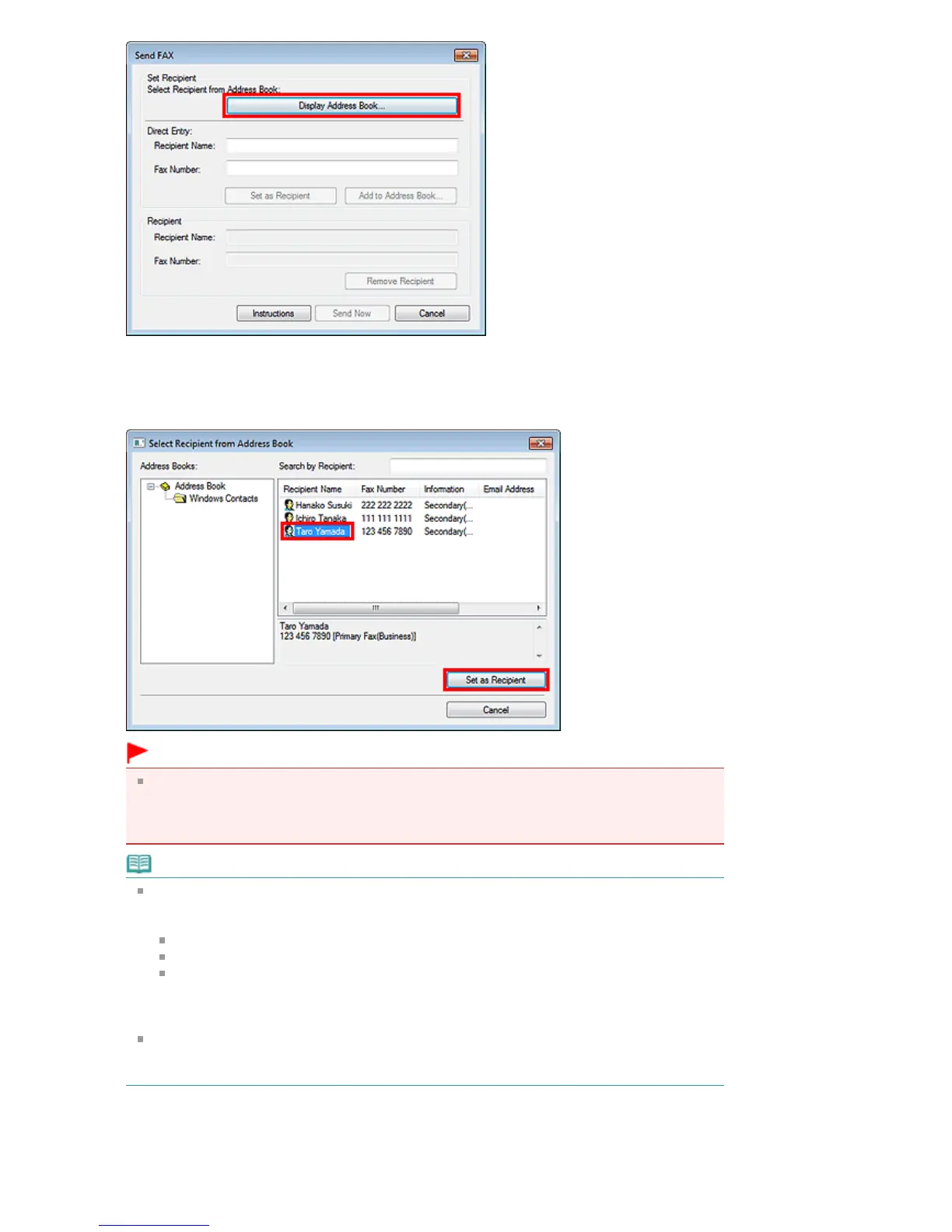
5.
Select a recipient from Recipient Name in the Select Recipient from Address Book
dialog box, then click Set as Recipient.
The selected recipient is reflected in Recipient in the Send Fax dialog box.
Important
You cannot specify a recipient if there is no recipient registered in the address book. Register
the recipient in the address book and reopen the address book, or enter the recipient directly in
Direct Entry.
For details on how to register recipients in the address book, see "
Creating an Address Book
."
Note
You can also specify Send Now by entering a recipient as follows:
Enter the Recipient Name and Fax Number in Direct Entry in the Send Fax dialog box, then click
Set as Recipient.
For details on valid characters, see "
General Notes (Fax Driver)
."
You can send faxes even if only the Fax Number is entered.
You can register the recipient you entered to the address book by clicking Add to Address
Book....
For details on how to register recipients in the address book, see " Creating an Address
Book
."
Add the outside line access number before the fax number as needed.
(Example: When the outside line access number is "0" and the fax number is "XXX-XXXX", enter
"0XXX-XXXX".)
6.
Click Send Now.
When a confirmation message is displayed, click OK.
Seite 696 von 922 SeitenSending a FAX















 To Next Page