Advanced Guide
>
Faxing
>
Sending Faxes from a Computer > Creating an Address Book
T002
Creating an Address Book
By using the address book, you can send a fax by simply specifying a recipient from it. You can register
the recipient's name, fax number and other information in the address book.
Registering a recipient (WAB contact) in the address book
You can register an individual recipient (Contact) in the address book.
1.
From the Start menu, navigate as follows:
Windows 7:
From the Start menu, select Control Panel > Hardware and Sound > Devices and Printers.
Windows Vista:
From the Start menu, select Control Panel > Hardware and Sound > Printers.
Windows XP:
From the Start menu, select Control Panel > Printers and Other Hardware > Printers and Faxes.
2.
Right-click the printer icon for Canon XXX series FAX (where "XXX" is the model
name), then click Printing Preferences.
3.
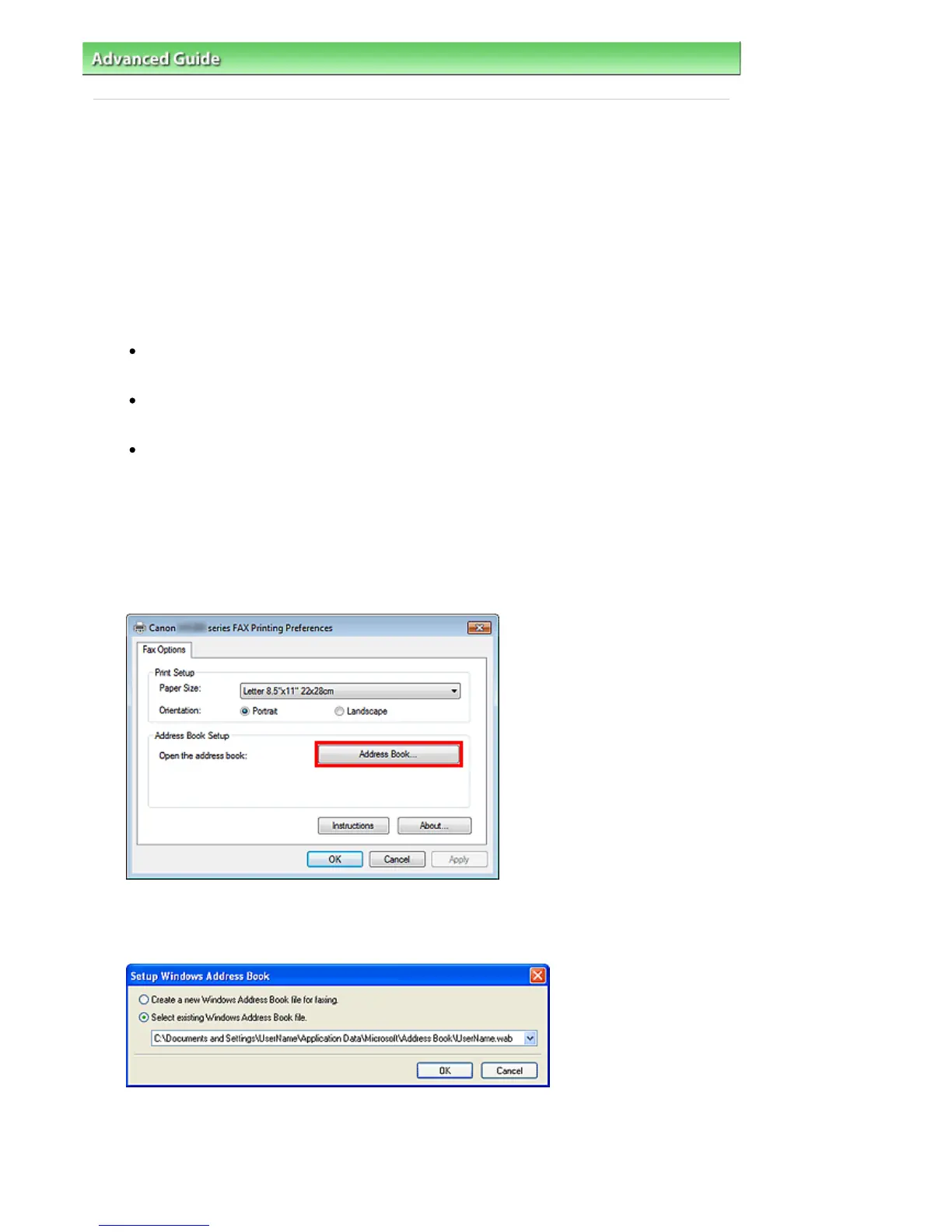
In the Canon XXX series FAX Printing Preferences (where "XXX" is the model name)
dialog box, click Address Book....
Opening the address book for the First Time (Windows XP)
In Windows XP, when you open the address book for the first time, the Setup Windows Address
Book dialog box will be displayed.
Creating a New Windows Address Book (WAB File) Exclusively for Faxing
Select Create a new Windows Address Book file for faxing., then click OK.
You can also change the setting later so as to be able to use another address book.
Seite 698 von 922 SeitenCreating an Address Book















 To Next Page