Note
For faxing, you can only specify the Contact (one recipient). You cannot specify a Distribution
List.
6.
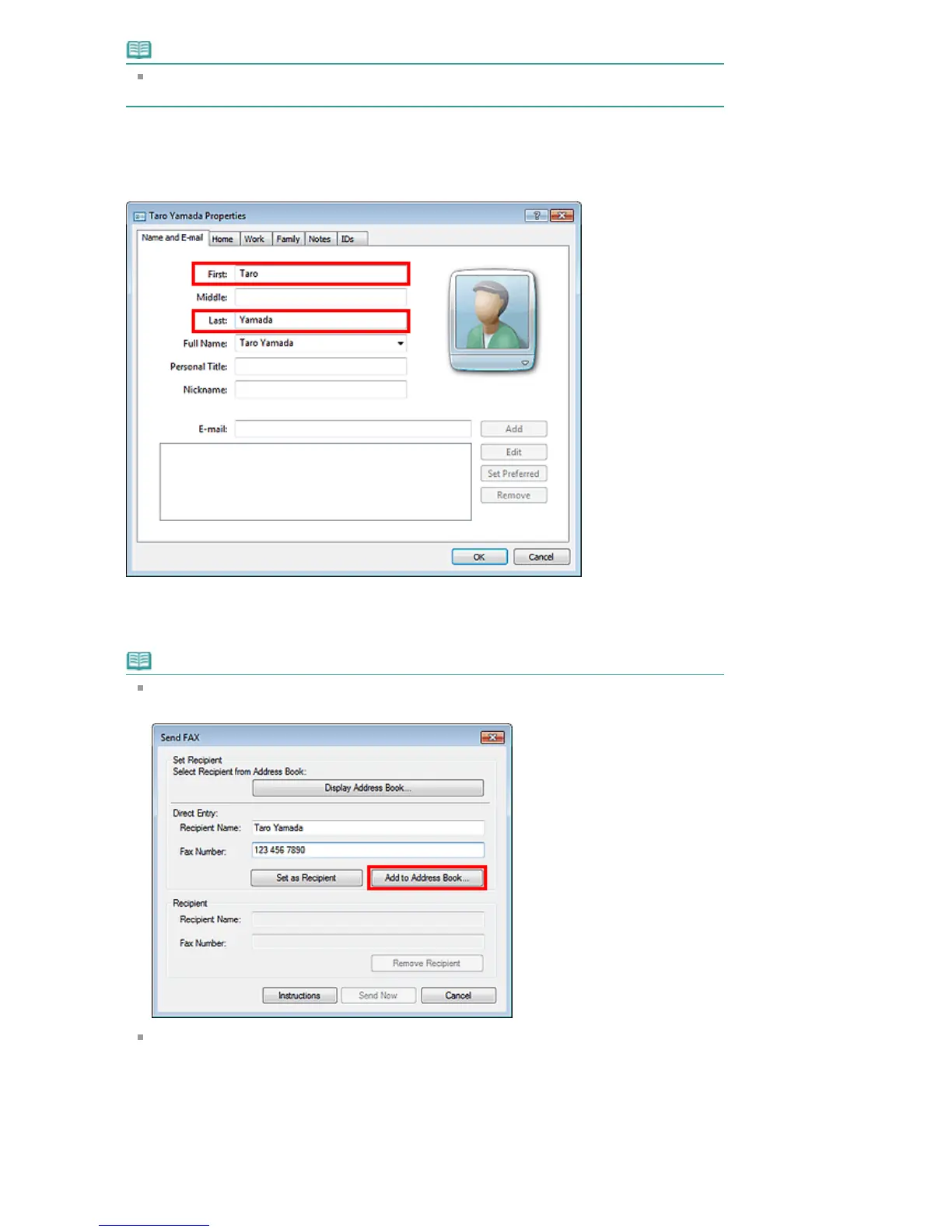
Enter the First, Middle, and Last of the contact in the Name and E-mail tab (Name
tab when using Windows XP) on the Properties screen.
The recipient's name will be printed at the top of the fax received by the recipient.
7.
Enter the fax number on the Home or Work tab, then click OK.
An individual recipient (Contact) is registered in the address book.
Note
You can also register a recipient by clicking the Add to Address Book... button on the Send Fax
dialog box after entering the recipient.
If you upgrade from Windows XP to Windows Vista, the address book you created in Windows
XP may not be reflected in Windows Vista. In this case, open the address book in the following
procedure and reflect the information to a new address book.
1. On the Windows taskbar, click the Start button, then click Control Panel > Appearance and
Personalization > Folder Options.
2. Click the View tab of the Folder Options dialog box, select Show hidden files and folders in
Advanced settings, then click OK.
3. On the Windows taskbar, click the Start button, click XXXX (user name), then double-click
AppData > Roaming > Canon > MP5 to open the folder.
Seite 700 von 922 SeitenCreating an Address Book















 To Next Page