Advanced Guide
>
Printing from a Digital Camera or a Mobile Phone
>
Printing from a Mobile Phone
>
Printing from a Mobile Phone via Bluetooth Communication
U057
Printing from a Mobile Phone via Bluetooth Communication
This section describes the procedure to print photos through Bluetooth communication from a mobile
phone with the optional Bluetooth Unit BU-30.
When printing from a mobile phone through Bluetooth communication, refer also to your mobile phone's
instruction manual.
For the procedure to print through Bluetooth communication from the computer, refer to
About Bluetooth
Communication
.
Note
Mobile phones supporting OPP (Object Push Profile) or BIP (Basic Imaging Profile) can be used to
print photos.
Depending on your mobile phone, you may not perform printing even if your mobile phone supports
the profiles above. For information on the profiles your mobile phone supports, refer to your mobile
phone's instruction manual.
1.
Make sure that the machine is turned on.
2.
Load paper.
3.
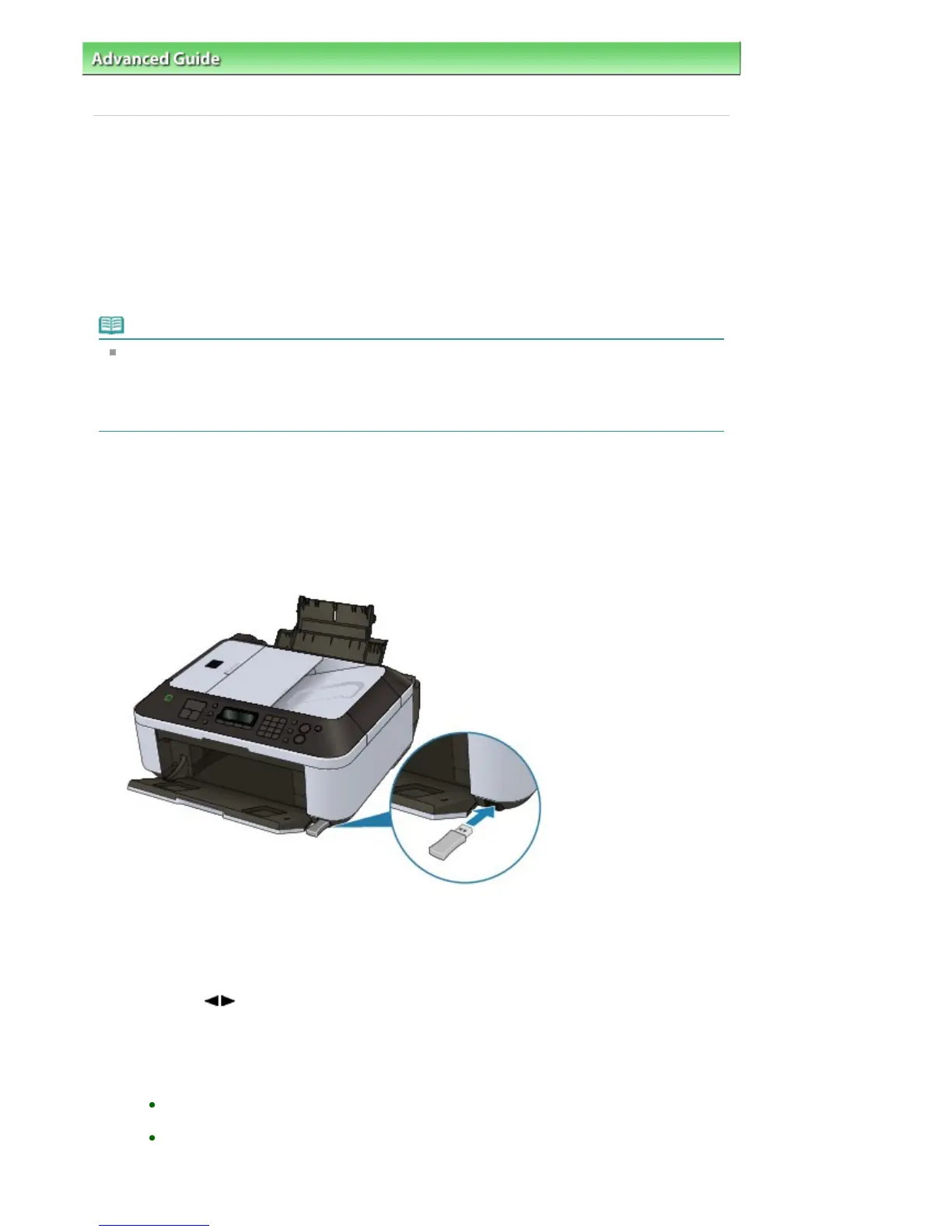
Attach the optional Bluetooth Unit BU-30.
Insert the Bluetooth Unit BU-30 into the Direct Print Port.
4.
Set the page size and layout.
You can change the print settings from Mobile phone settings when printing from a mobile phone
through Bluetooth communication.
1.
Press the
Menu
button repeatedly until Device settings appears.
2.
Use the
button to select Mobile phone settings, then press the
OK
button.
The setting items when printing from a mobile phone through Bluetooth communication are
displayed. For the setting items, see
Mobile phone settings
.
5.
Start printing from a mobile phone.
For the device name, select the default value "Canon XXX-1" (where "XXX" is your machine's
name).
If you are required to input a passkey, input the default value "0000".
You can change the device name of the machine, passkey, and so on from the Bluetooth
settings screen.
Seite 714 von 922 SeitenPrinting from a Mobile Phone via Bluetooth Communication















 To Next Page