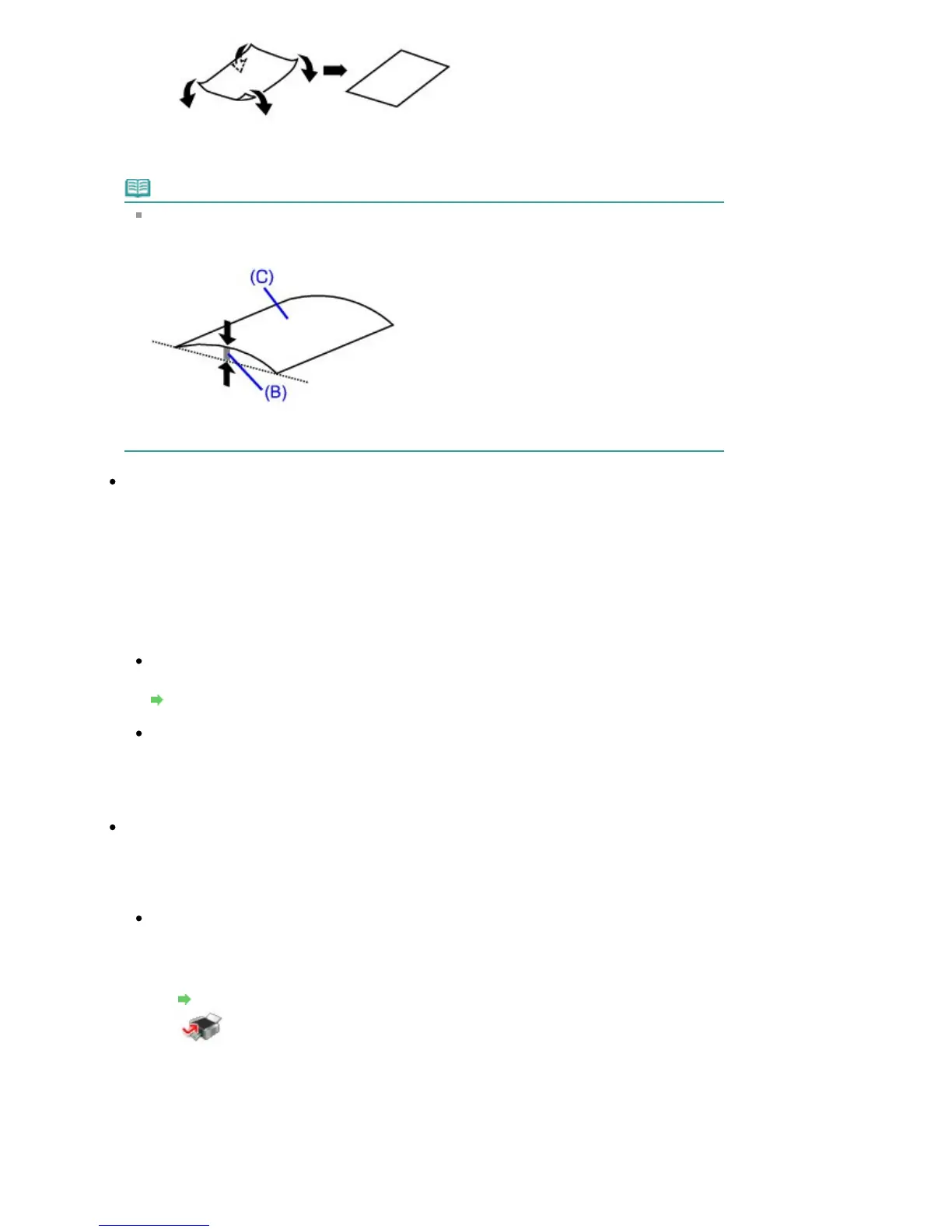
2.
Check that the paper is now flat.
We recommend printing curl-corrected paper one sheet at a time.
Note
Depending on the media type, the paper may be smudged or may not be fed properly even if it
is not curled inward. In such cases, follow the procedure described below to curl the paper
outward within 0.1 inch / 3 mm (B) in height before printing. This may improve the print result.
(C) Printing side
We recommend printing paper that has been curled outward one sheet at a time.
Check 4: If you are printing on thick paper, select the Prevent paper
abrasion setting.
Selecting the Prevent paper abrasion setting will widen the clearance between the Print Head and
the loaded paper. If you notice abrasion even with the media type set correctly to match the loaded
paper, set the machine to prevent paper abrasion by using the Operation Panel or the computer.
Print speed may be reduced if you are selecting the Prevent paper abrasion setting.
* Deactivate the Prevent paper abrasion setting once printing is complete. If not, this setting remains
enabled for all subsequent print jobs.
To set by using the Operation Panel
Set Prevent abrasion in Print settings under Device settings to ON.
Changing the Machine Settings on the LCD
To set by using your computer
Open the printer driver setup window, and in Custom Settings in the Maintenance sheet, select
the Prevent paper abrasion check box, and then click OK.
To open the printer driver setup window, see Opening the Printer Driver Setup Window
.
Check 5: If the intensity is set high, reduce the Intensity setting in the
printer driver and try printing again.
If you are using plain paper to print images with high intensity, the paper may absorb too much ink
and become wavy, causing paper abrasion.
When printing from your computer
Reduce the Intensity setting in the printer driver and try printing again.
1.
Open the printer driver setup window.
Opening the Printer Driver Setup Window
Click Here:
Printer Driver
* Before clicking here to open the printer driver setup window, quit the running application
software.
2.
On the Main sheet, select Manual for Color/Intensity, and then click Set.
3.
Drag the Intensity slide bar on the Color Adjustment sheet to adjust the
intensity.
Seite 826 von 922 SeitenPaper Is Smudged/Printed Surface Is Scratched















 To Next Page